A Practical Step-by-Step Guide
Many businesses spend valuable time on repetitive tasks such as entering customer information, updating spreadsheets, managing leads, sending notifications, and organizing support requests. Performing these activities manually can slow down operations, create unnecessary administrative work, and increase the risk of errors.
n8n business automation offers a practical way to connect existing applications and automate routine processes through visual workflows. Instead of transferring information between different tools manually, you can configure n8n to perform specific actions automatically when an event occurs.
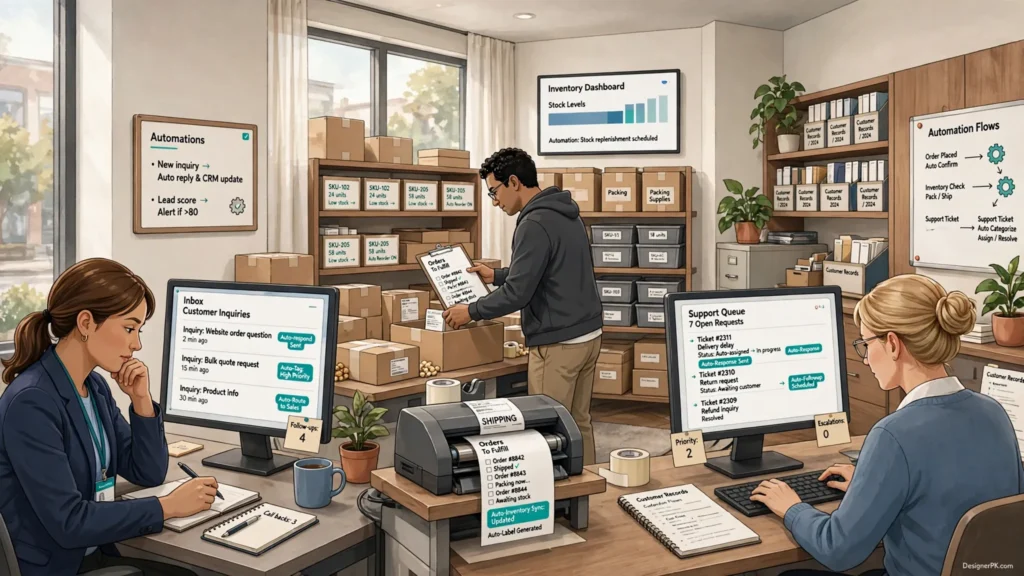
In this guide, I’ll explain how to automate business tasks with n8n, explore practical workflow examples, and walk you through building a business automation workflow. You’ll also learn how to configure integrations, test executions, handle errors, compare deployment costs, and protect business information.
Quick Answer: How to Automate Business Tasks with n8n
You can automate business tasks with n8n by building workflows that connect applications and perform predefined actions when specific events occur.
A typical automation process involves:
- Identify a repetitive business task.
- Choose a trigger, such as a website form submission or scheduled event.
- Connect the applications involved in the process.
- Configure workflow nodes to transfer or process information.
- Add conditions and data validation where necessary.
- Test the workflow with sample data.
- Activate the workflow and monitor its executions.
For example, when someone submits a contact form, n8n can capture the inquiry, validate the submitted information, create a CRM record, and notify your sales team. This creates a more consistent lead management process without requiring employees to enter the same information manually.
What Is n8n and How Does Business Automation Work?
n8n is a workflow automation platform that connects applications, APIs, databases, and AI services through configurable workflows.
Rather than manually transferring information between systems, you can configure n8n to perform actions in response to application events, scheduled triggers, or predefined conditions.
For example, when a potential customer submits a website inquiry, an n8n workflow can receive the form data, validate required fields, create a CRM record, and notify your sales team.
n8n supports integrations with applications such as Google Sheets, Gmail, Slack, Airtable, and various CRM platforms. If a suitable built-in integration isn’t available, you can often connect the application through its API using an HTTP Request node.
Explore the official n8n integrations directory to see the available connections.
Understanding the Main Components of an n8n Workflow
Before creating your first automation, it’s useful to understand five fundamental workflow components.
1. Triggers
A trigger determines when a workflow starts. It can respond to an application event, an incoming webhook request, or a scheduled time.
Common examples include:
- Webhook triggers: Start a workflow when another application sends data to an n8n webhook URL.
- Schedule triggers: Run workflows at specified times or recurring intervals.
- Application triggers: Start workflows when supported events occur in connected applications.
2. Nodes and Actions
Nodes are the individual building blocks of an n8n workflow. Each node performs a specific operation, such as retrieving customer information, sending an email, updating a spreadsheet, or making an API request.
For example, a lead management workflow might use a Webhook node to receive customer information, a CRM node to create a contact, and an email node to notify the sales team.
3. Conditions and Logic
Conditions allow workflows to make decisions based on incoming information.
For instance, a business can route website inquiries to different departments based on the requested service. Development inquiries can go to the development team, while automation inquiries are directed to the automation team.
n8n provides conditional logic and workflow operations that support these decision-making processes.
4. Data Flow
Data flow describes how information moves between workflow nodes. Each node receives information from an earlier step, processes it, and passes its output to subsequent steps.
For example, a website form might collect a customer’s name, email address, phone number, and service requirement. n8n can map these values to the corresponding CRM fields and reuse them in internal notifications.
Accurate data mapping is particularly important when connecting applications that use different field names or data formats.
For more advanced requirements, explore our AI workflow development and custom API integration solutions.
n8n Cloud vs. Self-Hosted n8n: Which Should You Choose?
Before building business workflows, decide where n8n will run. You can use n8n Cloud, a managed hosting option, or deploy a self-hosted instance on infrastructure you manage.
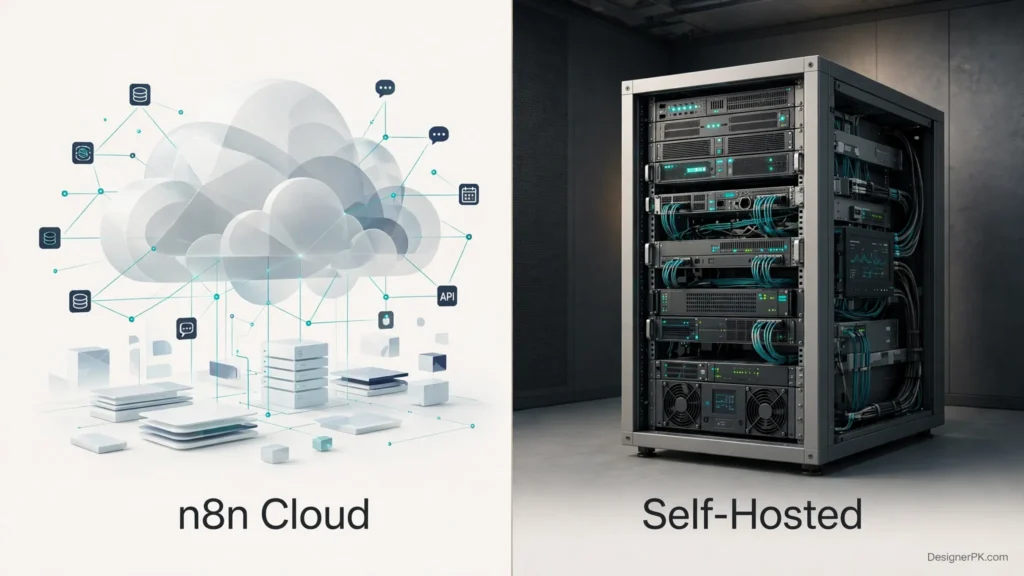
n8n Cloud
n8n Cloud is a managed hosting option that handles the underlying hosting infrastructure. Your team can focus on building workflows without managing the server environment directly.
Consider n8n Cloud if:
- You prefer not to manage your own server.
- You want a managed deployment environment.
- Your team wants to concentrate on workflow development.
Self-Hosted n8n
Self-hosting allows you to run n8n on infrastructure you manage, such as a compatible cloud server or private hosting environment.
Consider self-hosting if:
- You have the technical resources to manage infrastructure.
- You need greater control over deployment configuration.
- Your organization has specific infrastructure or data-handling requirements.
n8n Cloud vs. Self-Hosted: Cost Comparison
The total cost of running n8n depends on more than the platform itself. Hosting, infrastructure management, external API usage, and developer time can all affect your automation budget.
| Cost factor | n8n Cloud | Self-Hosted n8n |
|---|---|---|
| Platform cost | Paid subscription based on the selected plan | Community Edition available without a software subscription fee |
| Server hosting | Managed hosting included in the subscription | Separate VPS, cloud server, or other infrastructure costs |
| Server maintenance | Infrastructure management handled by n8n | Your responsibility, including updates and configuration |
| Backups and monitoring | Managed hosting features depend on the selected plan | Must be configured and maintained according to your requirements |
| External API costs | Additional where applicable | Additional where applicable |
| Technical expertise | Less server administration required | More infrastructure and troubleshooting knowledge required |
Important: Self-hosting may reduce software subscription expenses, but it isn’t automatically the cheaper option. Server resources, backups, security, maintenance, and technical support can add to the overall cost.
Additional Costs to Include in Your Automation Budget
Regardless of your deployment choice, consider these potential expenses when planning an n8n project:
- Cloud infrastructure: Self-hosted deployments may require a VPS or cloud server, depending on workflow volume and resource requirements.
- Domain and networking: A domain, SSL configuration, and other networking services may be needed for a production deployment.
- External APIs: CRM platforms, email services, AI models, and other connected applications may have separate subscription or usage charges.
- Backups and monitoring: Self-hosted environments may require additional services or infrastructure for reliable backups and monitoring.
- Development and maintenance: Complex integrations may require developer time for implementation, troubleshooting, and future updates.
For example, an automation that summarizes customer messages using an external AI model may incur API usage charges even when n8n itself is running on a self-hosted server.
Before selecting a plan or infrastructure setup, compare your expected workflow executions, integration requirements, available resources, and maintenance responsibilities.
Check the official n8n pricing page for current subscription plans and usage limits. Pricing and plan features can change, so verify the latest details before making a purchasing decision.
Important Factors to Consider
Your choice depends on your team’s technical capabilities, infrastructure preferences, security requirements, and willingness to manage hosting responsibilities.
With self-hosting, you’re responsible for server updates, backups, access controls, monitoring, and security configuration. These responsibilities require appropriate technical resources and regular attention.
n8n Cloud reduces infrastructure management work, but you still need to configure application permissions, credentials, and data handling correctly.
Neither deployment option automatically guarantees that your workflows or connected applications are secure.
For current deployment instructions, configuration requirements, and maintenance guidance, consult the official n8n documentation.
Practical n8n Business Automation Examples
n8n can automate repetitive processes across sales, marketing, customer support, finance, and daily business operations. These workflows are particularly useful when they connect applications your team already uses and eliminate unnecessary manual steps.
Here are seven practical examples of how small businesses and growing organizations can use n8n automation.
1. Automatically Capture Website Leads and Update Your CRM
Manually transferring website inquiries into a CRM takes time and increases the risk of missing or incorrectly entering customer information.
An n8n workflow can handle this process automatically whenever someone submits a contact form.
How it works:
- 1 A visitor submits your website contact form.
- 2 The form sends customer information to an n8n webhook.
- 3 n8n validates the required fields.
- 4 The workflow creates a new CRM record or updates an existing one.
- 5 Your sales team receives an email notification.
Connected tools: Website forms, HubSpot, Salesforce, Zoho CRM, Google Sheets, and email services.
Business benefit: Reduces manual data entry and gives sales teams a more organized way to manage incoming inquiries.
2. Automate New Lead Email and Slack Notifications
Sales teams need timely visibility into new customer inquiries. Instead of checking multiple applications throughout the day, n8n can send notifications whenever a new lead arrives.
How it works:
- 1 A new lead enters your CRM or website form.
- 2 n8n retrieves the relevant customer information.
- 3 The workflow prepares a notification using the lead details.
- 4 An email or Slack message is sent to the appropriate team.
Connected tools: Gmail, Microsoft Outlook, Slack, website forms, and CRM applications.
Business benefit: Keeps the sales team informed about new inquiries without requiring employees to monitor several platforms manually.
3. Synchronize CRM Records and Business Spreadsheets
Businesses often store customer information across multiple systems. Sales teams may work in a CRM, while operations teams use spreadsheets or databases to manage related records.
n8n can synchronize selected information between these applications whenever records are created or updated.
How it works:
- 1 A customer record is created or updated in the CRM.
- 2 n8n retrieves the relevant information.
- 3 The workflow checks which fields need updating.
- 4 The corresponding spreadsheet or database record is updated.
Connected tools: Google Sheets, Airtable, CRM platforms, SQL databases, and business APIs.
Business benefit: Reduces repeated data entry and helps keep customer records consistent across connected systems.
4. Automate Appointment Confirmations and Reminders
Managing appointments involves sending confirmations, updating calendars, and reminding customers about upcoming meetings. These routine communications can be handled through an n8n workflow.
By connecting scheduling applications with email and messaging services, businesses can automate several steps in the appointment process.
How it works:
- 1 A customer books an appointment.
- 2 n8n receives the booking information.
- 3 The workflow sends an appointment confirmation.
- 4 A scheduled workflow sends a reminder before the appointment.
Connected tools: Calendly, Google Calendar, Gmail, Outlook, and supported messaging APIs.
Business benefit: Reduces repetitive scheduling communication and helps customers receive consistent appointment updates.
5. Organize and Route Customer Support Requests
When support requests arrive through multiple channels, sorting and assigning them manually can become difficult. n8n can collect incoming requests, identify their categories, and route them to the appropriate team.
How it works:
- 1 A customer submits a support request.
- 2 n8n retrieves the request details.
- 3 The workflow checks predefined categories or uses an AI service to suggest a classification.
- 4 The request is forwarded to the appropriate support team.
- 5 The customer receives an acknowledgment when appropriate.
Connected tools: Help desk applications, Gmail, Slack, CRM systems, and AI services.
Business benefit: Helps support teams organize incoming requests and spend less time sorting messages manually.
6. Generate Scheduled Business Reports
Sales, marketing, and operations teams regularly review business data. Collecting information from multiple applications and preparing reports manually can take considerable time.
n8n can retrieve data on a schedule, organize the results, and distribute reports to relevant team members.
How it works:
- 1 A Schedule Trigger starts the workflow.
- 2 n8n retrieves information from connected applications or databases.
- 3 The workflow processes and organizes the information.
- 4 A report is generated using the collected data.
- 5 The report is emailed or shared with the appropriate team members.
Connected tools: Google Sheets, databases, CRM platforms, reporting APIs, and email applications.
Business benefit: Makes recurring reporting more consistent and reduces the manual effort involved in collecting and organizing data.
7. Use AI to Summarize Messages and Classify Business Requests
Traditional automation works well with structured information and predefined rules. AI-powered automation adds the ability to process unstructured content, including customer emails, long messages, and support requests.
For example, n8n can send an incoming message to an AI service, receive a summary or suggested category, and route the result to the appropriate team.
How it works:
- 1 A customer submits a message or support request.
- 2 n8n sends the relevant text to a connected AI model.
- 3 The AI generates a summary or suggests a classification.
- 4 n8n routes the processed information to the appropriate team.
- 5 A team member reviews any suggested customer-facing response before it is sent.
Connected tools: OpenAI and other supported AI services, n8n AI integrations, CRM platforms, and email applications.
Business benefit: Helps teams process written information and organize requests more efficiently while keeping people involved in important customer-facing decisions.
For more advanced implementations, explore our AI automation services and AI agent development.
Example n8n Lead Automation Workflow: From Website Form to CRM
One practical way to understand n8n is to follow a lead from the moment a visitor submits a website form until the sales team receives a notification.
The following workflow illustrates how the main components connect:
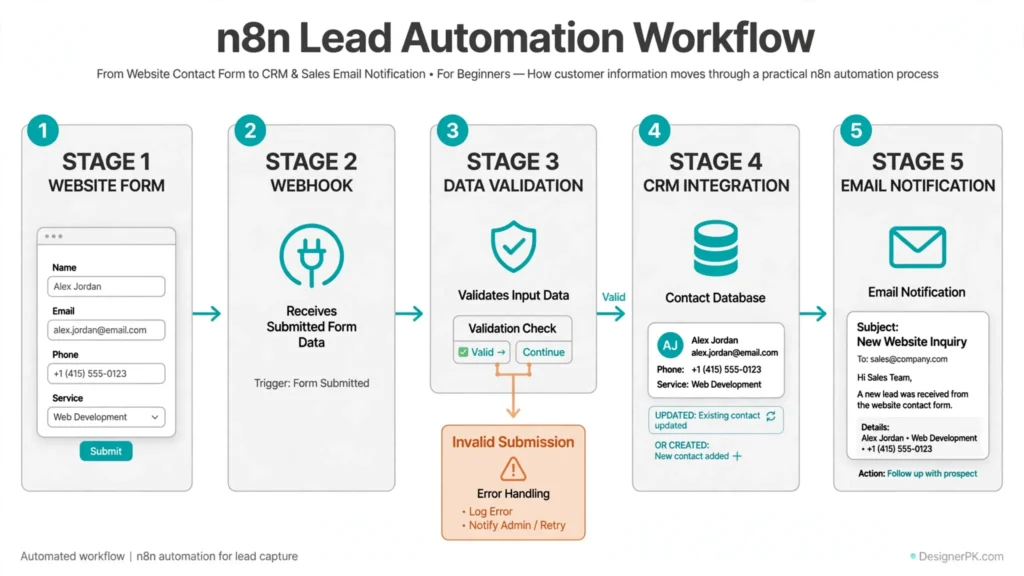
Customer submits name, email, phone number, and service inquiry.
n8n receives the form submission through an HTTP POST request.
Check required fields, validate the email format, and reject incomplete submissions.
Search for an existing contact and create or update the lead record.
Send the sales team a notification containing the lead information and CRM record details.
Workflow logic: If validation fails, the workflow should stop the CRM operation and handle the invalid submission appropriately. If the CRM operation fails, the error should be recorded and made visible to the responsible team rather than silently continuing.
This design also helps prevent duplicate CRM records by checking for an existing contact before creating a new one.
The exact nodes and available CRM operations depend on the applications and integration methods selected for your project.
How to Create an n8n Workflow: Step-by-Step Tutorial
Let’s build a practical business automation workflow that captures website inquiries, validates customer information, creates a CRM record, and sends an email notification to your sales team.
This example uses five main stages: Webhook, data validation, CRM integration, and email notification, with the website form acting as the starting point.
Step 1: Create a Webhook Trigger
First, configure how n8n will receive new lead information. A Webhook Trigger provides an endpoint that your website or form application can call whenever someone submits a contact form.
In your n8n workspace:
- Create a new workflow.
- Add a Webhook node.
- Select POST as the HTTP method.
- Enter a unique webhook path, such as
website-lead. - Choose an appropriate response configuration.
- Copy the test webhook URL.
Your website form or form-processing application must send its submission data to this endpoint. The exact setup depends on your website platform and form integration.
Screenshot 1: n8n Webhook Node Configuration
Insert an original screenshot showing the Webhook node settings, including:
- HTTP Method: POST
- Path: website-lead
- Test URL and production URL
- Response configuration
Important: Use the test URL while developing and testing the workflow. Once the workflow is activated, configure your website to send requests to the production URL.
Step 2: Connect Your Website Form
Configure your form application to send customer information to the webhook using an HTTP POST request with a JSON payload.
For example, a contact form might send the following data:
{
  "name": "John Smith",
  "email": "john@example.com",
  "phone": "5551234567",
  "service": "Website Development",
  "message": "I need a new business website."
}
This is illustrative sample data, not an actual customer submission or verified production execution.
Submit a test form while the webhook is listening for test events. Open the execution details and inspect the Webhook node’s output.
You should be able to identify the submitted values, including the customer’s name, email address, phone number, service, and message. Depending on the form integration, the incoming data may appear under a JSON object such as body.
Step 3: Validate Incoming Customer Information
Before sending customer information to your CRM, add an IF node or another suitable validation step.
For this example, check that:
- The customer’s name is not empty.
- The email address is present and follows an acceptable email format.
- The requested service is provided.
- The message contains the expected information, if required.
Use the Webhook node’s output in the validation conditions. For example, if your incoming data is stored under body, the following expressions can reference the submitted values:
{{ $json.body.name }}
{{ $json.body.email }}
{{ $json.body.service }}
The exact expressions depend on the structure shown in your Webhook node’s execution output.
Configure the IF node to route valid submissions to the CRM integration. Invalid submissions should follow a separate handling path, such as recording the validation issue and returning an appropriate response to the form application.
For production use, email validation should include more than checking whether a field is populated. Also consider whitespace, malformed addresses, unexpected data types, and duplicate submissions.
Step 4: Connect Your CRM
After validating the submission, add a CRM integration node to create or update the customer record.
For example, you can use a supported HubSpot integration or another CRM connection available in your n8n environment.
Configure the CRM operation to:
- Search for an existing contact using a suitable unique identifier, such as the email address.
- Check whether a matching contact already exists.
- Update the existing contact when appropriate.
- Create a new contact if no matching record is found.
- Store relevant inquiry details, such as the requested service and customer message, in supported CRM fields.
Map the incoming information to the corresponding CRM fields. For example:
| Incoming form field | CRM field |
|---|---|
| name | Contact name |
| Email address | |
| phone | Phone number |
| service | Service interest or custom property |
| message | Inquiry notes or supported custom field |
Available fields and create/update operations depend on your CRM integration and account configuration. Check the CRM documentation before mapping custom properties.
Why check for existing contacts? A visitor may submit the same form more than once. Searching before creating a record helps prevent unnecessary duplicate contacts. For workflows that receive repeated events, also consider a unique submission ID and appropriate idempotency controls.
Step 5: Add an Email Notification Node
Once the CRM operation completes successfully, add an email node to notify your sales team about the new inquiry.
Choose a supported integration, such as Gmail or Microsoft Outlook, and connect your account using the available authentication method.
Configure the email with these details:
- Recipient: Your sales or inquiry management email address.
- Subject: New Website Lead Received.
- Email body: Include the customer’s name, email address, requested service, and message.
Use n8n expressions to insert dynamic values from the incoming form data. For example:
New Website Inquiry

Name: {{ $('Webhook').item.json.body.name }}

Email: {{ $('Webhook').item.json.body.email }}

Phone: {{ $('Webhook').item.json.body.phone }}

Service: {{ $('Webhook').item.json.body.service }}

Message: {{ $('Webhook').item.json.body.message }}
These expressions assume that your Webhook node is named Webhook and that the submitted fields are available under body. Adjust them to match your actual node name and execution data structure.
Screenshot 2: n8n Email Node Configuration
Insert an original screenshot showing:
- Connected email credentials
- Recipient email address
- Subject field
- Dynamic email body expressions
- Configured send operation
For production workflows, send the notification only after the CRM operation succeeds. This prevents the sales team from receiving a confirmation that suggests a lead was saved when the CRM operation actually failed.
Step 6: Test the Complete Workflow and Review Execution Output
Before deploying the automation, run the complete workflow using different sample submissions.
For the example above, a successful execution should follow this sequence:
- The Webhook node receives the form submission.
- The validation node confirms that the required information is present.
- The CRM integration finds an existing contact or creates a new record.
- The email node sends a notification to the sales team.
- The execution details show the output and status of the individual nodes.
Example of expected workflow data:
Webhook Input:
{
  "name": "John Smith",
  "email": "john@example.com",
  "phone": "5551234567",
  "service": "Website Development"
}

Validation:
{
  "valid": true
}

CRM Operation:
{
  "operation": "create_or_update_contact",
  "email": "john@example.com",
  "status": "success"
}

Email Notification:
{
  "recipient": "sales@example.com",
  "subject": "New Website Lead Received",
  "status": "sent"
}
Note: This is an illustrative representation of the expected data flow, not a real n8n execution export. Actual CRM and email node outputs vary by integration, configuration, and provider response. Do not describe this example as a tested workflow unless it has been executed and verified in your own n8n environment.
During testing, verify that:
- The webhook receives all expected form fields.
- Invalid submissions follow the intended validation path.
- Valid customer information reaches the CRM correctly.
- Existing contacts are handled without creating unnecessary duplicates.
- The email node receives the correct dynamic values.
- The notification reaches the intended recipient.
Also test CRM failures, email delivery errors, missing fields, and repeated submissions. These scenarios help identify problems that may not appear during a successful test.
Step 7: Configure the Production Webhook and Activate the Workflow
After testing, update your website form integration to use the production webhook URL instead of the test URL.
The production endpoint is used by the active workflow, unlike the temporary test-listening process. Activate or publish the workflow according to the interface and deployment version you’re using.
Submit another inquiry through your live website to confirm that the production workflow receives the request and performs the expected CRM and email operations.
Once deployed, review execution history and configure failure notifications so that issues involving credentials, API requests, or external application downtime can be investigated promptly.
For further technical details, consult the official n8n Webhook documentation and the relevant documentation for your selected CRM and email integrations.
Best Practices for Reliable n8n Business Automation
A production workflow should be secure, maintainable, and capable of handling unexpected situations. The following practices help prevent common automation problems.
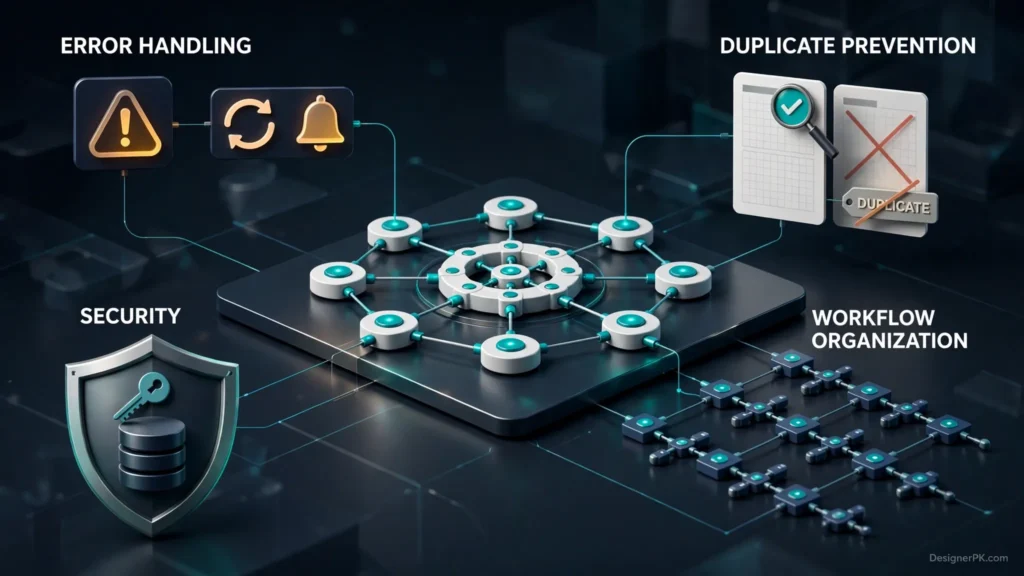
1. Handle Errors and Failed Executions
API failures, expired credentials, application downtime, and unexpected data formats can interrupt a workflow.
- Use appropriate error-handling workflows and the Error Trigger where suitable.
- Configure notifications for critical failures.
- Record useful error details for troubleshooting.
- Retry temporary failures when appropriate, while preventing duplicate operations.
- Review API rate limits and external service restrictions.
For important business processes, make sure failed lead submissions and CRM updates are visible to the responsible team.
2. Prevent Duplicate Processing
External applications may resend webhook requests, and workflows may execute again after interruptions. Use unique identifiers, check existing records, and implement idempotency controls where necessary.
This is particularly important for CRM updates, invoice processing, and other operations where repeated execution could create unwanted records or actions.
See our guide to building reliable idempotent WordPress workflows with n8n for a practical example.
3. Secure Credentials and Customer Information
Business workflows often connect systems containing customer records, financial information, and internal company data.
- Store API keys and passwords using n8n credential management.
- Grant connected applications only the permissions they need.
- Protect webhook endpoints and validate incoming requests.
- Restrict workflow editing and account access.
- Avoid transferring unnecessary customer information to external services.
- Review how connected AI providers process submitted information.
- Keep n8n and its hosting environment updated.
For self-hosted deployments, also configure appropriate backups, encryption, network restrictions, and server security. Businesses handling sensitive information should evaluate applicable privacy, contractual, and regulatory requirements before connecting external applications.
4. Keep Workflows Organized
Use descriptive node names, document important workflow decisions, and separate unrelated processes when necessary.
For example, lead capture, CRM synchronization, and customer follow-ups may be easier to maintain as separate workflows rather than combining every operation into one complicated automation.
Test workflow changes before deploying them, particularly when they affect customer records or other important business operations.
n8n Cloud vs. Self-Hosted n8n: Which Should You Choose?
Before deploying business workflows, decide where n8n will run. You can use n8n Cloud, a managed hosting option, or install a self-hosted instance on infrastructure you manage.
n8n Cloud
n8n Cloud provides a managed environment, so you don’t need to maintain the underlying server infrastructure yourself.
Consider n8n Cloud if:
- You prefer not to manage servers.
- You want a managed deployment environment.
- Your team wants to focus on building workflows rather than infrastructure maintenance.
Self-Hosted n8n
Self-hosting allows you to install and operate n8n on infrastructure you control, such as a compatible cloud server or private hosting environment.
Consider self-hosting if:
- You have the technical resources to manage infrastructure.
- You need greater control over deployment configuration.
- You have specific hosting or data-handling requirements.
n8n Cloud vs. Self-Hosting: Cost Considerations
The total cost of running n8n involves more than the initial hosting or subscription expense. Consider infrastructure, maintenance, external integrations, and the resources needed to keep workflows operating reliably.
| Cost factor | n8n Cloud | Self-Hosted n8n |
|---|---|---|
| Platform or hosting cost | Subscription based on the selected plan | Server or hosting provider charges |
| Server maintenance | Managed by the platform | Your responsibility or your hosting provider’s, depending on the arrangement |
| Updates and infrastructure | Managed platform environment | You manage deployment updates and infrastructure configuration |
| Backups and monitoring | Check available plan features and responsibilities | Configure and manage your backup and monitoring strategy |
| External API usage | Additional provider costs may apply | Additional provider costs may apply |
| Technical administration | Lower infrastructure management burden | Requires technical administration or external support |
External API costs: Connecting services such as OpenAI, email providers, SMS platforms, CRM applications, and other third-party APIs may involve separate subscription or usage charges. These expenses are not automatically included in your n8n hosting cost.
Server maintenance: A self-hosted installation may require additional resources for server administration, security updates, backups, monitoring, and troubleshooting. Include these responsibilities when estimating the actual cost of ownership.
Pricing note: n8n plans, execution limits, hosting requirements, and third-party service charges can change. Check the official n8n pricing page and your selected providers’ pricing documentation before preparing a project budget.
Important Factors to Consider
The right deployment option depends on your technical resources, infrastructure preferences, maintenance capacity, and data-handling requirements.
Self-hosting gives you greater control over the environment but makes you responsible for server configuration, updates, backups, and security. n8n Cloud reduces that infrastructure workload, although you still need to manage workflow credentials, application permissions, and data handling carefully.
Neither option automatically guarantees that every workflow or connected application is secure. Review the official n8n documentation for current deployment and configuration guidance.
When Should Your Business Use n8n Automation?
Not every business task needs automation. Some activities happen too occasionally, involve unpredictable decisions, or require human judgment that a workflow cannot reliably replace.
Before automating a process, evaluate four factors.
Repetition
Does your team perform the same task regularly? Copying lead information, sending routine notifications, and updating spreadsheets are common automation candidates.
Time Requirements
Does the process require employees to switch between multiple applications or repeatedly perform the same actions? Automating those steps may reduce unnecessary administrative work.
Error Risk
Does manual processing create opportunities for missed information, inconsistent records, or incorrect data entry? A properly configured workflow can improve consistency through validation and predefined rules.
Business Value
Will automating the task help employees focus on higher-value activities, improve response times, or make important business information easier to access?
Prioritize processes with clear operational benefits rather than automating activities simply because a technical integration is possible.
When Should You Use AI Instead of Rule-Based Automation?
Traditional automation and AI-powered automation serve different purposes. The best choice depends on the type of information your workflow needs to process.
| Business requirement | Recommended approach |
|---|---|
| Send an email when a form is submitted | Rule-based automation |
| Copy customer information into a CRM | Rule-based automation |
| Send appointment reminders | Rule-based automation |
| Summarize long customer emails | AI-powered automation |
| Classify unstructured support messages | AI-powered automation |
| Prepare draft customer responses | AI-assisted automation with human review |
For predictable tasks, straightforward rules are generally easier to test and maintain. AI is more useful when a workflow needs to interpret natural language, summarize information, extract details, or classify unstructured content.
For customer-facing communication, financial decisions, and other consequential actions, retain appropriate human approval rather than relying entirely on AI-generated outputs.
n8n Automation Checklist Before Going Live
Use this checklist to review your workflow before deploying it into production.
- Identify a repetitive business process worth automating.
- Define the expected outcome and workflow boundaries.
- Identify the applications and APIs involved.
- Confirm integration availability and account permissions.
- Choose the appropriate workflow trigger.
- Configure credentials securely.
- Map incoming and outgoing data fields correctly.
- Add validation and conditional logic where necessary.
- Consider duplicate prevention and idempotency.
- Configure error handling and failure notifications.
- Test successful, incomplete, and unexpected input scenarios.
- Check external API limits and potential usage charges.
- Protect sensitive customer and business information.
- Activate the workflow after successful testing.
- Monitor executions and review failures regularly.
- Document the workflow for future maintenance.
Start with one clearly defined process instead of trying to automate every department simultaneously. Once the first workflow is stable, evaluate other tasks that could benefit from a similar approach.
Frequently Asked Questions About n8n Business Automation
Is n8n suitable for small businesses?
Yes. n8n can help small businesses connect existing applications and automate repetitive processes such as lead management, email notifications, appointment reminders, and reporting. The appropriate setup depends on available integrations, technical resources, workflow complexity, and hosting preferences.
Do I need coding knowledge to create n8n workflows?
No. Many workflows can be created using n8n’s visual editor and built-in integrations without writing code. However, advanced requirements involving custom APIs, complex data transformations, or specialized business logic may require JavaScript or development knowledge.
Can n8n connect to my existing CRM?
n8n can connect to many CRM platforms through supported integrations, APIs, and other connection methods. Available operations depend on the CRM, its API capabilities, account permissions, and n8n configuration.
Can n8n automate email marketing and lead generation?
Yes. You can use n8n to capture website leads, update CRM records, send internal notifications, and connect supported marketing applications. Marketing workflows should respect consent requirements, unsubscribe preferences, and applicable email regulations.
Is n8n better than Zapier or Make?
It depends on your requirements. n8n provides visual workflow development, integration options, and self-hosting capabilities. Zapier and Make offer alternative automation experiences. Compare integration availability, deployment preferences, workflow complexity, maintenance responsibilities, and total costs before choosing.
Can I use AI with n8n?
Yes. n8n supports AI-related integrations and workflow components that connect language models and other AI services. Common applications include summarizing emails, classifying support requests, extracting information, and preparing draft responses. Validate AI outputs before using them for important decisions.
How do I know if my n8n workflow is working correctly?
Review workflow executions, test different input scenarios, check application responses, and configure failure notifications. For critical processes, also verify that expected events are received and the resulting records are accurate.
How much does it cost to run n8n?
The cost depends on whether you use n8n Cloud or self-host your installation. Cloud involves a subscription, while self-hosting may involve server, maintenance, and administration expenses. External services such as AI APIs, email platforms, and SMS providers may also charge separately. Check current provider pricing before estimating your total cost.
Should I hire an n8n automation developer?
Professional assistance can be useful when workflows involve multiple applications, custom API integrations, complex business rules, sensitive information, or demanding reliability requirements. A developer can help design, implement, test, and maintain workflows around your existing business processes.
Conclusion: Start Automating Business Tasks with n8n
n8n gives businesses a flexible way to connect applications, automate repetitive processes, and manage information across different systems.
From capturing website leads and updating CRM records to generating reports and organizing customer requests, its workflow capabilities can support a wide range of operational requirements.
Start with one repetitive task that has a clear business purpose. Build a straightforward workflow, test its behavior with different inputs, configure appropriate error handling, and monitor its executions before expanding automation to other processes.
Choose between n8n Cloud and self-hosting based on your technical resources, infrastructure preferences, and overall operating costs. For more advanced requirements, consider whether custom API integrations or AI-powered workflows would provide additional value.
Ready to Automate Repetitive Business Tasks?
Whether you need lead management automation, CRM integrations, AI-powered workflows, or custom business process automation, the first step is understanding how your existing applications and processes work together.
We can help you plan and develop n8n workflows around your applications, operational requirements, and business goals.
Discuss Your Automation Project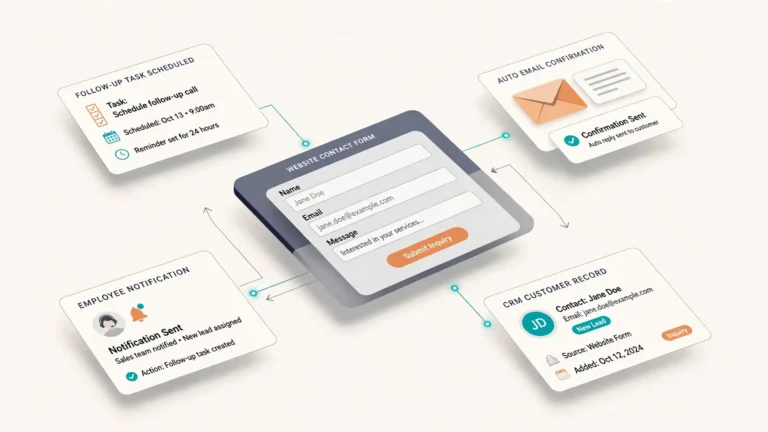



One Response