A Complete Maintenance Checklist
Maintaining a WordPress website involves more than installing plugin updates or checking whether your homepage loads. Your website depends on several connected components, including WordPress core, plugins, themes, databases, hosting infrastructure, and third-party integrations. Problems with any of these components can affect security, performance, functionality, and business operations.
For a business website, even a minor technical issue can have practical consequences. A broken contact form may prevent potential customers from reaching you, an outdated plugin can introduce a security vulnerability, and an incomplete backup can make recovery difficult after a failed update or server problem.
Website maintenance should be part of your regular operations rather than something you address only when an issue occurs. A consistent process helps identify problems early, protect important data, and keep essential website features working correctly.
This guide explains how to maintain a WordPress website using a practical checklist organized by frequency. It also covers software updates, backups, security monitoring, performance optimization, troubleshooting, and additional maintenance requirements for WooCommerce stores.

How to Maintain a WordPress Website: Quick Answer
To maintain a WordPress website, regularly update WordPress core, plugins, and themes; create and verify backups; monitor security and uptime; test essential website features; review performance; and remove unnecessary software.
Dividing maintenance into four categories makes routine tasks easier to manage and reduces the likelihood of overlooking important checks.
| Frequency | Maintenance tasks | Primary objective |
|---|---|---|
| Weekly | Check uptime, review backup status, inspect security alerts, and test important forms. | Identify immediate problems. |
| Monthly | Review software updates, test website functionality, check performance, and inspect integrations. | Maintain technical health. |
| Quarterly | Audit plugins, themes, user permissions, database health, and backup restoration procedures. | Reduce long-term technical risks. |
| As needed | Apply urgent security patches, investigate errors, resolve compatibility problems, and troubleshoot downtime. | Address unexpected issues. |
Before significant updates or configuration changes, create a complete backup containing your website files and database. For complex websites, test updates in a staging environment before applying them to the live site.
WooCommerce stores also need checks covering product pages, shopping carts, checkout, payment processing, order notifications, and essential integrations.
Practical starting point: Begin with weekly checks and establish a monthly maintenance routine. Adjust the schedule based on how frequently your website changes and how much your business depends on its functionality.
What Is WordPress Website Maintenance?
WordPress website maintenance is the ongoing process of updating, monitoring, testing, and managing a website’s technical components. The goal is to keep the website secure, functional, accessible, and reliable.
Effective maintenance covers the entire website environment, not just the WordPress dashboard. A typical installation depends on several interconnected components:
- WordPress core: The primary software responsible for managing website content, users, settings, and administrative functionality.
- Plugins: Extensions that add features such as contact forms, SEO tools, security monitoring, caching, and e-commerce functionality.
- Themes: Files that control the website’s design, presentation, templates, and visual structure.
- Database: Stores website content, settings, user information, comments, WooCommerce orders, and other application data.
- Hosting environment: Provides the server resources, PHP runtime, database services, and infrastructure required to operate WordPress.
- External integrations: Connected services such as email providers, payment gateways, CRMs, analytics platforms, and marketing automation tools.
These components depend on one another. For example, a plugin update may introduce a compatibility issue with your active theme or another extension. Changing the PHP version on your hosting account can also expose problems with outdated custom code.
That is why maintenance needs to cover software, infrastructure, and connected services. Installing updates is essential, but it does not address every potential technical problem.
WordPress Maintenance vs. Website Maintenance Services
There is a difference between managing routine maintenance yourself and hiring a professional to handle ongoing technical work.
DIY WordPress maintenance involves completing tasks through your WordPress dashboard, hosting control panel, backup tools, and monitoring services. This approach may suit straightforward websites when you have enough time and technical knowledge to manage routine checks.
Professional WordPress maintenance may include software updates, backup management, security monitoring, technical troubleshooting, performance reviews, and website recovery assistance. The exact scope depends on the provider and service agreement.
The right approach depends on your website’s complexity and available technical resources. A simple informational website may require relatively little technical assistance, while a WooCommerce store with custom integrations needs more careful monitoring and testing.
For additional technical guidance, consult the official WordPress Advanced Administration Handbook.
Why Is Regular WordPress Maintenance Important?
A WordPress website can continue loading normally even when technical problems are developing in the background. An outdated extension, incomplete backup, or failing integration may go unnoticed until it affects visitors or business operations.
Regular maintenance helps protect five important areas:
1. Protect Your Website Against Security Vulnerabilities
Outdated WordPress core software, plugins, and themes can contain security vulnerabilities. Depending on the issue, attackers may be able to gain unauthorized access, modify website files, inject malicious content, or compromise user accounts.
Keeping software updated is a fundamental security measure. Support it with additional precautions, including:
- Using strong, unique passwords for administrator accounts.
- Enabling multi-factor authentication for privileged users.
- Removing unnecessary administrator accounts and permissions.
- Installing plugins and themes from trustworthy sources.
- Monitoring suspicious login activity and unexpected file changes.
- Maintaining reliable backups for website recovery.
The official WordPress security hardening guide provides additional recommendations for protecting your installation.
2. Prevent Website Functionality Problems
WordPress websites often depend on multiple plugins, themes, and external services working together. A change to one component can affect another.
For example, an update might prevent a contact form from sending notifications, interfere with a page builder, or create a conflict with a custom feature.
For business websites, test important visitor interactions after significant updates. A homepage may look completely normal while a registration form, search feature, or lead-generation process is no longer working.
When recurring errors or plugin conflicts appear, identifying the underlying cause is more effective than repeatedly changing settings without a clear troubleshooting process.
3. Maintain Website Performance and User Experience
Website performance can change as you add plugins, upload images, introduce third-party scripts, and publish more content. Hosting limitations, inefficient database queries, and poorly configured caching can also contribute to slow loading times.
Periodically review important website pages and monitor Core Web Vitals to identify performance problems that may affect visitors.
If your website has persistent loading issues, our WordPress speed optimization services can help investigate deeper performance problems.
4. Reduce the Risk of Data Loss and Extended Downtime
Website data can be lost because of server failures, accidental deletions, malware infections, unsuccessful updates, or database corruption.
A reliable backup gives you a recovery option, but enabling automatic backups alone does not guarantee that your website can be restored successfully.
Check that backups complete correctly, include both website files and database data, and can be restored in a separate environment. Periodic restoration tests help identify problems before an actual recovery becomes necessary.
For more detailed instructions, see the official WordPress backup documentation.
5. Keep Your Business Website Reliable
Your website may support important business activities, including lead generation, customer communication, product sales, bookings, and online payments. When an essential feature stops working, the consequences can extend beyond a technical inconvenience.
Consider these examples:
- A broken contact form can prevent visitors from submitting inquiries.
- An expired SSL certificate can trigger browser security warnings.
- A failed payment integration can interrupt online transactions.
- A broken landing page can affect an active marketing campaign.
- An unavailable website can prevent customers from accessing important business information.
Routine checks help identify these problems earlier, giving you an opportunity to address them before they disrupt essential website activities.
Complete WordPress Website Maintenance Checklist by Frequency
Organizing maintenance tasks by frequency makes routine website management easier and helps prevent important checks from being overlooked. The schedule below provides a starting point for small-business websites, blogs, and online stores. Adjust it according to your website’s traffic, content activity, security needs, and technical complexity.
Weekly WordPress Maintenance Checklist
Weekly checks focus on website availability, security alerts, backup status, and essential visitor interactions.
Use this checklist:
- [ ] Open your website on desktop and mobile devices to confirm that important pages load correctly.
- [ ] Review uptime monitoring notifications and investigate unexpected downtime.
- [ ] Confirm that scheduled backups completed successfully.
- [ ] Review security notifications and investigate suspicious administrator activity.
- [ ] Submit a test message through important contact forms and confirm email delivery.
- [ ] Check the homepage, primary navigation, and important landing pages.
- [ ] Review website comments and remove spam where appropriate.
- [ ] Check for urgent WordPress, plugin, and theme security updates.
- [ ] Review critical third-party service notifications, particularly those related to email and payment processing.
Completion criteria: Your website is accessible, essential forms work, recent backups are available, and critical security or availability alerts have been reviewed.
Monthly WordPress Maintenance Checklist
Monthly maintenance focuses on software health, website functionality, performance, search visibility, and connected services.
Complete the following tasks:
- [ ] Review available WordPress core updates and install appropriate releases.
- [ ] Review plugin and theme updates, including relevant compatibility information.
- [ ] Create a backup before significant software or configuration changes.
- [ ] Test important pages and website functionality after updates.
- [ ] Run performance tests on important URLs using Google PageSpeed Insights.
- [ ] Review available Core Web Vitals information in Google Search Console.
- [ ] Check important internal links and investigate broken URLs.
- [ ] Review website analytics for unusual traffic or engagement changes.
- [ ] Check contact form notifications, email delivery, and third-party integrations.
- [ ] Review hosting storage usage and available server resources.
- [ ] Check important website pages for outdated information.
- [ ] For WooCommerce websites, review product pages, shopping cart calculations, checkout, and payment functionality.
Completion criteria: Appropriate updates are installed, essential features have been tested, and identified performance, SEO, or compatibility problems have been documented for follow-up.
Recommended Monthly Performance and SEO Checks
Include more than the homepage in your monthly review. Important service pages, landing pages, product categories, and high-traffic URLs should also be checked.
These resources can help:
- Google PageSpeed Insights to review page performance and technical recommendations.
- Google Search Console to review indexing, search performance, and available Core Web Vitals reports.
- Google Analytics to examine visitor behavior and investigate unusual traffic changes, if configured.
A single performance test or temporary traffic fluctuation does not necessarily indicate a website problem. Compare results over time and investigate issues affecting important pages or visitor interactions.
Quarterly WordPress Maintenance Checklist
Quarterly maintenance involves a deeper review of your website’s technical condition, software dependencies, user access, and recovery procedures.
Complete the following tasks:
- [ ] Audit installed plugins and remove extensions that are no longer required.
- [ ] Review installed themes and remove unused themes while retaining an appropriate fallback theme.
- [ ] Audit administrator accounts and remove access that is no longer necessary.
- [ ] Review whether important plugins and themes are actively maintained.
- [ ] Review database health and identify unnecessary stored data where appropriate.
- [ ] Test backup restoration on a separate staging environment.
- [ ] Review hosting resources and PHP version compatibility.
- [ ] Check important website pages for outdated content or broken functionality.
- [ ] Review security configurations and administrator permissions.
- [ ] Verify that important external integrations and automated workflows still operate correctly.
- [ ] Review domain and SSL certificate renewal arrangements.
- [ ] Check whether website maintenance and recovery procedures are documented.
Completion criteria: Unnecessary software and access have been reviewed, backup restoration has been tested, and identified technical risks have appropriate follow-up actions.
WordPress Maintenance Tasks to Perform As Needed
Some maintenance activities should not wait until the next scheduled review. Security vulnerabilities, unexpected errors, and changes affecting essential website functionality may require immediate attention.
Use this additional checklist:
- [ ] Apply urgent security patches when relevant vulnerabilities are identified.
- [ ] Investigate unexpected website errors, downtime, or broken functionality.
- [ ] Create a fresh backup before major website modifications.
- [ ] Test compatibility after installing new plugins or changing themes.
- [ ] Investigate unfamiliar administrator accounts or unexpected file changes.
- [ ] Troubleshoot failed payments, checkout problems, and integration errors.
- [ ] Verify website functionality after changing hosting configurations or PHP versions.
- [ ] Investigate unexpected changes in website redirects, indexing, or important page accessibility.
- [ ] Review recovery procedures after a security incident or unsuccessful update.
Completion criteria: Critical problems have been investigated, appropriate corrective actions have been taken, and any remaining technical risks have been documented.
How to Prioritize Unexpected Maintenance Problems
Not every website issue requires the same response time. Prioritize problems according to their impact on security, website availability, and business operations.
| Priority | Example problem | Recommended response |
|---|---|---|
| Critical | Website compromise, exposed customer data, or complete checkout failure. | Investigate immediately and follow an appropriate recovery or incident response process. |
| High | Broken contact forms, important PHP errors, or major website functionality problems. | Investigate promptly and restore essential functionality. |
| Medium | Performance degradation, plugin compatibility warnings, or broken secondary features. | Schedule technical investigation and corrective work. |
| Low | Minor layout inconsistencies or outdated non-critical content. | Include in the next planned maintenance review. |
These categories are practical planning recommendations, not universal incident-response service levels. Actual response times should reflect your business operations and available support arrangements.
If an issue affects essential website functionality and you cannot identify its underlying cause, avoid repeatedly changing settings without a troubleshooting plan. Our WordPress bug fixing services can help investigate complex compatibility, functionality, and technical problems.
How to Maintain a WordPress Website: Step-by-Step Guide
A maintenance checklist identifies what needs attention, but knowing how to complete each task correctly is equally important. Follow a consistent process that protects existing website data and reduces the risk of unexpected errors.
Step 1: Back Up Your WordPress Website Before Making Changes
Create a fresh backup before performing major updates, installing new plugins, changing themes, or modifying website code.

A complete WordPress backup should include two main components:
- Website files: WordPress core files, themes, plugins, uploads, and relevant configuration files.
- Database: Website pages, posts, settings, user information, WooCommerce orders, and other stored application data.
To create a backup, follow these steps:
- 1 Log in to your hosting control panel and locate its backup management feature.
- 2 Create a backup of your website files and database.
- 3 Alternatively, use a reputable WordPress backup plugin that supports complete and scheduled backups.
- 4 Store a separate copy in secure off-site storage, such as an appropriate cloud storage service.
- 5 Confirm that the backup completed successfully and includes the expected files and database.
- 6 Record the backup date and keep the restoration instructions accessible.
Important: A successful backup notification does not guarantee that your website can be restored. Test restoration on a separate staging environment before relying on a backup for disaster recovery.
How Often Should You Back Up a WordPress Website?
Backup frequency should reflect how often your website data changes and how much information your business can afford to lose.
| Website type | Suggested backup approach | Important consideration |
|---|---|---|
| Static business website | Scheduled backups based on content changes, with additional backups before major updates. | Protect service pages, content, and website configuration. |
| Active blog | Frequent automated database backups and regular complete backups. | Protect newly published content and comments. |
| WooCommerce store | Automated backups with frequency based on order activity and acceptable data-loss limits. | Protect orders, customer records, products, and transaction-related information. |
| Membership website | Frequent database backups alongside regular complete backups. | Protect registrations, subscriptions, and account information. |
For an online store, coordinate backup and restoration procedures with order activity. Restoring an older database over a live store can remove orders and customer changes created after that backup.
For additional guidance, read the official WordPress backup documentation.
Step 2: Update WordPress Core, Plugins, and Themes
Keeping WordPress software updated helps address security vulnerabilities, compatibility problems, and software defects. However, installing updates without considering compatibility can introduce unexpected issues.
Follow this process when updating your website:
- 1 Log in to your WordPress dashboard.
- 2 Open Dashboard > Updates to review available updates.
- 3 Check update information and compatibility notes for important plugins and themes.
- 4 Confirm that a recent, usable backup is available before significant changes.
- 5 Update your staging website first when available, especially for complex websites and WooCommerce stores.
- 6 Test the updated website for errors, broken layouts, and plugin conflicts.
- 7 Apply the tested updates to the live website and repeat essential functionality checks.
For smaller websites without staging environments, perform updates during a lower-traffic period after confirming that a usable backup is available.
Do not delay urgent security updates unnecessarily. When an update addresses a serious vulnerability, assess the risk and apply an appropriate tested update or mitigation as soon as possible.
What Should You Check After Updating WordPress?
After installing updates, test the website from a visitor’s perspective rather than assuming that a successful update notification means everything works correctly.
- Open the homepage and important landing pages.
- Check navigation menus and internal links.
- Test contact forms and email notifications.
- Check important interactive elements and page layouts.
- Review administrator access and dashboard functionality.
- Check important integrations and connected services.
- For WooCommerce, test product pages, cart functionality, and checkout.
If an update introduces an error, investigate the affected component and follow your tested recovery procedure when necessary. Avoid restoring an older database over newer live business data without first evaluating the consequences.
Read the official WordPress updating guide for additional instructions.
Step 3: Review WordPress Website Security
Security maintenance involves more than installing a security plugin. Regularly review administrator access, suspicious activity, software vulnerabilities, and website configuration.

Follow this security review process:
- 1 Open Users > All Users and review accounts with administrative privileges.
- 2 Remove unnecessary accounts or reduce permissions where appropriate.
- 3 Check for unfamiliar login activity and investigate unexpected changes to website content or settings.
- 4 Review security notifications and run an appropriate malware scan when suspicious activity is detected.
- 5 Confirm that HTTPS is configured correctly and your SSL certificate is valid.
- 6 Enforce strong passwords and appropriate multi-factor authentication for privileged accounts.
- 7 Review hosting security, file permissions, and available server protection features.
Important WordPress Security Practices
Maintain these basic protections alongside routine security reviews:
- Use trusted software: Download plugins and themes from reputable sources and review their maintenance history.
- Limit administrator access: Give users only the permissions required for their responsibilities.
- Protect login accounts: Use unique passwords and multi-factor authentication where supported.
- Maintain software updates: Address security updates promptly instead of leaving known vulnerabilities unresolved.
- Protect backup copies: Store backups in appropriately secured locations with restricted access.
- Monitor website changes: Investigate unexpected administrator accounts, unfamiliar files, or suspicious redirects.
Security plugins can provide additional monitoring, firewall functionality, and malware scanning. However, avoid installing multiple plugins with overlapping security features unless there is a clear reason.
For technical recommendations, consult the WordPress security handbook. If your website requires a deeper technical review, consider a professional website security audit.
What Should You Do If You Suspect a WordPress Security Problem?
Unfamiliar administrator accounts, unexpected redirects, suspicious files, or signs of malware may indicate a security incident. Investigate these warning signs rather than assuming they are harmless website errors.
Take the following precautions:
- Document the suspicious activity and the time it was discovered.
- Restrict potentially compromised accounts and review administrator access.
- Preserve available backups and relevant security logs.
- Investigate affected website components before making unnecessary changes.
- Use a trusted recovery process and verify that the underlying vulnerability has been addressed.
- Change affected credentials after securing the website and its access environment.
Deleting a suspicious file or installing a security plugin does not automatically remove every trace of a compromise. More complex incidents may require professional investigation and recovery.
Step 4: Monitor Website Uptime and Availability
Website uptime monitoring helps identify when your website becomes inaccessible. This is particularly important for business websites and online stores that depend on continuous availability.
Use an external uptime monitoring service to check whether your website responds correctly. Configure notifications so you can investigate unexpected downtime before discovering the problem through a customer complaint.
When your website becomes unavailable, investigate the following:
- Check whether your hosting provider reports a service interruption.
- Review recent website updates and configuration changes.
- Check DNS records and SSL certificate status.
- Review server resource usage and error logs when available.
- Determine whether the issue affects the entire website or only specific pages.
- Contact your hosting provider if the problem appears infrastructure-related.
Website Uptime Monitoring: What Should You Check?
A basic uptime check confirms whether a monitoring service can reach your website. It does not guarantee that every website feature is working correctly.
For example, your homepage might respond normally while your contact form fails to submit messages or your WooCommerce checkout displays an error.
For business websites, combine basic uptime monitoring with functional checks for important visitor interactions. Review your hosting provider’s incident notifications as well to help determine whether a problem originates from the website application or server infrastructure.
Step 5: Test Website Pages, Forms, Navigation, and Integrations
After updates or configuration changes, test your website from a visitor’s perspective. A page can load normally while important business functions remain broken.
Start with your homepage, service pages, landing pages, and other important URLs. Check the following components:
- Navigation menus and internal links.
- Contact forms and confirmation messages.
- Email notifications and delivery.
- Login and registration functionality, where applicable.
- Search functionality and important interactive elements.
- Third-party integrations, including CRM and marketing tools.
- Mobile layouts and responsive navigation.
- Important buttons, downloads, and conversion elements.
Test Contact Forms and Email Delivery
Contact forms are essential for many business websites because they allow potential customers to submit inquiries and request services. A form that appears to work but fails to deliver messages can result in missed business opportunities.
Follow this process to test your contact forms:
- 1 Open the contact page on your live website.
- 2 Submit a test message using valid information.
- 3 Confirm that the expected success message appears.
- 4 Check whether the message reaches the intended email inbox.
- 5 Verify that any connected CRM or marketing integration receives the submitted information.
An on-screen confirmation does not necessarily mean that email delivery or the complete integration process worked.
If messages are not delivered, investigate the SMTP configuration, email provider, plugin settings, and relevant server logs. Avoid repeatedly changing email settings without identifying the underlying issue.
Test Important Third-Party Integrations
Business websites often connect WordPress with external services such as CRMs, email marketing platforms, payment gateways, analytics tools, and automation systems.
These connections can stop working because of expired credentials, changed API permissions, configuration updates, or interruptions affecting the external service.
Check whether important information reaches its intended destination. For example, if a contact form sends leads to a CRM, confirm that the contact record is actually created rather than relying only on the form’s confirmation message.
Step 6: Review Website Speed and Core Web Vitals
Performance maintenance helps identify technical problems that affect page loading and visitor experience. Review important website pages rather than testing only the homepage.
Use Google PageSpeed Insights to evaluate individual URLs and identify potential improvements.

Pay particular attention to these three Core Web Vitals:
| Metric | What it measures | Good result |
|---|---|---|
| Largest Contentful Paint (LCP) | How quickly the main content becomes visible. | 2.5 seconds or less |
| Interaction to Next Paint (INP) | How responsive a page is to user interactions. | 200 milliseconds or less |
| Cumulative Layout Shift (CLS) | How much unexpected layout movement occurs. | 0.1 or less |
Google evaluates these metrics at the 75th percentile of page visits, with mobile and desktop experiences assessed separately. A good Core Web Vitals assessment requires all three metrics to meet their recommended thresholds.
How to Check WordPress Website Performance
Follow this process during your monthly performance review:
- 1 Open Google PageSpeed Insights and enter an important website URL.
- 2 Review the mobile and desktop performance results.
- 3 Check available Core Web Vitals information and identify metrics that need attention.
- 4 Review diagnostic recommendations related to images, JavaScript, CSS, caching, and server response times.
- 5 Check Google Search Console for available field data and website-wide performance issues.
- 6 Prioritize problems affecting important landing pages, product pages, and conversion paths.
- 7 Retest after implementing changes and compare results under consistent testing conditions.
Common WordPress Performance Problems to Monitor
When reviewing website performance, investigate these potential causes of slow loading times:
- Large images: Oversized image files can increase page weight and delay content loading.
- Excessive plugins: Poorly optimized or unnecessary plugins can introduce additional scripts, database queries, and processing overhead.
- Unoptimized JavaScript and CSS: Render-blocking resources and excessive scripts can affect page loading and responsiveness.
- Inadequate caching: Missing or incorrectly configured caching can increase repeated server processing.
- Hosting limitations: Insufficient server resources or poor server response times can affect overall performance.
- Third-party scripts: External analytics, advertising, chat, and tracking services can introduce additional loading delays.
Not every performance problem can be fixed by installing another optimization plugin. The appropriate solution depends on the underlying technical cause.
For practical optimization techniques, read our guides on improving WordPress website speed and Core Web Vitals for business websites.
If your website continues to experience slow loading times despite routine maintenance, our WordPress speed optimization services can help investigate deeper performance issues.
Additional WordPress Maintenance Tasks for WooCommerce Websites
WooCommerce websites require additional maintenance because they handle products, customer accounts, orders, payments, and other business-critical information.
An update that appears harmless on a standard WordPress website can affect product displays, checkout functionality, or payment integrations on an online store.
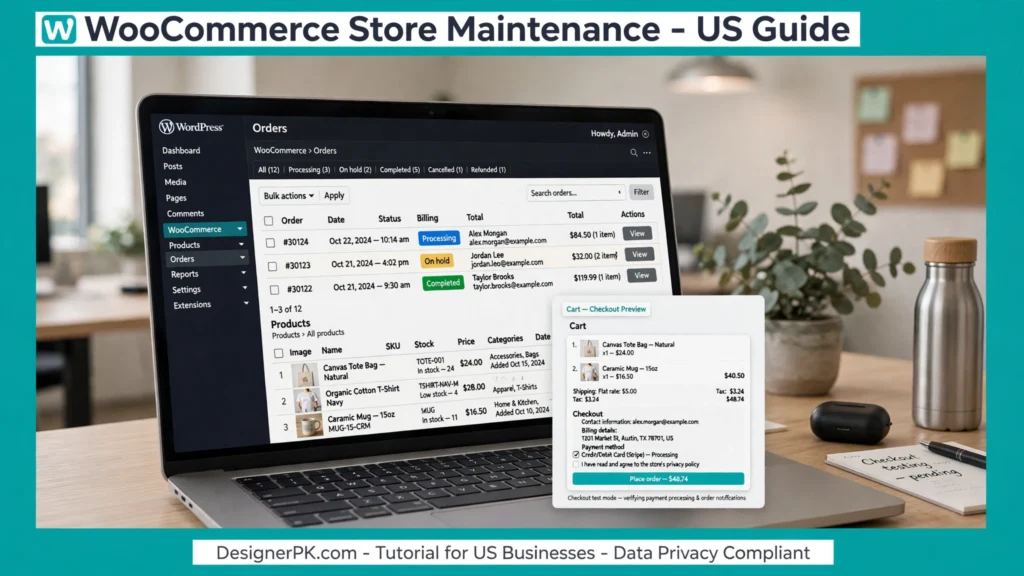
For stores that receive orders throughout the day, maintenance must account for live transactions and customer activity. Test significant changes carefully and avoid procedures that could overwrite recent order or customer data.
1. Test Product Pages and Shopping Cart Functionality
Product pages and shopping cart functionality directly affect the purchasing experience. Review important products regularly to confirm that customers can select products and add them to their carts without errors.
Use this checklist:
- [ ] Open important product pages and check images, descriptions, prices, and variations.
- [ ] Test product filters, search, and category navigation.
- [ ] Add products to the shopping cart and verify quantities and totals.
- [ ] Check coupon codes and discount calculations.
- [ ] Review shipping options and tax calculations where applicable.
- [ ] Confirm that out-of-stock products display the correct availability information.
Pay particular attention to variable products, product bundles, and customized pricing rules. These features may depend on additional plugins or custom functionality, making compatibility testing important after updates.
2. Test Checkout and Payment Processing
Checkout is one of the most important parts of an e-commerce website. A store can display products correctly while still experiencing problems during payment processing or order creation.
Test the complete checkout process after major updates, payment gateway changes, and significant configuration modifications.
Follow this checklist:
- [ ] Complete a test purchase using the payment gateway’s supported test mode when available.
- [ ] Check checkout validation and customer information fields.
- [ ] Verify payment gateway connections and callback or webhook functionality.
- [ ] Confirm that successful transactions generate the expected order status.
- [ ] Check order confirmation and payment notification emails.
- [ ] Review failed and canceled payment handling.
- [ ] Test guest checkout and customer account checkout where applicable.
Important: Avoid using live payment transactions for testing without understanding the financial and refund implications. Use the payment gateway’s sandbox or test environment whenever possible.
3. Review Orders, Emails, and Integrations
Order processing involves several connected website components. An order may be created successfully while a connected inventory system, CRM, or email notification fails.
Review these areas:
- Check recent orders and confirm that their statuses are accurate.
- Verify that order confirmation emails are generated correctly.
- Check payment notifications and shipping updates.
- Review customer account registration and login functionality.
- Verify inventory updates after successful purchases.
- Check integrations with accounting, CRM, shipping, and marketing platforms.
- Investigate failed synchronization or webhook notifications.
If your store connects with external business systems, verify that important order information reaches the correct destination. A successfully created WooCommerce order does not automatically confirm that every connected integration has processed the information.
4. Monitor WooCommerce Database and Order Data
WooCommerce websites can accumulate significant amounts of application data over time, particularly when they handle frequent orders, customer activity, and product updates.
During technical maintenance, review database health, scheduled tasks, and unnecessary stored data. Avoid deleting information that your business still needs.
Pay attention to:
- Database backup availability and restoration procedures.
- Scheduled WooCommerce actions and failed background tasks.
- Database storage usage and potential performance issues.
- Order and customer data retention requirements.
- Compatibility between WooCommerce and connected extensions.
Do not delete historical orders, customer records, or database entries simply to reduce database size. Review their purpose and applicable retention requirements before performing cleanup operations.
5. Review WooCommerce Updates and Compatibility
WooCommerce stores often depend on interconnected extensions, including payment gateways, shipping calculators, subscription tools, inventory systems, and checkout customization plugins.
Before applying significant updates, review compatibility information and test important purchasing workflows on a staging environment whenever possible.
After updating, verify product displays, cart calculations, checkout, payment processing, and order notifications. Check whether custom checkout fields and external integrations continue to work correctly.
For additional development and customization support, explore our WordPress and WooCommerce development services.
WooCommerce Maintenance: Final Verification Checklist
Before considering a major store maintenance task complete, verify these essential areas:
- [ ] Products display accurate information.
- [ ] Product variations and pricing work correctly.
- [ ] Shopping cart calculations are accurate.
- [ ] Shipping and tax settings behave as expected.
- [ ] Checkout validation works correctly.
- [ ] Payment processing works in the appropriate test environment.
- [ ] Orders receive the expected statuses.
- [ ] Customer and administrator notifications are delivered.
- [ ] Important third-party integrations synchronize correctly.
- [ ] A recent backup and recovery procedure are available.
Practical recommendation: Prioritize transaction integrity and data protection over cosmetic maintenance tasks. Account for live customer activity before deploying updates or restoring backups, particularly when your store is actively processing orders.
Useful Tools for WordPress Website Maintenance
You do not need dozens of plugins to maintain a WordPress website. Choose tools based on your maintenance requirements and avoid installing multiple solutions that perform the same tasks.
The following tools can help manage backups, security, performance, SEO monitoring, database health, and website availability.
Backup Tools
Use your hosting provider’s backup system or a reputable WordPress backup plugin to create scheduled copies of website files and databases.
Examples include UpdraftPlus and BackWPup.
What to evaluate: Automated scheduling, off-site storage, database backup support, restoration options, and backup retention.
Security Monitoring Tools
Security tools can help detect suspicious activity, scan website files, and provide additional protection against common threats.
Examples include Wordfence and Sucuri.
What to evaluate: Malware scanning, firewall capabilities, login protection, security notifications, and compatibility with your hosting environment.
Performance Testing Tools
Performance testing tools help identify slow pages, large images, and opportunities to improve loading times.
Useful resources include Google PageSpeed Insights and GTmetrix.
What to evaluate: Core Web Vitals, loading behavior, page resources, image delivery, and performance diagnostics.
SEO and Website Monitoring
Use Google’s reporting tools to monitor indexing, search performance, and available Core Web Vitals information.
Google Search Console helps identify indexing issues, review search visibility, and monitor important URL-related reports.
What to evaluate: Indexing problems, search performance changes, page experience reports, and issues affecting important URLs.
Database Maintenance Tools
Use hosting database tools or carefully selected maintenance plugins to inspect database health and remove unnecessary data when appropriate.
For many routine tasks, the database management tools provided by your hosting environment may be sufficient.
What to evaluate: Database backups, storage usage, scheduled tasks, and safe cleanup functionality.
Uptime Monitoring Tools
External uptime monitoring services can notify you when your website becomes unavailable, allowing you to investigate problems promptly.
Examples include UptimeRobot and monitoring tools offered by your hosting provider.
What to evaluate: Monitoring intervals, notification options, incident history, and availability reporting.
How to Choose the Right WordPress Maintenance Tools
Before installing a plugin or subscribing to an external service, evaluate these factors:
- Compatibility: Confirm that the tool supports your WordPress version, PHP environment, theme, and essential plugins.
- Maintenance history: Review recent updates and whether the developer actively maintains the product.
- Security: Understand the permissions and data access the tool requires.
- Performance impact: Avoid unnecessary plugins that introduce additional scripts or server processing.
- Support: Check available documentation, troubleshooting resources, and technical assistance.
- Pricing: Compare free and paid features against your actual maintenance requirements.
Practical recommendation: Start with the tools available through your hosting provider and WordPress dashboard. Add specialized plugins or external services only when they address a specific maintenance need.
WordPress Website Maintenance Best Practices
A maintenance schedule provides structure, but following a consistent process is equally important. These practices help reduce technical risks and make website management more predictable.
1. Use a Staging Website for Important Changes
A staging website provides a separate testing environment where you can check software updates, new plugins, theme changes, and custom functionality before deploying them to your live website.
This is particularly useful for WooCommerce stores, membership websites, and websites with custom integrations.
Before deploying changes from staging to production, account for new live content, customer registrations, and orders. Replacing a live database with an older staging database can overwrite important information.
For business-critical websites, document the deployment process and confirm that a recovery procedure is available before making significant changes.
2. Keep More Than One Backup Copy
Do not rely entirely on backups stored in the same hosting account as your website. If the account becomes inaccessible, those backups may also be unavailable.
Maintain an appropriate off-site backup copy and establish a retention schedule based on your recovery requirements.
For websites that process customer information or online orders, restrict backup access and protect stored files with appropriate security controls.
3. Avoid Installing Unnecessary Plugins
Every plugin adds software that may require updates and compatibility checks. Some extensions also introduce additional database activity, scripts, or external dependencies.
Review installed plugins periodically and remove those you no longer need. Before doing so, confirm that other website features or integrations do not depend on them.
Also check whether a plugin stores information your website still needs. Uninstalling an extension does not necessarily remove its database entries or associated files.
4. Document Website Changes
Maintain a record of important updates, plugin installations, theme changes, configuration modifications, and troubleshooting activities.
Your maintenance log can include:
- Date of the maintenance activity.
- WordPress, plugin, and theme versions before and after updates.
- Backup reference and restoration information.
- Configuration changes and new integrations.
- Issues discovered during testing.
- Actions taken to resolve technical problems.
Keeping these records makes it easier to trace the cause of problems that appear after website changes.
5. Monitor Real Website Performance
Do not rely on a single performance test. Evaluate important pages on mobile and desktop, compare results over time, and use available field data to understand actual visitor experiences.
Performance problems may originate from hosting limitations, third-party scripts, database queries, or application logic rather than a single plugin.
Give priority to pages that support important business goals, including service landing pages, product pages, and checkout experiences.
6. Configure Automatic Updates According to Website Complexity
Automatic updates can reduce routine maintenance work, but their configuration should reflect your website’s complexity and recovery requirements.
For simpler websites, automatic updates combined with reliable backups and monitoring may be appropriate. For complex websites and online stores, test significant changes on staging whenever possible.
Do not leave security updates unaddressed indefinitely. Establish a process for reviewing and applying urgent patches promptly.
7. Review Hosting Resources and PHP Compatibility
WordPress relies on its hosting environment to execute PHP code, process requests, connect to the database, and deliver website content.
During quarterly maintenance, review:
- Available hosting storage and resource usage.
- PHP version and compatibility with active software.
- Database availability and server errors.
- Backup and recovery options provided by your hosting company.
- Server error logs and recurring resource limitations.
Before changing PHP versions or hosting configurations, check compatibility with your active theme, plugins, and custom code. Test essential website functionality after making infrastructure changes.
8. Keep Important Website Content Accurate
Website maintenance also includes reviewing the information visitors rely on when making business decisions.
Check important pages for outdated service descriptions, incorrect contact details, expired offers, broken downloads, and inaccurate business information.
For business websites, prioritize service pages, pricing information, contact details, and other content that influences customer inquiries.
Common WordPress Maintenance Situations
Different websites have different maintenance priorities. Adapt your routine to the type of website you operate rather than applying exactly the same process to every project.
Small Business Websites
Small business websites need consistent security updates, backup verification, uptime monitoring, and functionality testing.
Prioritize:
- Contact form and email delivery testing.
- Homepage and service page availability.
- Security and administrator access reviews.
- Mobile responsiveness and website performance.
- Accurate business contact information.
Primary objective: Keep essential business information accessible and make it easy for potential customers to contact your company.
WooCommerce Stores
WooCommerce stores need additional attention because they process transactions and manage customer and order information.
Prioritize:
- Product pages and shopping cart functionality.
- Checkout and payment gateway testing.
- Order processing and notification emails.
- Inventory synchronization.
- Database backups and recovery procedures.
- Shipping, tax, and third-party integrations.
Primary objective: Protect transaction integrity and keep the purchasing process functional.
Blogs and Content Websites
Blogs and content-focused websites depend on reliable publishing functionality, content availability, search visibility, and media delivery.
Prioritize:
- Database and media library backups.
- Publishing and editing functionality.
- SEO and indexing checks.
- Broken internal and external links.
- Image optimization and page performance.
- Comment functionality and spam management.
Primary objective: Protect published content and maintain a reliable experience for readers.
Complex Custom Websites
Custom WordPress websites may include specialized functionality, APIs, custom plugins, and multiple external integrations. Changes to one component can affect other connected features.
Prioritize:
- Staging and production deployment procedures.
- Compatibility testing after software updates.
- Custom functionality and API testing.
- Error log and database monitoring.
- Integration health checks.
- Documented backup and recovery procedures.
Primary objective: Maintain system reliability while reducing the risk of disrupting interconnected website functionality.
How to Prioritize Maintenance Tasks for Your Website
If you manage multiple websites or have limited maintenance time, prioritize tasks according to their potential impact on business operations.
| Priority | Maintenance area | Recommended action |
|---|---|---|
| High | Security and backups | Address urgent vulnerabilities and verify recovery options. |
| High | Business-critical functionality | Test forms, payments, orders, and essential integrations. |
| Medium | Performance | Review important URLs and investigate significant performance issues. |
| Medium | Software health | Review updates, compatibility, and unnecessary plugins. |
| Routine | Content and database housekeeping | Review outdated information and perform appropriate cleanup. |
The right priorities depend on how your business uses its website. For an online store, a checkout failure may require immediate attention. For a service-based business, a broken contact form may be more urgent.
When Should You Hire Professional WordPress Maintenance Services?
Many website owners can handle routine WordPress maintenance themselves. However, professional support becomes valuable when a website has complex functionality, business-critical integrations, or technical requirements that exceed your team’s available time and expertise.
Consider professional assistance when routine dashboard maintenance is no longer enough to keep your website reliable and functional.
1. Your Website Generates Business Revenue
If your website generates leads, receives customer inquiries, or supports essential business operations, technical problems can directly affect customer interactions.
Professional maintenance can help manage software updates, backup verification, uptime monitoring, and technical troubleshooting as part of a consistent maintenance process.
2. You Manage a WooCommerce Store
WooCommerce websites require careful attention because they process payments and manage customer accounts, orders, inventory, and external integrations.
A maintenance provider can help test purchasing workflows, review software compatibility, investigate checkout errors, and maintain appropriate recovery procedures.
3. You Experience Recurring Technical Errors
Recurring PHP errors, plugin conflicts, broken forms, database problems, and unexpected website behavior may require deeper technical investigation.
Repeatedly disabling plugins or changing settings without identifying the underlying cause can introduce additional problems.
Our WordPress bug fixing services can help investigate and resolve more complex website issues.
4. You Lack Time for Regular Website Maintenance
Business owners and marketing teams often have responsibilities that take priority over routine technical maintenance.
A professional maintenance arrangement can help manage updates, backups, monitoring, and recurring technical checks so important tasks are not overlooked.
5. Your Website Uses Custom Functionality and Integrations
Custom plugins, APIs, membership systems, payment gateways, and external business applications require careful compatibility testing.
Changes to one component can affect connected features. Technical support can help investigate these dependencies and test updates before deployment.
6. You Need Security or Performance Improvements
Some technical problems are not visible through the standard WordPress dashboard. Security vulnerabilities, inefficient database queries, server limitations, and performance bottlenecks may require a more detailed assessment.
Depending on your requirements, consider a professional security review or our WordPress speed optimization services.
What Should You Check Before Hiring a WordPress Maintenance Provider?
Maintenance plans vary in scope, support, and technical coverage. Before choosing a provider, review the following details:
- Maintenance scope: Confirm which WordPress core, plugin, and theme updates are included.
- Backup responsibility: Understand backup frequency, storage location, retention, and restoration procedures.
- Security monitoring: Check whether malware scanning, security alerts, and incident investigation are included.
- Performance monitoring: Ask whether the provider reviews loading performance and investigates technical bottlenecks.
- Technical support: Clarify how bug fixing, plugin conflicts, and emergency troubleshooting are handled.
- Response times: Understand support availability and the expected response process for urgent issues.
- Access management: Confirm how administrator credentials and customer data are protected.
- Service exclusions: Identify additional charges for custom development, redesigns, third-party software, and major recovery work.
Do not assume that every maintenance plan includes unlimited development work, guaranteed recovery, or continuous emergency support. Review the service agreement to understand exactly what is covered.
Explore WordPress Maintenance and Development Services
At DesignerPK, the available services include website maintenance, WordPress speed optimization, security audits, website bug fixing, and WordPress and WooCommerce development.
Depending on your website’s requirements, explore these services:
- WordPress website maintenance services for ongoing technical website management.
- Website speed optimization for performance-related issues.
- WordPress bug fixing services for troubleshooting and technical errors.
- WordPress and WooCommerce development for e-commerce functionality and customization.


One Response