
How to Improve WordPress Website Speed
Improving WordPress website speed helps create a smoother browsing experience, keeps pages responsive, and makes it easier for visitors to explore your content, products, or services. You can make your WordPress website faster by applying practical optimization techniques such as caching, image compression, lightweight themes, script optimization, and CDN integration.
In this guide, you’ll learn practical ways to improve WordPress website speed, including configuring caching, optimizing images, reducing CSS and JavaScript files, improving database performance, and setting up a content delivery network (CDN). Follow these step-by-step techniques to optimize your website’s loading performance without relying on unnecessary plugins or complicated configurations.
Quick Answer: How Can You Speed Up a WordPress Website?
Measure your website’s current performance, identify the biggest bottlenecks, and prioritize fixes according to their likely impact.
- Test important pages with Google PageSpeed Insights and GTmetrix.
- Choose reliable WordPress hosting with adequate server resources.
- Configure one compatible primary page caching solution.
- Resize and compress images, and consider WebP or AVIF formats.
- Remove unnecessary plugins and review inefficient theme features.
- Reduce unnecessary CSS, JavaScript, fonts, and third-party requests.
- Consider a CDN when it suits your audience and hosting setup.
- Address LCP, INP, and CLS issues using measured, targeted fixes.
- Retest your pages and verify that essential features still work.
Start with the issues identified in your performance reports. Fixing a slow server response or an oversized hero image may deliver more value than making several minor code changes.
Why WordPress Website Speed Matters
Website speed affects how quickly visitors can view content, navigate pages, interact with forms, and complete purchases. A responsive website makes these tasks easier, particularly on mobile devices and slower internet connections.
Performance also plays a role in search visibility. Google considers page experience and Core Web Vitals within its broader ranking systems, but a higher performance score does not guarantee better rankings. Content quality, relevance, and other ranking signals remain important.
The goal of WordPress page speed optimization is to display important content quickly, respond promptly to user interactions, and prevent unexpected layout shifts.
For official guidance, see Google’s Core Web Vitals documentation.
Step-by-Step Guide to Improve WordPress Website Speed
Test Your Current WordPress Website Speed
Establish a performance baseline before changing website settings. Recording the initial results makes it easier to determine whether an optimization improves performance.
Test with Google PageSpeed Insights
- Visit Google PageSpeed Insights.
- Enter the URL of the page you want to analyze.
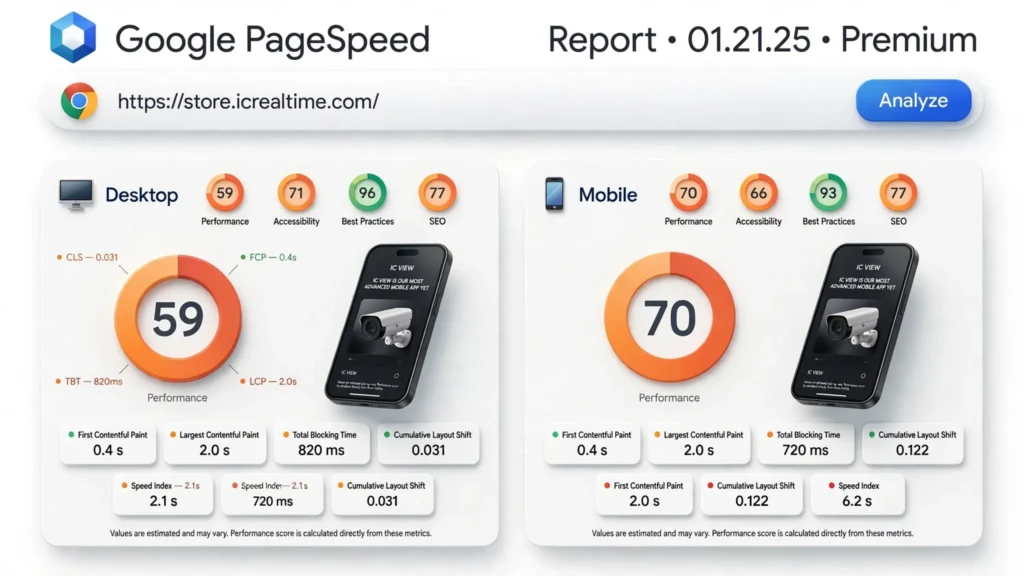
- Run the test and review the mobile and desktop reports.
- Examine the performance metrics and diagnostic recommendations.
- Record the results for comparison after optimization.
PageSpeed Insights provides Lighthouse laboratory measurements and real-user field data when sufficient Chrome User Experience Report data is available. Pages without enough qualifying traffic may not have field data.
Laboratory tests help reproduce and diagnose problems under controlled conditions, while field data reflects the experiences of real visitors. Use both when available, keeping in mind that they measure performance differently.
Analyze loading requests with GTmetrix
Open GTmetrix, enter your page URL, and run a test. Use the Waterfall chart to investigate request timing, resource sizes, and loading delays.
- A large image file may need resizing or compression.
- A slow initial server response may point to hosting limitations, ineffective caching, or application-processing delays.
- Slow third-party requests may come from advertising, analytics, chat widgets, or embedded content.
- Large JavaScript files may indicate unnecessary scripts or costly browser execution.
Treat these findings as diagnostic clues rather than proof of a single cause. Test your homepage, a representative article, and important landing pages. For WooCommerce websites, include product pages and carefully test cart and checkout functionality.
Essential WordPress Speed Optimization Techniques
WordPress performance can be improved by optimizing the resources and configurations responsible for page delivery. Focus on these essential areas before applying advanced optimization settings.
- Configure page caching to reduce repeated server processing.
- Optimize images and media to reduce page size.
- Use a lightweight theme and remove unnecessary functionality.
- Optimize CSS, JavaScript, and website fonts.
- Use a CDN to improve static resource delivery.
The following steps explain how to implement each optimization technique and measure its impact on your WordPress website.
Improve Your WordPress Hosting
Your hosting environment affects how quickly WordPress processes requests and delivers pages. Caching cannot fully compensate for an overloaded server or inefficient application code.
When evaluating WordPress hosting, look for:
- Server resources appropriate for your website’s traffic and workload.
- Supported PHP and database software.
- Reliable uptime, security, backups, and technical support.
- Compatible server-side caching features.
- A staging environment for testing changes safely.
Ask your hosting provider which caching features are already enabled. If the initial server response remains slow, investigate resource limits, server configuration, and database processing before adding more optimization plugins.
Configure WordPress Caching
Caching stores reusable content or data so WordPress can avoid repeating the same work for every request. A suitable setup can reduce server processing and improve page delivery.
- Page caching: Stores generated page output for eligible visitors.
- Browser caching: Lets browsers reuse eligible files on subsequent visits.
- Object caching: Reuses database-backed results to reduce repeated processing.
How to configure caching
- Back up your website.
- Check whether your hosting provider already offers caching.
- Choose one compatible primary caching solution.
- Enable appropriate page and browser caching.
- Clear the cache and test the website in a logged-out browser.
- Verify that forms, navigation, account pages, and dynamic content work correctly.
Avoid running multiple caching plugins with overlapping features unless there is a clear technical reason. Conflicting settings can cause stale content, broken layouts, and difficult troubleshooting.
For WooCommerce, configure exclusions for cart, checkout, account, and personalized pages according to your hosting and plugin documentation. These pages may contain user-specific information that should not be served through shared public caches.
See the official WordPress caching documentation for additional guidance.
Optimize Images and Media Files
Large images can increase page weight and delay loading. Resizing and compressing them reduces file sizes while maintaining acceptable visual quality.
- Identify large images using PageSpeed Insights or GTmetrix.
- Resize images to match their displayed dimensions.
- Compress files without noticeably degrading image quality.
- Use responsive images to serve appropriately sized files to different devices.
- Consider modern image formats such as WebP and AVIF.
Image optimization plugins to evaluate include:
Check each plugin’s current features, compatibility, and free or paid plan limits before installing it.

Use lazy loading appropriately
Lazy loading delays image downloads until images approach the visible portion of the page. This can reduce unnecessary initial downloads on long pages.
Important: Do not lazy-load the primary above-the-fold image if it is the page’s Largest Contentful Paint (LCP) element. Delaying that image can worsen loading performance. Prioritize making the main visible content available quickly.
For further guidance, see web.dev’s LCP optimization guide.
Remove Unnecessary Plugins and Theme Overhead
The number of installed plugins does not determine WordPress speed by itself. Performance depends on the work each plugin performs, the resources it loads, and how it interacts with your theme and hosting environment.
When performance issues stem from complex themes, plugins, or custom functionality, WordPress eCommerce development services may help address the underlying technical limitations.
- Review active plugins and identify duplicate functionality.
- Remove features that are no longer needed.
- Back up your website and use staging where possible.
- Test suspected plugins individually in a safe environment.
- Compare performance and verify that essential features still work.
Review your theme and page builder as well. A lighter theme may reduce unnecessary assets, but switching themes can affect layouts, navigation, accessibility, and business functionality. Make the change only when testing shows that the potential benefits justify the work.
Keep WordPress core, themes, and plugins updated. Test significant updates for compatibility, and have a recovery plan before applying changes to a live website.
Optimize CSS, JavaScript, and Fonts
CSS controls page appearance, while JavaScript powers interactive features. Excessive code, render-blocking resources, and long-running scripts can delay visible content and make a website feel unresponsive.
- Remove unused features and unnecessary scripts.
- Minify CSS and JavaScript when compatible with your setup.
- Defer noncritical JavaScript when dependencies allow.
- Load nonessential widgets only when needed.
- Limit font families and weights to those your design requires.
- Preload critical fonts only when testing indicates a benefit.
Review analytics, advertising, chat widgets, social embeds, and video players. Remove redundant integrations and consider loading resource-intensive embeds on demand.
After each change, test navigation, forms, consent controls, analytics, accessibility features, and checkout. If an optimization breaks functionality, revert it and investigate the dependencies before trying another approach.
Use a Content Delivery Network (CDN)
A content delivery network distributes or caches eligible content across geographically distributed servers. It can deliver images, stylesheets, JavaScript, and other static files from locations closer to visitors.
A CDN can benefit websites serving audiences across multiple regions. Depending on the provider, it may also offer image transformations, compression, security controls, and edge caching.
Examples include Cloudflare’s CDN and CDN services provided by hosting companies.
A CDN does not automatically resolve expensive database queries or slow WordPress application logic. Check which resources are cached and ensure that cache invalidation works correctly when content changes.
Optimize the WordPress Database
WordPress stores posts, settings, metadata, and other application information in its database. Unnecessary stored data and inefficient queries can contribute to slow requests.
- Back up the database before cleanup.
- Remove spam and trashed content when appropriate.
- Review expired transients and plugin-specific cleanup options.
- Investigate slow queries and excessive autoloaded options when necessary.
- Consider persistent object caching when supported and justified by testing.
Database cleanup will not fix every slow website. Avoid deleting unfamiliar database tables or changing production database settings without understanding their purpose and having a reliable recovery plan.
Improve Core Web Vitals and Mobile Performance
Core Web Vitals are important performance metrics that help evaluate the loading speed, responsiveness, and visual stability of your WordPress website. After applying speed optimization techniques, check these metrics to understand how your changes affect the overall user experience.
- Largest Contentful Paint (LCP): Optimize large images, improve caching, and reduce server response delays.
- Interaction to Next Paint (INP): Reduce unnecessary JavaScript and improve page interaction performance.
- Cumulative Layout Shift (CLS): Specify image dimensions and reserve space for advertisements and embedded content.
Google recommends an LCP of 2.5 seconds or less, an INP of 200 milliseconds or less, and a CLS score of 0.1 or less for good Core Web Vitals performance. You can review these metrics using the official Core Web Vitals documentation. For a detailed explanation and optimization guide, read our Core Web Vitals for Business Websites article.

Check mobile performance
Test both mobile and desktop experiences. When possible, use a real phone to check how visitors browse products, submit forms, and complete purchases.
Pay particular attention to large images, delayed content, slow interactions, intrusive third-party scripts, and layout shifts on smaller screens.
The Google Search Console Core Web Vitals report can help monitor eligible URL groups using real-user data.
Retest Your Website After Optimization
Repeat your original tests using the same URLs, device categories, and comparable conditions. Run multiple tests if results vary significantly.
- Compare the new measurements with your baseline.
- Review changes in resource timing and server response.
- Check mobile and desktop layouts.
- Test forms, navigation, search, and login functionality.
- For WooCommerce, verify cart updates, shipping, coupons, and checkout.
- Monitor real-user performance over time.
Record each change and its results. If performance deteriorates or a feature breaks, revert the latest change and investigate before continuing.
Best WordPress Caching Plugins to Consider
The right caching plugin depends on your hosting environment, existing server features, and optimization needs. Choose a compatible solution that addresses your requirements without duplicating features already provided by your host.

WP Super Cache
A free page caching plugin for serving cached pages. It can suit blogs and business websites that primarily publish public content.
View plugin detailsW3 Total Cache
A free plugin with multiple caching and performance optimization features. Its configuration options offer flexibility, but settings require careful compatibility testing.
View plugin detailsWP Rocket
A commercial performance plugin that includes caching and additional optimization features. Check its current pricing, supported functionality, and compatibility before purchasing.
Visit official websiteLiteSpeed Cache
A free plugin with server-integrated caching capabilities in compatible LiteSpeed environments. Feature availability depends on the server configuration and associated services.
View plugin detailsCompare current features, support, and compatibility before choosing. Your hosting provider may already offer page caching, so an additional caching system may be unnecessary.
After configuring caching, clear existing caches and test important pages in a logged-out browser. For WooCommerce, verify product variations, cart updates, account pages, coupons, shipping calculations, and checkout.

WordPress Performance Optimization Tips
Getting the best results from WordPress speed optimization requires proper configuration and regular performance testing. Apply optimization changes carefully, avoid overlapping tools, and verify that your website continues to work correctly after each major adjustment.
Regular WordPress website maintenance helps you keep themes and plugins updated, identify compatibility issues, and monitor performance after significant changes.
- Create a backup: Back up your website before changing caching, database, theme, or plugin settings.
- Test changes on staging: Check potentially disruptive optimization settings before applying them to your live website.
- Avoid duplicate optimization tools: Do not run multiple plugins that perform the same caching, minification, or image optimization tasks.
- Optimize images properly: Compress images, use appropriate dimensions, and choose modern image formats.
- Configure caching correctly: Check page caching and browser caching settings while excluding sensitive dynamic pages.
- Reduce unnecessary scripts: Review third-party tools and remove scripts that are not needed.
- Test mobile performance: Check loading behavior, navigation, and important interactions on mobile devices.
- Verify website functionality: Test contact forms, search, login, and checkout after significant optimization changes.
- Measure optimization results: Compare performance before and after changes using the same testing tools and comparable conditions.
Quick WordPress Speed Optimization Checklist
Use this checklist to audit an existing WordPress website or plan a performance improvement project.
- Test important pages with PageSpeed Insights and GTmetrix.
- Record baseline performance measurements.
- Review hosting capacity and existing server caching.
- Configure one compatible primary caching solution.
- Resize and compress images.
- Evaluate WebP and AVIF support.
- Remove unnecessary plugins and redundant functionality.
- Reduce avoidable CSS, JavaScript, font, and third-party overhead.
- Consider a CDN and object caching when appropriate.
- Investigate database issues using performance evidence.
- Review LCP, INP, CLS, and mobile performance.
- Retest the website and verify essential functionality.
- Monitor performance after significant website changes.
How to Measure Optimization Results
Compare measurements for the same URLs under similar conditions. Run multiple tests when results vary to account for normal fluctuations.
Look beyond the overall performance score. Examine server response, resource loading, image sizes, JavaScript execution, Core Web Vitals, and the usability of important pages.
Laboratory results and real-user field data measure different aspects of performance. Use laboratory tests to investigate specific problems and field data to understand visitor experiences when sufficient data is available.
For additional guidance, consult Google PageSpeed Insights and Google’s Core Web Vitals documentation.
When Should You Get Professional WordPress Speed Optimization Help?
Many basic performance improvements can be handled without advanced technical knowledge. Professional assistance may be worthwhile when problems persist or require changes to server configuration, application code, or complex integrations.
For projects that require a broader website rebuild or specialized functionality, explore our custom website development service to learn about the available development options.
- Your server response remains slow despite appropriate caching.
- Complex plugins or theme customizations create performance conflicts.
- Database queries or PHP processing require deeper investigation.
- JavaScript optimization breaks forms, navigation, or checkout.
- Your WooCommerce store experiences performance problems on dynamic pages.
- You need to investigate Core Web Vitals issues across many important URLs.
- Performance deteriorates after updates or new integrations.
- You need a structured optimization process that protects essential business functionality.
A professional optimization process should include baseline testing, bottleneck diagnosis, controlled changes, functional testing, and follow-up measurements. The aim is to improve the visitor experience without introducing new problems.
Before hiring a WordPress performance specialist, ask how they diagnose bottlenecks, document changes, test compatibility, and recover from failed optimizations. The scope of work should define the deliverables and explain how results will be measured.
If your website remains slow because of server issues, complex scripts, database bottlenecks, or theme and plugin conflicts, our WordPress speed optimization service can help you investigate the underlying causes and identify appropriate improvements.
Website Performance, Privacy, and Safe Testing
Performance testing requires additional care when a website handles customer accounts, payments, or other sensitive information.
- Use staging environments or test accounts when investigating authenticated pages and checkout workflows.
- Avoid sharing administrator passwords, payment credentials, or customer information with third-party testing services.
- Review the privacy policies and data-handling practices of external tools and plugins before using them.
- Keep backups secure and restrict access to production credentials.
- Ensure private or personalized pages are not exposed through public caching configurations.
- Preserve required consent controls and privacy-related functionality when optimizing scripts.
- Use payment sandbox environments when available and appropriate for testing.
- Verify that caching changes do not expose customer-specific content to other visitors.
Public performance tools can help analyze publicly accessible pages, but they do not replace controlled testing of private workflows, security settings, or production data.
Before deploying changes, verify that forms, authentication, customer sessions, and checkout work correctly. If an optimization causes unexpected behavior, revert it and investigate the cause before making further changes.
Frequently Asked Questions About WordPress Website Speed
How can I speed up a WordPress website for free?
Start with Google PageSpeed Insights to identify bottlenecks. Resize and compress large images, remove unnecessary plugins, and use a compatible free caching solution if your host does not already provide suitable caching. Results depend on your website and hosting environment.
What are the best WordPress caching plugins?
WP Super Cache, W3 Total Cache, LiteSpeed Cache, and WP Rocket are options to evaluate. Choose based on hosting compatibility, required features, support, and measured results. Avoid duplicating caching features already provided by your hosting environment.
Does WordPress website speed affect SEO?
Google considers page experience and Core Web Vitals within its broader ranking systems, but a better speed score does not guarantee higher rankings. Focus on useful content and a fast, responsive, visually stable experience.
See Google’s Core Web Vitals documentation for official guidance.
Why is my WordPress website still slow after installing a caching plugin?
The bottleneck may involve hosting, oversized images, expensive database queries, heavy JavaScript, third-party scripts, or an ineffective caching configuration. Review performance reports to identify the cause before adding another plugin.
How often should I test WordPress website speed?
Test after major theme, plugin, hosting, design, or optimization changes. Periodic monitoring can also reveal performance regressions, particularly on important business pages and WooCommerce product or checkout pages.
Can I improve WordPress speed without changing my theme?
Yes. Hosting improvements, caching, image optimization, script reduction, and careful plugin configuration can improve performance without replacing your theme. Consider switching themes when testing identifies limitations that cannot be addressed effectively through other changes.
How can I check Core Web Vitals on a WordPress website?
You can check your WordPress website’s Core Web Vitals using Google PageSpeed Insights and Google Search Console. These tools help you review loading performance, responsiveness, and layout stability. For detailed explanations of LCP, INP, CLS, and their optimization methods, read our Core Web Vitals for Business Websites guide.
Consult the official Google Core Web Vitals documentation for current definitions and evaluation guidance.
Does the number of WordPress plugins affect website speed?
Not necessarily. Performance depends on the resources plugins load, the requests they generate, their database operations, and how they interact with your theme and hosting environment. Evaluate their actual impact rather than removing plugins solely to reduce their number.
Will a CDN automatically make my WordPress website faster?
No. A CDN can improve the delivery of eligible cached resources, especially for visitors in different geographic regions. It does not automatically fix slow database queries, expensive PHP processing, or other server-side bottlenecks.
How can I improve WooCommerce website speed without breaking checkout?
Back up your website, test changes on staging, optimize product images, and review third-party scripts. Configure caching according to your hosting and plugin documentation. Before deploying changes, verify product variations, cart updates, coupons, shipping calculations, payment integrations, and checkout.
Ready to Improve Your WordPress Website Speed?
A slow website can make it harder for visitors to explore your content, use your services, and complete purchases. Start with Google PageSpeed Insights to identify the performance issues that matter most.
Prioritize measurable bottlenecks and apply changes carefully. Improvements to hosting, caching, images, JavaScript, and Core Web Vitals should reflect your website’s actual performance needs.
If server issues, complex scripts, database bottlenecks, or theme and plugin conflicts persist, professional WordPress speed optimization can help identify the underlying causes and develop a targeted improvement plan.



3 Responses