How to Fix Common Website Errors: A Complete Guide
Common website errors can prevent visitors from opening pages, submitting contact forms, signing in, or completing purchases. Persistent errors can also interfere with search engine crawling and disrupt business operations. This guide explains how to identify common website errors, investigate their likely causes, and apply appropriate fixes without creating additional problems.
Quick Answer: How to Fix Common Website Errors
Start by checking the URL, testing the website in another browser or on a different network, and determining whether the issue affects one page or the entire site. Record the exact error message or HTTP status code, review recent changes, and choose a fix based on the evidence.
- 400 Bad Request: Check the URL and request data for invalid or malformed information.
- 403 Forbidden: Review access permissions, authentication requirements, and security restrictions.
- 404 Not Found: Verify the URL, repair broken links, or redirect permanently moved content to a relevant replacement.
- 429 Too Many Requests: Wait before retrying and investigate rate limits if the error persists.
- 500 Internal Server Error: Check server and application logs, recent plugin or theme changes, PHP errors, and configuration settings.
- 502 Bad Gateway: Investigate communication failures between a proxy or gateway and the upstream server.
- 503 Service Unavailable: Check maintenance status, server load, and application resource limits.
- 504 Gateway Timeout: Investigate slow database queries, delayed external requests, and overloaded services.
- SSL errors: Verify certificate validity, hostname coverage, renewal status, and HTTPS configuration.
- DNS errors: Check domain registration, nameservers, and DNS records.
- Database errors: Verify database availability, connection credentials, connection limits, and relevant logs.
Back up your website files and database before making significant changes. If an error affects payments, customer information, security, or other essential functions, contact your hosting provider or a qualified website developer rather than making untested production changes.
What Are Common Website Errors?
A website error occurs when a browser, server, application, or requested resource cannot complete an operation as expected. The displayed message can help narrow down the problem, but it does not always reveal the underlying cause.
Browser and Connection Errors
Connection errors occur when a browser cannot reach a website or establish a secure connection. Possible causes include network interruptions, DNS resolution failures, SSL certificate problems, firewall restrictions, and incorrect domain settings. Testing another network or device can help determine whether the issue is local or affects the website more broadly.
HTTP Status Code Errors
HTTP status codes describe how a server handles a request. Responses in the 200 range generally indicate success, 300-range responses indicate redirection, 400-range responses identify client-side request errors, and 500-range responses indicate server-side errors.
These categories are useful diagnostic clues, not complete explanations. For example, a 500 Internal Server Error may result from an application bug, a PHP failure, or an incorrect server configuration. The server logs and the circumstances surrounding the failure can help identify the actual cause.
Server and Application Errors
Server and application errors can result from unavailable services, exhausted resources, software bugs, database connection failures, or configuration problems. On WordPress websites, incompatible plugin updates, theme changes, and PHP version changes can also trigger failures.
Website Configuration Problems
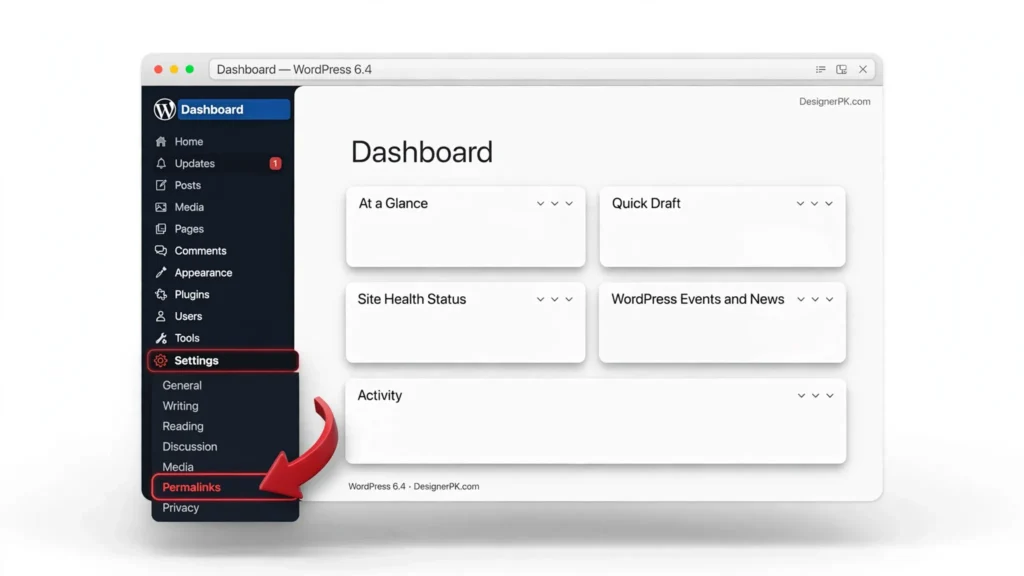
Incorrect redirects, file permissions, DNS records, caching rules, and URL rewrite settings can prevent pages or resources from loading correctly. Resolving these issues may require access to the WordPress dashboard, hosting control panel, or server logs.
For a detailed explanation of HTTP response codes, consult the MDN HTTP response status codes reference.
How to Troubleshoot Website Errors Step by Step
A consistent troubleshooting process helps isolate the cause without introducing unnecessary changes. Start with simple checks, then investigate application and server settings if the evidence points to a deeper problem.
-
1
Check the URL and Error Message
Confirm that the domain and page address are correct. Record the exact error message, affected URL, and time of the failure. If only one page is affected, check whether it was moved, renamed, or removed.
-
2
Test Another Browser or Network
Open the page in another browser or a private browsing window, or try a different network. If the site works elsewhere, investigate browser state, local network restrictions, or device-specific settings before changing the website itself.
-
3
Clear the Browser Cache When Appropriate
Outdated cached files can make a page appear broken or prevent updated content from displaying. Clear cached files and reload the page. Clear cookies only when necessary because doing so may sign you out or remove session information.
-
4
Determine How Much of the Website Is Affected
Check the homepage, internal pages, images, contact forms, login, and checkout if applicable. A single missing page may indicate a broken link or routing issue, while failures across the site may point to hosting, DNS, or application problems.
-
5
Inspect Failed Requests in Browser Developer Tools
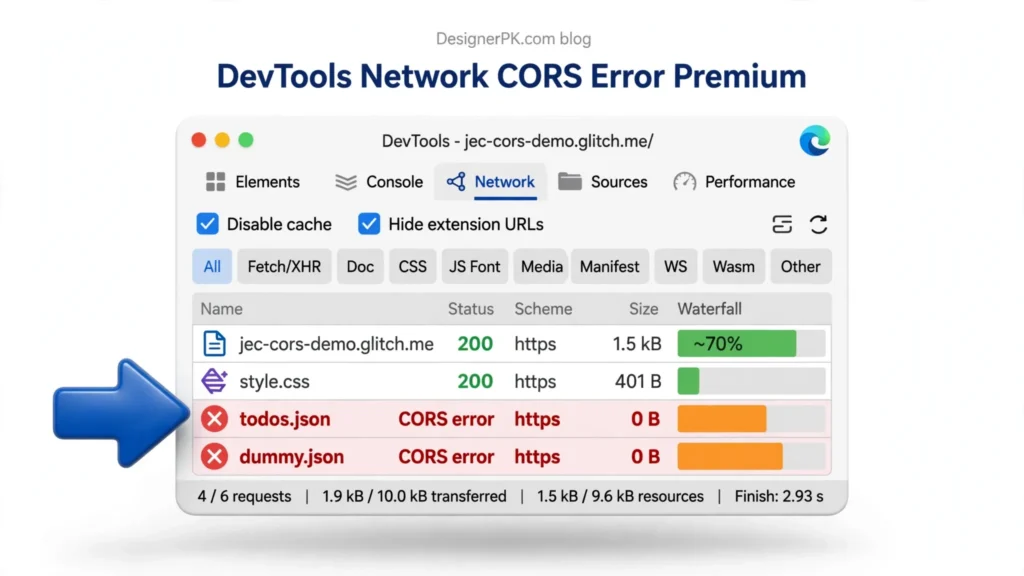
Open the browser’s developer tools and select the Network panel. Reload the affected page and inspect failed requests, HTTP status codes, redirects, resource URLs, and response times. This can help identify problems with images, stylesheets, scripts, API requests, or server responses.
Before sharing diagnostic exports, remove session cookies, authorization headers, passwords, access tokens, and other sensitive information.
-
6
Review Recent Website Changes
Check the timeline of plugin and theme updates, code deployments, hosting changes, DNS modifications, and security configuration updates. Changes made shortly before the failure may help narrow the investigation, but confirm the cause before rolling anything back.
-
7
Check Server Logs and Service Status
If you administer the website, review hosting error logs, application logs, database availability, DNS settings, and relevant hosting or CDN service notices. Use the evidence to identify the failing component rather than changing unrelated settings.
-
8
Back Up the Website Before Major Repairs
Back up both website files and the database before editing configuration files, repairing database tables, or making significant updates. Confirm that the backup is accessible and that a recovery option is available.
-
9
Apply One Targeted Fix and Retest
When possible, test the change in a staging environment before applying it to the live website. Change one variable at a time, retest the affected page, and verify related functionality before proceeding.
If multiple visitors cannot access the website or server errors keep returning, contact your hosting provider with the error message, timestamp, affected URL, and relevant sanitized logs. Never include passwords, API keys, or confidential credentials in support requests.
Common HTTP Error Codes and Their Fixes
Use this reference to connect an HTTP status code with its likely causes and next steps. Visitor-side checks are separated from actions that generally require administrator access.
400 Bad Request
Meaning: The server considers the request invalid and cannot process it.
Common causes: Malformed requests, invalid request data, or incorrect URL formatting.
Visitor fix: Check the URL and try another browser. Remove unnecessary URL parameters only when appropriate.
Administrator fix: Review request details, application logs, and server configuration to determine why the request is rejected.
403 Forbidden
Meaning: The server refuses access to the requested resource.
Common causes: File permissions, authentication rules, firewall policies, or security restrictions.
Visitor fix: Check the URL and sign in if the page requires authentication.
Administrator fix: Review access rules, permissions, firewall events, and security logs. Do not disable security controls without identifying the cause.
404 Not Found
Meaning: The requested page or resource cannot be found.
Common causes: Incorrect URLs, deleted pages, changed permalinks, or broken links.
Visitor fix: Check the URL or navigate to the page through the website menu.
Administrator fix: Repair internal links and use a relevant 301 redirect when content has moved permanently. If there is no suitable replacement, return an appropriate 404 or 410 response.
429 Too Many Requests
Meaning: The server is limiting requests because too many have been made within a given period.
Common causes: Rate limits, repeated automated requests, or restrictive security rules.
Visitor fix: Wait before retrying and avoid repeatedly refreshing the page.
Administrator fix: Review rate-limit rules and logs. Check any Retry-After guidance and distinguish legitimate traffic from unwanted automated requests.
500 Internal Server Error
Meaning: The server encountered an unexpected condition.
Common causes: Application bugs, plugin conflicts, PHP errors, resource limits, or configuration problems.
Visitor fix: Retry after a short wait and report persistent failures.
Administrator fix: Inspect PHP and server logs, review recent changes, check resource limits, and test suspected plugin or theme conflicts in staging.
502 Bad Gateway
Meaning: A gateway or proxy received an invalid response from an upstream server.
Common causes: Upstream service failures, proxy configuration problems, or overloaded application servers.
Visitor fix: Retry later and check whether the website fails on another device or network.
Administrator fix: Review proxy and application logs, verify upstream connectivity, and investigate recent infrastructure changes.
503 Service Unavailable
Meaning: The server cannot currently handle the request.
Common causes: Scheduled maintenance, traffic spikes, exhausted resources, or unavailable application services.
Visitor fix: Wait briefly and retry.
Administrator fix: Check maintenance status, server resources, background tasks, and application logs. Investigate the cause of the overload before changing resource limits.
504 Gateway Timeout
Meaning: A gateway did not receive a timely response from an upstream server.
Common causes: Slow database queries, long-running application tasks, delayed external API responses, or overloaded services.
Visitor fix: Retry later and report recurring problems.
Administrator fix: Identify the slow operation, inspect relevant logs, and address the underlying delay before considering timeout changes.
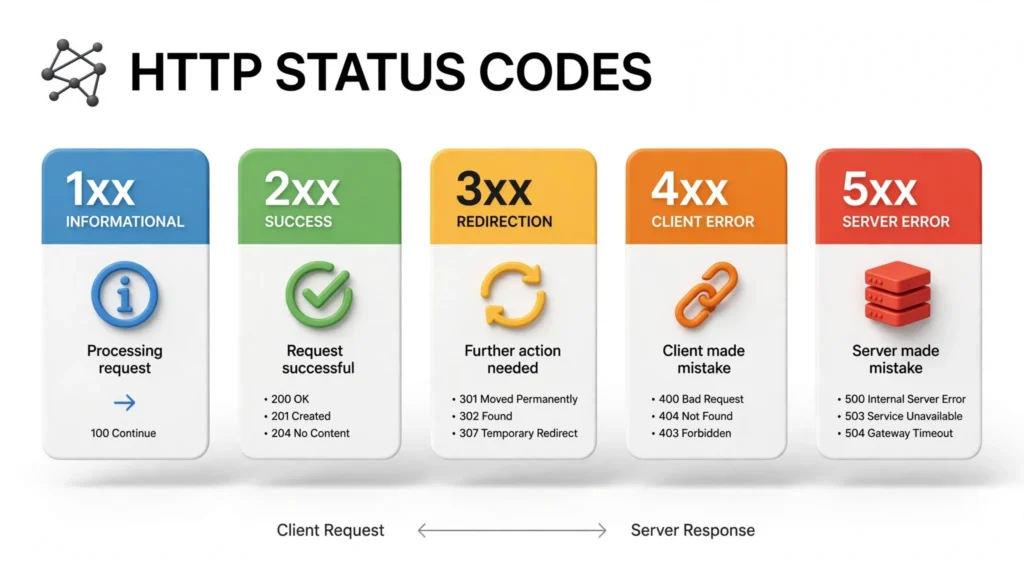
For more detail, consult the MDN HTTP status code reference and the official WordPress common errors guide.
Security and Backup Precautions During Troubleshooting
Troubleshooting may involve server logs, configuration files, database credentials, and customer information. Protect these resources while investigating and repairing website errors.
- Back up before major changes. Keep website files and database backups in a secure location, and confirm that recovery is possible before making significant repairs.
- Protect credentials. Never publish database passwords, API keys, access tokens, or private configuration details.
- Limit access. Give developers and support personnel only the permissions they need to complete the work.
- Keep security controls enabled. Investigate the cause of a firewall restriction or security alert before changing protective settings.
- Keep diagnostic information private. Avoid displaying detailed PHP errors, stack traces, or database information to public visitors. Remove sensitive information before sharing logs or diagnostic exports.
- Preserve evidence of suspected attacks. If you suspect unauthorized access, preserve relevant logs and contact your hosting or security provider before making uncontrolled changes.
- Verify the repair. Retest affected pages and essential business functions, and confirm that security protections remain active.
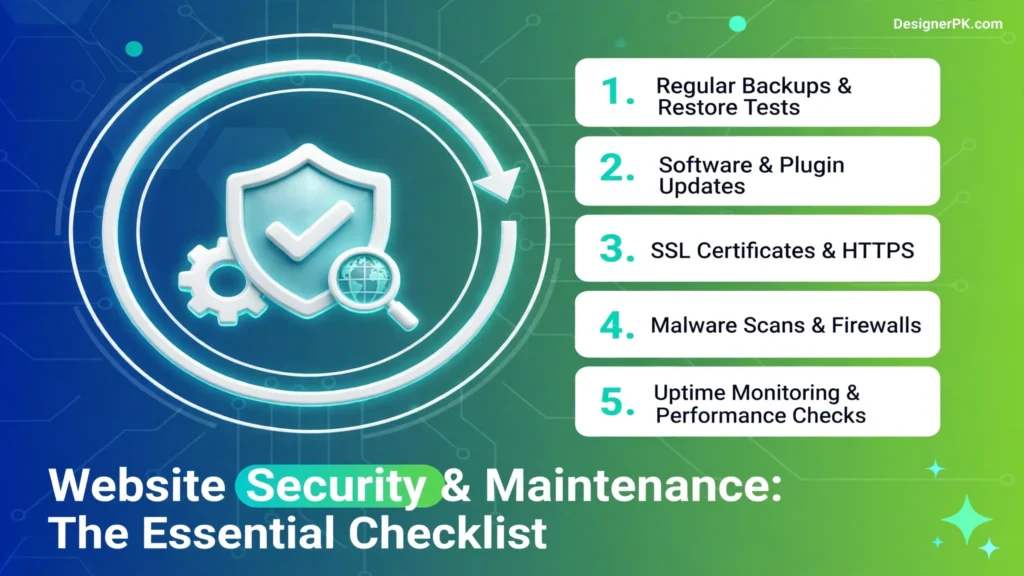
On a production website, prioritize safe recovery and customer data protection over quick, unverified changes.
Frequently Asked Questions About Website Errors
What are the most common website errors?
Common HTTP errors include 400 Bad Request, 403 Forbidden, 404 Not Found, 429 Too Many Requests, 500 Internal Server Error, 502 Bad Gateway, 503 Service Unavailable, and 504 Gateway Timeout. Websites can also experience SSL certificate failures, DNS problems, database connection errors, broken links, and slow-loading pages.
How can I fix website errors without technical knowledge?
Start by checking the URL, testing another browser or network, and clearing cached files when appropriate. These steps can help resolve local browser problems. Persistent server errors, database failures, and security issues may require administrator access or professional support.
How do I fix a 404 error on my website?
Verify the URL and confirm whether the page still exists. Repair incorrect internal links, and use a relevant 301 redirect when content has moved permanently. On WordPress, check permalink settings and server rewrite configuration if multiple valid pages return 404 errors.
How do I fix a 500 Internal Server Error in WordPress?
Review server and PHP error logs, check recent updates, and investigate resource limits or configuration problems. Test suspected plugin or theme conflicts in staging when possible. The correct fix depends on the underlying cause, so avoid making multiple unverified changes.
Do website errors affect SEO?
Persistent server errors and unreachable pages can interfere with search engine crawling. Incorrect redirects and pages that display error messages while returning successful HTTP responses can also create indexing problems. Review important URLs and relevant reports in Google Search Console or learn how to fix a slow WordPress website if speed drops are causing crawl issues.
Should I clear my browser cache when a website is broken?
Clearing cached files can help when outdated resources or local browser state cause the problem. It will not fix a server outage, database failure, or incorrect DNS configuration. If the issue involves website-side caching, identify the relevant browser, plugin, server, or CDN cache before clearing it.
When should I contact my hosting provider?
Contact your provider when server errors persist, DNS or SSL settings are uncertain, database services fail, or hosting resource limits may be involved. Include the error message, timestamp, affected URL, and relevant sanitized diagnostic information without sharing passwords or other secrets.
Can a website error fix itself?
Temporary errors may disappear when a service recovers, maintenance finishes, or a network interruption ends. Recurring failures should be investigated because they may indicate an application, hosting, database, or configuration problem.
Fix Website Errors Before They Affect Your Visitors
Identify the affected pages, record the error messages, and follow the troubleshooting steps that match the symptoms. Back up your website before major repairs and verify each fix before making further changes.
If the problem persists or affects customers, payments, or essential website functions, professional technical support can help investigate the underlying cause. Depending on the issue, you may need WordPress development, website speed optimization, or website maintenance services.
Start Troubleshooting Your Website



3 Responses