How to Automate WordPress Featured Images
Automating WordPress featured images can save your team time, but simply sending a post title to an image generator often produces poor results. You may get irrelevant images, unwanted text in the image, duplicate jobs, failed API requests, or large image files that use too much workflow memory.
A more reliable setup uses n8n to manage the workflow, OpenAI to turn your article into a useful image prompt, fal.ai to generate the image, and the WordPress REST API to upload and assign the finished image. The workflow also uses a simple job lock so the same post is not processed more than once at the same time.
This guide explains how the process works, how to handle both direct and delayed image generation, and how to make the workflow safer and easier to maintain.
How the Workflow Works
If you publish a large number of WordPress posts, choosing or creating a featured image for every article can take a lot of time. An automated image workflow can handle that task for you.
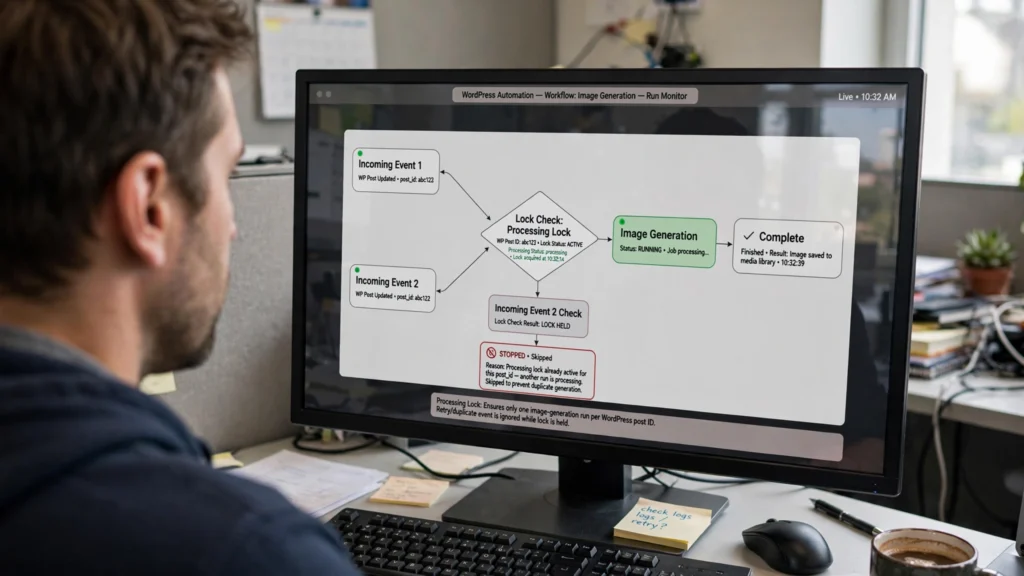
The challenge is making the automation reliable. A WordPress webhook can sometimes run more than once because of retries or multiple events. If that happens, you could generate several images for the same post.
 This workflow uses n8n as the main automation tool. It connects OpenAI for creating the image prompt, fal.ai for generating the image, and WordPress for storing and assigning the finished file.
Before generating an image, the workflow creates an idempotency lock. In simple terms, this is a check that tells the workflow, “This post is already being processed.” The lock can use the WordPress post ID and a generation_status value stored in WordPress metadata or another key-value store.
If another workflow run sees that the post is already being processed, it stops instead of starting another image generation job.
[WordPress Trigger / Webhook]
              │
              ▼
[Get Post ID + Event ID]
              │
              ▼
[Create Processing Lock]
              │
       ┌──────┴──────┐
       │             │
   Already Done    New Job
       │             │
      STOP           ▼
             [Create Image Prompt]
                      │
                      ▼
               [fal.ai Image Generation]
                      │
             ┌────────┴────────┐
             │                 │
       Direct Result      Delayed Result
             │                 │
             │          [Webhook / Check Status]
             │                 │
             └────────┬────────┘
                      ▼
               [Download Image]
                      │
                      ▼
              [Upload to WordPress]
                      │
                      ▼
             [Save Media ID]
                      │
                      ▼
             [Set Featured Image]
                      │
             ┌────────┴────────┐
             │                 │
          SUCCESS            FAILURE
             │                 │
          Complete       Retry / Alert
Step-by-Step Setup
Lock the Post and Create the Image Prompt
Start by creating a processing lock for the WordPress post. You can store a processing status in WordPress post metadata or use a service such as Redis.
If the post already has a featured image, or another workflow is already processing it, stop the workflow. This prevents two webhook runs from creating images for the same post.
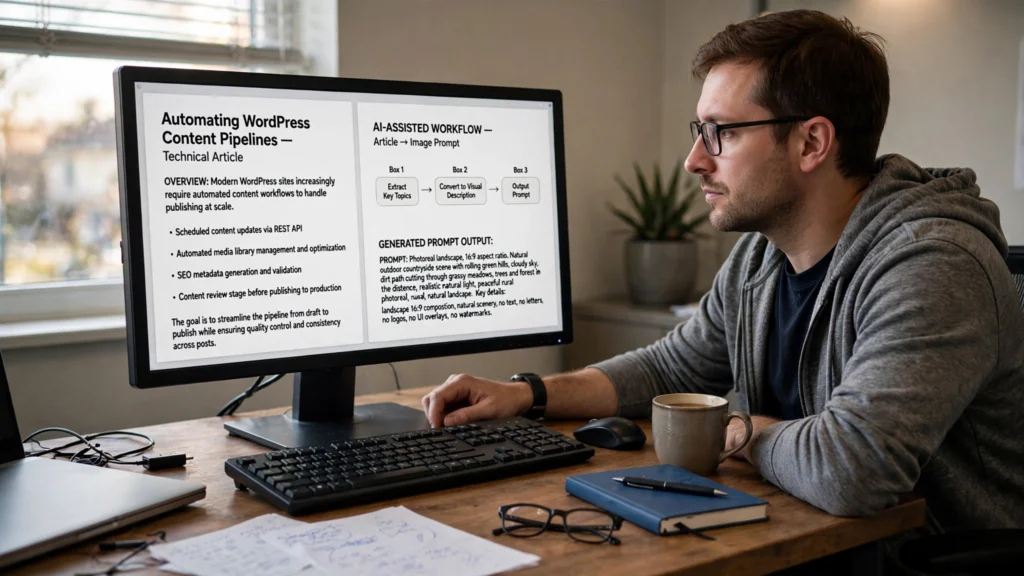
Once the post is locked, send the article content to a supported OpenAI text model. The model can identify the main ideas in the article and turn them into a clear visual prompt.
Image prompt rules: Ask for a 16:9 image and define the visual style you want, such as a 3D isometric illustration or a clean technical diagram. Also tell the image model not to add text, letters, logos, interface elements, or watermarks.
For example, you can include this instruction:
"Do not include text, letters, logos, UI overlays, or watermarks."
Send the Prompt to fal.ai
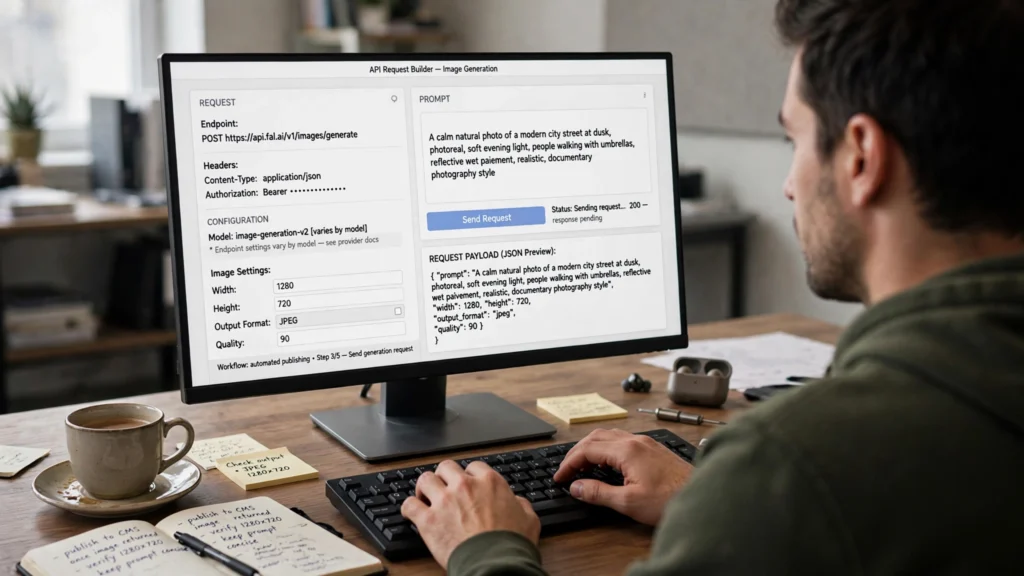
Next, send the finished image prompt to your selected fal.ai image-generation endpoint.
The exact settings depend on the model you choose. Options such as image size, output format, guidance scale, and number of inference steps can vary between models. Always check the documentation for the specific endpoint you are using.
The following example is illustrative. Verify the accepted fields and values for your chosen fal.ai model before using it in production.
POST https://fal.run/fal-ai/flux/dev
Headers:
  Authorization: Key YOUR_FAL_AI_API_KEY
  Content-Type: application/json

Body:
{
  "prompt": "={{ $json.generated_visual_prompt }}",
  "image_size": {
    "width": 1280,
    "height": 720
  },
  "output_format": "jpeg",
  "num_inference_steps": 28,
  "guidance_scale": 3.5
}Get the Generated Image
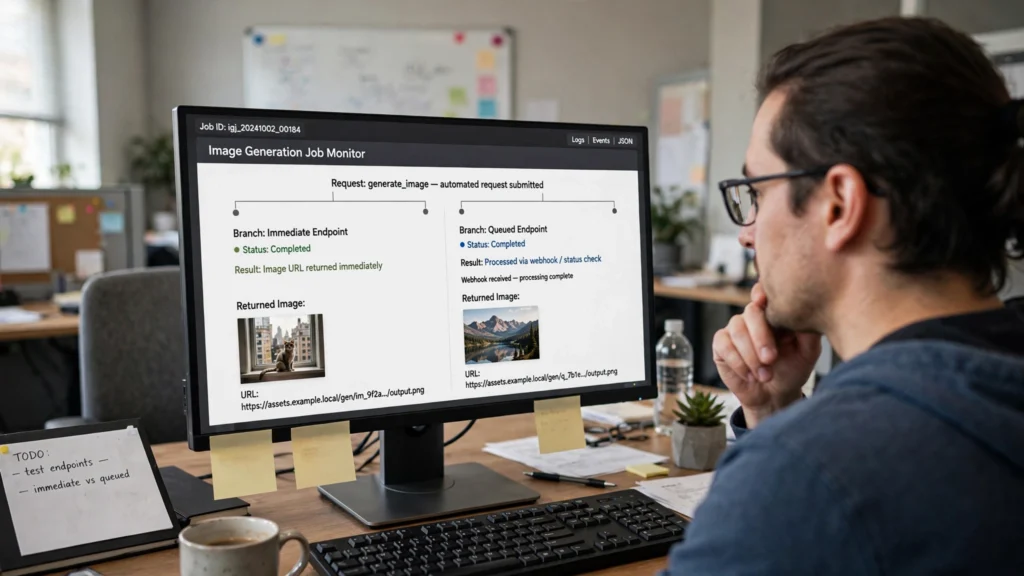
How you receive the image depends on how your selected fal.ai endpoint works.
- Direct result: If the endpoint returns an image URL immediately, send that URL to the next step and download the image.
- Delayed result: If the endpoint places the request in a queue, use its webhook feature when available. Otherwise, have n8n check the job status until it reaches a success or failure state.
Once the image is ready, use an n8n HTTP Request node to download it as File/Binary Data. Binary data is simply the actual image file that n8n can pass to the next step.
Upload the Image and Set It as the Featured Image
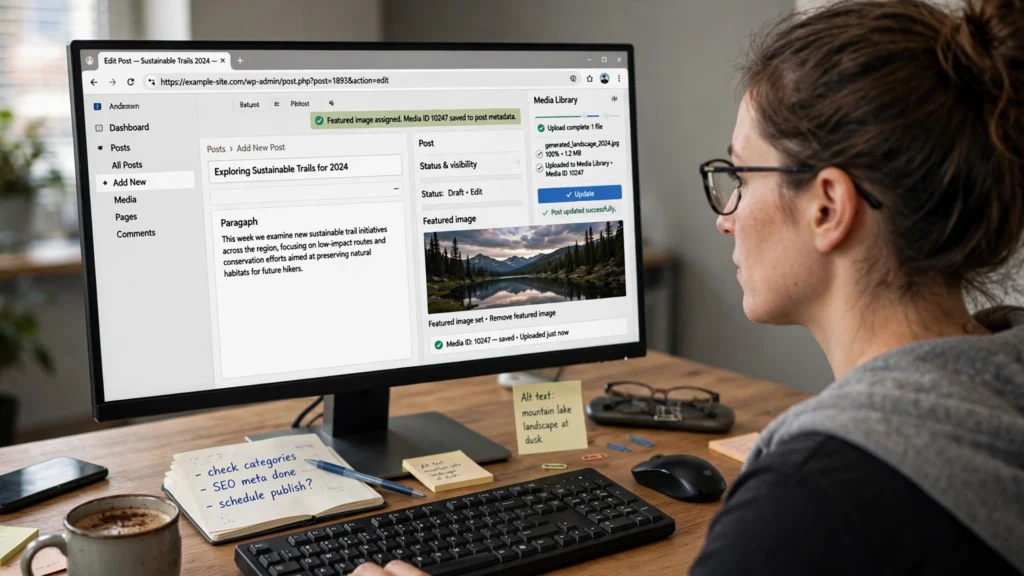
Upload the downloaded image to WordPress using the media endpoint:
POST https://yourdomain.com/wp-json/wp/v2/media
Headers:
  Authorization: Basic [BASE64_APP_PASSWORD]
  Content-Disposition: attachment; filename="featured-{{ $json.post_id }}.jpg"
  Content-Type: image/jpeg

Body:
[Binary File Payload]
WordPress will return a media item ID after the upload. Save that media_id before trying to update the post.
Saving the ID first is important. If the next WordPress request fails, your next attempt can use the existing image instead of generating and uploading another one.
Finally, update the WordPress post with the media ID:
POST /wp-json/wp/v2/posts/{post_id}

{
  "featured_media": media_id
}
After the featured image is successfully assigned, release the processing lock.
n8n Node Guide
Here’s how the main parts of the workflow fit together inside n8n:
- WordPress Webhook / Trigger: Receives information about the new or updated post.
- Lock / Metadata Step: Gets the Post ID and Event ID and creates a processing lock.
- IF Node: Checks whether the post is already being processed or already has a featured image.
- OpenAI Node: Turns the article content into a useful visual prompt using an OpenAI API connection.
- HTTP Request to fal.ai: Sends the image prompt to the image-generation service.
- Result Check: Determines whether the image is ready immediately or needs to be checked later.
- Webhook / Status Check: Waits for an image-generation callback or checks the job status.
- Image Download: Downloads the generated image as binary data.
- WordPress Media Upload: Uploads the image to the WordPress media library.
- Save Media ID: Stores the WordPress media ID before changing the post.
- Attach Image: Updates the post so the new media item becomes its featured image.
- Error and Cleanup: Handles failed requests, releases locks, and records images that were uploaded but not attached to a post.
Example Workflow
Here’s an example of what a successful workflow might look like for a technical article.
[Input Article]
Post Title: "How to Configure BGP Routing on Linux"
Category: Infrastructure / Networking

      │
      ▼
[Create Processing Lock]
Action: SET wp_post_meta (post_582_image_lock = "PROCESSING")
Result: Lock acquired successfully

      │
      ▼
[OpenAI Prompt Step]
Generated Visual Prompt:
"Modern technical illustration of a Linux networking environment showing
interconnected autonomous systems exchanging BGP routes, dark blue background,
clean 3D isometric infrastructure, professional documentation style,
16:9 composition, no text, no labels, no logos, no watermark."

      │
      ▼
[fal.ai Image Generation]
Illustrative Response:
{ "url": "https://v3.fal.media/files/monkey/xyz_sample.jpeg" }

      │
      ▼
[Download Image]
Downloaded Object: Binary buffer [245 KB, image/jpeg]

      │
      ▼
[WordPress Media Upload]
Endpoint: POST /wp-json/wp/v2/media
Returned Media ID: 1234

      │
      ▼
[Save Image Information]
Action: Save media_id 1234 for Post 582

      │
      ▼
[Update WordPress Post]
Endpoint: POST /wp-json/wp/v2/posts/582
Payload: { "featured_media": 1234 }

Result:
Featured image ID 1234 assigned to Post 582.
Processing lock released.
Performance, Security, and Reliability
Keep the Workflow Fast and Stable
- Generation time: Image generation can take different amounts of time depending on the model, image size, number of inference steps, and provider workload. Use webhooks or status checks instead of relying on a fixed delay.
- File size: Large image files can use a lot of memory inside n8n. When the selected endpoint supports it, request a compressed format such as JPEG.
- Retries: Configure retries for temporary HTTP errors such as 429 or 502 responses. A 429 usually means you have sent too many requests in a short period, while a 502 indicates a temporary server or gateway problem.
- Unattached images: WordPress may successfully create a media item even if the later request that assigns it to a post fails. For example, media ID 1234 might exist without being used by a post. Saving the media ID lets your workflow retry the assignment instead of generating another image.
Protect Your WordPress and API Credentials
- Use a dedicated WordPress user: Application Passwords do not create permissions by themselves. The WordPress user’s role controls what the account can do. Create a dedicated service user with only the permissions needed to upload media and update posts. If needed, create a custom role with those specific permissions.
- Protect API keys: Store your OpenAI, fal.ai, and other API credentials in n8n’s encrypted Credentials manager. Do not place secret keys directly inside workflow code or raw node settings.
Adding Human Approval
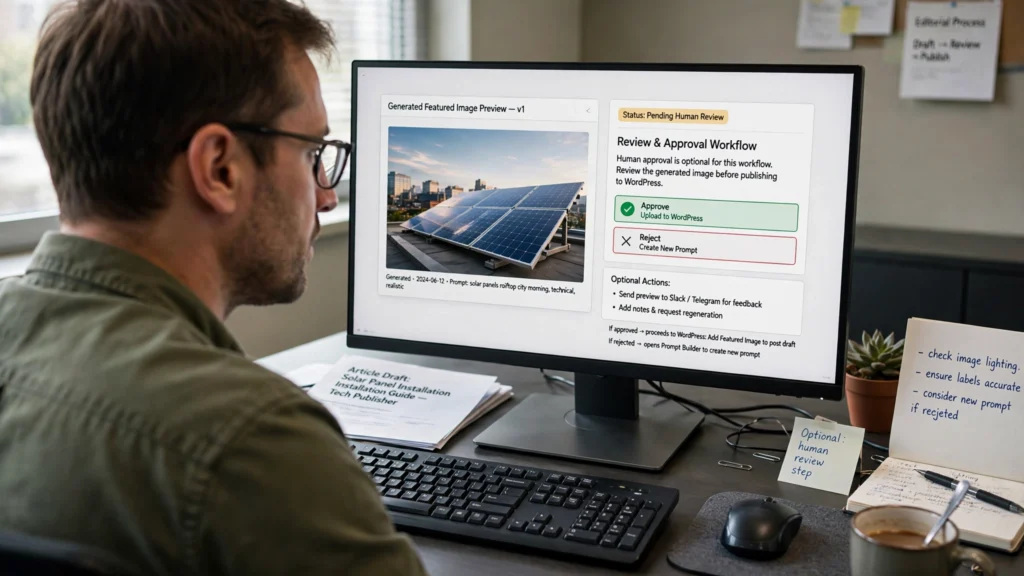
A fully automated featured-image workflow can work well for high-volume technical publications, documentation sites, and automated news feeds.
But if your brand needs close control over the look of every image, add a human approval step before the image reaches WordPress.
For example, the workflow can send the generated image to Slack or Telegram for review. Someone on your team can approve it or reject it and request a new image.
[AI Image Generated] ──► [Send Preview to Slack / Telegram]
                                      │
                           ┌──────────┴──────────┐
                           ▼                     ▼
                  [Approved]              [Rejected]
                       │                     │
                       │              [Create New Prompt]
                       │
                       ▼
              [Upload to WordPress]
Further Resources
Affiliate Disclosure: Some links on this page are affiliate links. If you purchase through them, DesignerPK.com may earn a commission at no additional cost to you. Recommendations are strictly based on curriculum quality, pricing, and verified vendor terms.
n8n Automation and API Design
Learn how to build advanced n8n workflows, handle errors, create custom code steps, and connect APIs reliably.
Explore Course CurriculumGenerative AI and Image Pipelines
Learn how to use open-weight models, connect image-generation APIs, improve prompts, and build faster generative AI workflows.
View Developer TrackFrequently Asked Questions
Can n8n automatically set a generated image as a WordPress featured image?
Yes. The workflow can download the generated image, upload it to WordPress through /wp/v2/media, and receive a media item ID. It can then send a POST request to /wp/v2/posts/{id} with { "featured_media": media_id } to set that image as the post’s featured image.
Why use a dedicated image-generation platform instead of a general image API?
Dedicated image-generation platforms can give developers access to open models such as FLUX and Stable Diffusion variants. They can also provide controls for settings such as inference steps, guidance scales, and image proportions. These options can be useful when you are running image generation at higher volumes.
How do I secure WordPress REST API calls in n8n?
Create a dedicated WordPress user with only the permissions needed for media uploads and post updates. Generate an Application Password for that user and store the credentials in n8n’s encrypted Credentials manager.
Keep in mind that an Application Password does not decide what the user is allowed to do. The user’s WordPress role and permissions control access.
Need Custom AI Automation?
Our team builds production n8n workflows, custom API integrations, and generative AI pipelines designed around your publishing process.
Request an Automation Audit