
12 Proven Troubleshooting Solutions
Is your WooCommerce checkout not working when customers try to place an order? A broken checkout can prevent customers from completing purchases, interrupt payment processing, and result in lost sales.
The problem may originate from several sources, including payment gateway errors, incompatible plugins, JavaScript conflicts, incorrect checkout settings, caching problems, shipping configuration, or server-side failures.
However, the right solution depends on exactly where the checkout process breaks. A checkout page that refuses to load requires a different troubleshooting approach from a Place Order button that does nothing, a declined payment, or an order that remains stuck in pending status.
This guide explains 12 practical ways to troubleshoot WooCommerce checkout problems. You will learn how to identify payment failures, investigate plugin and theme conflicts, inspect browser errors, verify checkout settings, and test your store safely before restoring normal operations.
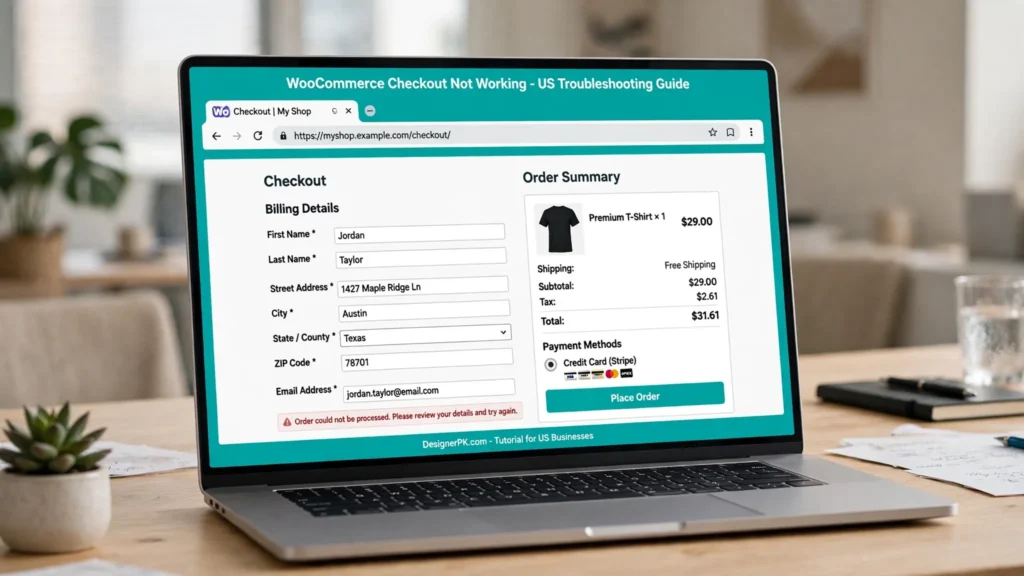
Quick Answer: Why Is WooCommerce Checkout Not Working?
WooCommerce checkout commonly stops working because of incompatible plugins or themes, payment gateway configuration errors, JavaScript failures, incorrect shipping settings, caching conflicts, or server-side problems.
To identify the cause, start by checking recent website changes, reviewing WooCommerce order notes, and inspecting payment gateway logs. If the problem continues, use your browser’s developer tools to identify failed checkout requests and determine whether the issue originates in the browser, a WordPress extension, or your hosting environment.
Follow these initial troubleshooting steps:
- Identify the exact checkout error and determine which stage of the purchasing process fails.
- Review recent WordPress, WooCommerce, plugin, and theme updates.
- Check WooCommerce order notes and payment gateway transaction logs.
- Inspect browser Console and Network errors when checkout stops responding.
- Test potential plugin, theme, and caching conflicts on a staging website.
- Verify payment processing and order creation before considering the issue resolved.
Important: Before asking a customer to submit another payment, check the payment provider’s dashboard and the corresponding WooCommerce order. A transaction may already have been authorized or captured even if the checkout page failed to display its confirmation. Retrying without checking can result in duplicate charges.
What Happens When WooCommerce Checkout Stops Working?
WooCommerce checkout is the final stage of the purchasing process. It collects customer information, validates billing and shipping details, calculates applicable taxes and delivery costs, communicates with payment gateways, and creates or updates the order.
Because these operations depend on multiple WordPress components and external services, a failure in one part can interrupt the entire checkout process.
For example, a payment gateway may successfully authorize a transaction while a separate server-side error prevents WooCommerce from updating the order status. Similarly, a JavaScript conflict may stop the Place Order button from submitting the checkout form even when the payment gateway is configured correctly.
Common Symptoms of WooCommerce Checkout Problems
Before changing your website settings, identify the specific behavior customers experience. Different symptoms often point toward different technical causes.
| Checkout Problem | Possible Cause | What to Check First |
|---|---|---|
| Checkout page is blank or unavailable | Page configuration, PHP errors, or theme conflicts | Checkout page settings and server logs |
| Place Order button does nothing | JavaScript errors or form validation failures | Browser Console and checkout scripts |
| Checkout keeps loading | AJAX failures, Store API errors, or caching conflicts | Browser Network requests |
| Payment methods are missing | Gateway configuration or location restrictions | WooCommerce payment settings |
| Payment is declined | Gateway response or authentication failure | Payment provider logs |
| Order remains pending | Webhook, notification, or payment status synchronization issue | Order notes and gateway notifications |
| Shipping options are unavailable | Incorrect shipping zones or delivery restrictions | Shipping zones and methods |
| Checkout works on desktop but fails on mobile | Responsive layout or browser JavaScript compatibility | Mobile browser testing |
Identifying the exact symptom helps narrow down the investigation and prevents unnecessary changes to unrelated WooCommerce settings.
Classic WooCommerce Checkout vs. Checkout Block
Another important factor when troubleshooting WooCommerce checkout is identifying which checkout implementation your store uses.
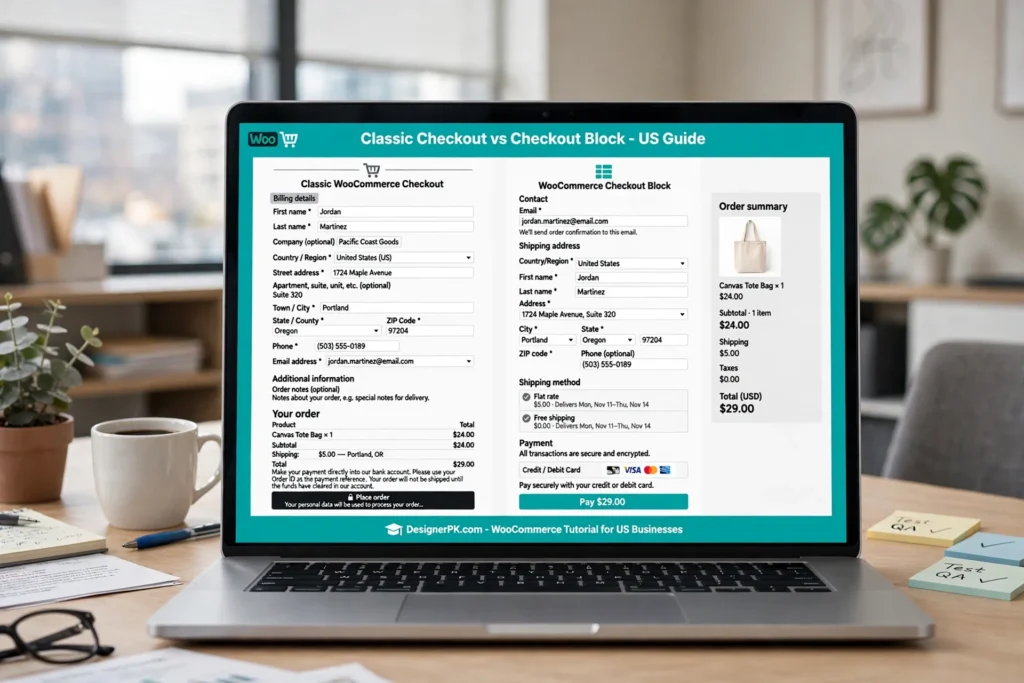
WooCommerce supports two main checkout implementations: classic shortcode-based checkout and the newer Checkout Block. Although both provide the same general purchasing functionality, they use different technical implementations and may have different extension compatibility requirements.
Classic Shortcode-Based Checkout
Classic checkout uses a WooCommerce shortcode to display the traditional checkout form. It is commonly used by older WooCommerce stores and many established checkout customization extensions.
The standard checkout shortcode is:
[woocommerce_checkout]WooCommerce Checkout Block
The Checkout Block provides a block-based checkout experience that can be managed through the WordPress block editor. It uses WooCommerce Store API functionality to handle checkout interactions and communicate with the store.
Some older payment gateways, checkout field extensions, and custom scripts may support classic checkout without fully supporting Checkout Blocks.
Why Checkout Compatibility Matters
If your store recently switched from classic checkout to the Checkout Block, verify that your active payment gateways and checkout extensions support the new implementation.
Compatibility problems may cause:
- Payment methods to disappear from the checkout page.
- Custom checkout fields to stop appearing.
- Shipping and tax calculations to fail.
- Payment integrations to return unexpected errors.
- Checkout validation to behave incorrectly.
Before changing your checkout implementation, review the compatibility documentation provided by your payment gateway and extension developers.
For additional technical guidance, consult the official WooCommerce Checkout Block documentation.
12 Ways to Fix WooCommerce Checkout Not Working
Once you understand the symptoms and identify your checkout implementation, you can investigate the underlying issue systematically.
The following troubleshooting methods move from basic checks to more technical investigations. Whenever possible, reproduce the issue on a staging website before modifying your live store.
1. Check Recent Website Changes
If WooCommerce checkout was working correctly before suddenly failing, review the changes made shortly before the first reported problem.
Recent updates and configuration changes can provide valuable clues, particularly when the checkout issue appears immediately after installing an extension or modifying your website.
Start by reviewing these components:
- WordPress core and WooCommerce updates.
- Payment gateway extensions and payment configuration changes.
- Checkout field, shipping, and tax plugins.
- WordPress theme updates and custom code.
- JavaScript minification and performance optimization settings.
- Hosting, firewall, CDN, and security configuration.
Compare the timestamps of recent updates with the first failed checkout attempt. If a specific change coincides with the problem, investigate that component before modifying unrelated settings.
Also check whether the issue affects all customers or only particular scenarios, such as guest checkout, a specific payment method, or certain delivery addresses.
Keep a Record of Configuration Changes
Before modifying any settings, document the existing configuration and identify which changes you make during troubleshooting.
This makes it easier to reverse unsuccessful adjustments and helps developers understand what happened if professional assistance becomes necessary.
If the problem started immediately after an update, review the extension developer’s compatibility notes and release history. Avoid rolling back payment or security components without understanding the potential impact.
2. Check Your Payment Gateway Configuration
Payment gateway errors are a common reason customers cannot complete WooCommerce purchases. Even when the checkout form loads correctly, an incorrectly configured gateway can prevent payment authorization or interrupt order processing.
WooCommerce payment extensions communicate with external providers such as Stripe and PayPal. These integrations depend on valid account credentials, supported payment methods, secure connections, and correctly configured notification endpoints.
To review your payment gateway settings:
- 1 Navigate to WooCommerce → Settings → Payments in your WordPress dashboard.
- 2 Select the payment gateway customers are having trouble using.
- 3 Confirm that the gateway is enabled and its configuration is complete.
- 4 Verify that the connected payment account is active and supports your store’s currency and country.
- 5 Review API connection settings, authentication requirements, and gateway-specific restrictions.
- 6 Check payment gateway logs for authorization failures, connection errors, and rejected transactions.
Verify SSL and Secure Payment Connections
Your WooCommerce store should use HTTPS with a valid SSL certificate. Secure connections are essential for protecting customer information and supporting payment integrations.
Also verify that your payment gateway’s callback and webhook endpoints are accessible and that your firewall or security configuration is not blocking legitimate payment notifications.
For merchants using Stripe or PayPal, review the provider’s authentication requirements and supported payment methods. If a payment requires additional customer verification, confirm that the authentication process completes correctly rather than assuming every decline is caused by invalid API credentials.
If your provider offers a sandbox or test mode, use its official test credentials and payment methods to investigate the integration without processing real transactions.
Security recommendation: Never share live API secrets, customer payment details, or authentication tokens when requesting technical support. Follow your payment provider’s documentation for securely managing credentials and maintaining PCI DSS compliance.
If the payment integration involves custom endpoints or communication between multiple services, professional API integration development may help identify connection and synchronization problems.
3. Review WooCommerce Order Notes and Payment Logs
WooCommerce checkout errors do not always provide enough information on the customer-facing page. In many cases, the actual reason for a failed transaction appears in the order notes or payment gateway logs.
Start by navigating to WooCommerce → Orders and opening an affected order.
Review its order status and notes for information about:
- Payment authorization failures.
- Gateway connection timeouts.
- Authentication or verification errors.
- Payment notification and webhook failures.
- Unexpected changes to payment or order status.
- Errors occurring during order creation or payment processing.
Enable WooCommerce Payment Logging
If the order notes do not provide sufficient information, inspect your payment gateway’s logging settings. Many WooCommerce payment extensions provide temporary diagnostic logging that records relevant transaction events.
Depending on the extension, these records may be accessible through WooCommerce → Status → Logs.
Follow these steps:
- 1 Open the WooCommerce Status and Logs area.
- 2 Identify the relevant payment gateway log.
- 3 Review entries corresponding to the failed transaction.
- 4 Compare the gateway response with the affected WooCommerce order.
- 5 Disable unnecessary detailed logging after completing the investigation.
Look for timestamps, transaction references, gateway response codes, and errors that help establish where the payment process stopped.
Be careful when sharing diagnostic records. Remove API credentials, payment information, customer details, and security tokens before sending logs to a developer or support team.
For additional troubleshooting information, consult the official WooCommerce payment error documentation.
4. Investigate JavaScript Errors and Failed Checkout Requests
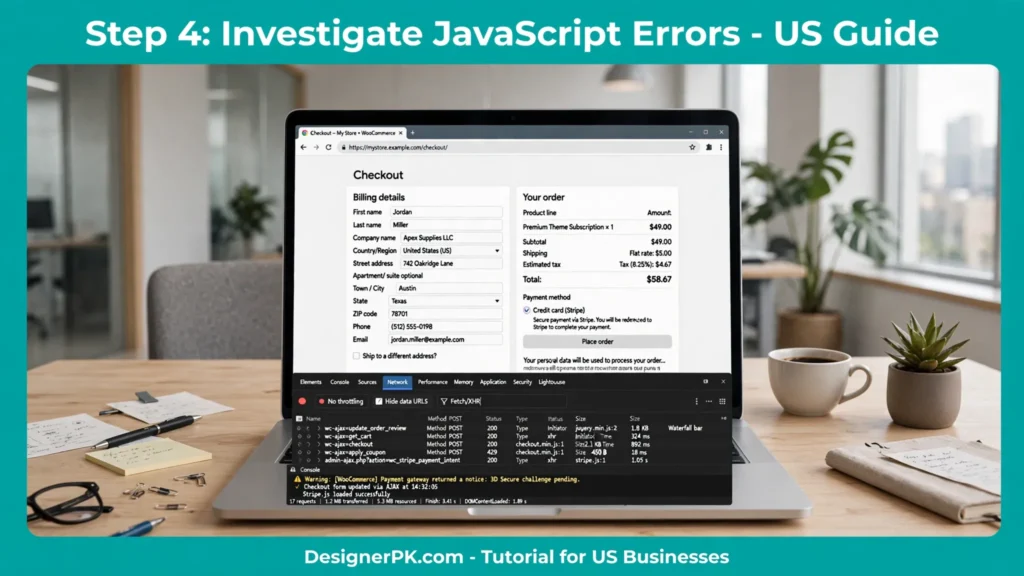
WooCommerce uses JavaScript and background HTTP requests to update checkout totals, validate customer information, calculate shipping costs, display payment methods, and submit orders.
If one of these scripts fails or a required request receives an unexpected response, the checkout process may stop working even when your WordPress dashboard appears normal.
Common symptoms include:
- The Place Order button does not respond.
- The checkout page displays an endless loading indicator.
- Shipping or tax totals do not update.
- Payment methods disappear after changing an address.
- Checkout displays a generic error without explaining the cause.
Check the Browser Console
Chrome and other modern browsers include developer tools that help identify JavaScript errors and failed scripts.
- 1 Open the affected WooCommerce checkout page in Chrome.
- 2 Right-click the page and select Inspect.
- 3 Open the Console tab.
- 4 Clear existing messages and reproduce the checkout problem.
- 5 Identify the first relevant error and note the script or component associated with it.
Pay attention to errors involving checkout scripts, payment integrations, form validation, and third-party optimization plugins.
Inspect Failed Network Requests
The browser Network panel provides additional information about background requests that fail during checkout.
- 1 Open browser developer tools and select the Network tab.
- 2 Select Fetch/XHR to focus on background requests.
- 3 Reproduce the checkout failure.
- 4 Identify requests that remain pending or return an error.
- 5 Review the HTTP status, response information, and request timing.
In classic checkout, relevant requests may include:
wc-ajax=update_order_reviewwc-ajax=checkoutCheckout Block implementations use WooCommerce Store API endpoints, including routes under:
/wp-json/wc/store/Understand Common HTTP Errors
| HTTP Response | Possible Explanation | Recommended Investigation |
|---|---|---|
| 403 Forbidden | Firewall restriction, authorization failure, or nonce validation issue | Review security rules and request validation logs |
| 404 Not Found | Incorrect endpoint, rewrite, or routing problem | Check permalinks and endpoint configuration |
| 500 Internal Server Error | PHP fatal error or server-side failure | Review PHP and web server error logs |
| Request timeout | Slow server processing or an unresponsive external service | Investigate server resources and external API responses |
| Unexpected HTML response | Redirect, cache interference, security layer, or server warning | Inspect the response and corresponding server logs |
These HTTP responses are diagnostic indicators rather than definitive explanations. For example, a 403 response does not automatically mean your security plugin is responsible, and a 500 response may originate from a custom extension rather than WooCommerce itself.
Compare the failed request with the corresponding WooCommerce and PHP logs before modifying your configuration.
5. Identify Plugin Conflicts
WordPress plugins can interfere with WooCommerce checkout when multiple extensions modify the same functionality or when an extension is incompatible with your installed WooCommerce version.
A plugin conflict may prevent customers from submitting checkout forms, displaying payment methods, calculating shipping costs, or completing payment transactions.
Pay particular attention to plugins that modify:
- Checkout fields and form validation.
- Payment gateways and payment forms.
- Shipping methods and tax calculations.
- Cart functionality and order processing.
- JavaScript, caching, and performance optimization.
- Security rules and background HTTP requests.
How to Find a Conflicting WooCommerce Plugin
The most reliable way to identify a plugin conflict is to test your website in a controlled staging environment. This allows you to isolate problematic extensions without interrupting real customer transactions.
Follow these steps:
- 1 Create a complete backup of your WordPress website and database.
- 2 Create a staging copy of your store.
- 3 Temporarily deactivate non-essential plugins while keeping WooCommerce and the required payment extension active.
- 4 Test checkout using the same products, customer address, and payment method.
- 5 Reactivate plugins individually, testing checkout after each activation.
- 6 Identify the extension that consistently reproduces the checkout failure.
What to Do After Finding the Conflict
Once you identify the conflicting plugin, investigate whether the developer has released a compatible update or provided a recommended configuration adjustment.
You can also:
- Check the plugin’s latest release notes.
- Review its compatibility with your WooCommerce version.
- Contact the extension developer for technical assistance.
- Replace the extension if it is no longer maintained.
- Request a targeted code fix if the conflict involves custom functionality.

If the problem started immediately after a plugin update, check whether the developer has documented a known issue before attempting a rollback.
Important: Avoid deactivating plugins on a live store while customers are shopping. If staging is unavailable, arrange a controlled maintenance window and maintain a reliable backup and rollback plan.
If multiple extensions or custom integrations are involved, professional WordPress bug fixing and troubleshooting can help isolate the conflict without introducing unnecessary changes to your store.
6. Check Theme Compatibility
Your WordPress theme can affect WooCommerce checkout through template overrides, custom scripts, styling modifications, and checkout-related functionality.
An outdated or incompatible theme may cause checkout problems after a WooCommerce update, particularly when it overrides checkout templates or modifies form behavior.
Common theme-related checkout problems include:
- Checkout forms not displaying correctly.
- Place Order buttons becoming unresponsive.
- Payment gateway fields disappearing.
- Shipping and billing fields displaying incorrectly.
- JavaScript conflicts affecting checkout functionality.
How to Test Your WooCommerce Theme
To determine whether your active theme is responsible, temporarily switch to a compatible default WordPress theme on a staging website.
Follow these steps:
- 1 Create a complete backup of your website.
- 2 Open your staging website and access the WordPress dashboard.
- 3 Temporarily activate a compatible default WordPress theme, such as a current default Twenty Twenty theme.
- 4 Open the WooCommerce checkout page and reproduce the same purchase scenario.
- 5 Check whether payment methods, checkout fields, and order submission work correctly.
- 6 Review WooCommerce template overrides if the default theme resolves the problem.
Check Outdated WooCommerce Template Overrides
WooCommerce themes can override default templates to customize the appearance and behavior of shopping pages.
However, these overrides may become incompatible when WooCommerce updates its underlying templates.
Navigate to WooCommerce → Status and review the System Status Report. Look for outdated template overrides and other compatibility warnings.
If you identify an outdated override, compare it with the current WooCommerce template and consult your theme developer before modifying it.
Fix Theme-Related Checkout Problems
If checkout works with a default theme, investigate the customizations in your original theme.
Focus on:
- Overridden WooCommerce checkout templates.
- Custom JavaScript affecting checkout forms.
- Custom CSS hiding or obstructing checkout elements.
- Third-party scripts loaded by the theme.
- Custom functions modifying payment or order processing.
Avoid editing parent theme files directly because theme updates can overwrite your modifications. Use a child theme or follow the theme developer’s recommended customization approach.
If the issue involves extensive theme customization or custom checkout functionality, WordPress and eCommerce development may help restore compatibility while preserving your store’s intended design.
7. Verify WooCommerce Checkout Page Configuration
A missing, unpublished, or incorrectly assigned checkout page can prevent customers from accessing the purchasing process.
WooCommerce needs a properly configured checkout page to display the customer information form, payment options, order summary, and Place Order button.
If the wrong page is assigned or the checkout content is missing, customers may encounter a blank page, an unexpected redirect, or a checkout page that does not function correctly.
Check Your WooCommerce Checkout Page Settings
Navigate to WooCommerce → Settings → Advanced and review the Page setup section.
Confirm that:
- The correct checkout page is assigned.
- The selected checkout page exists and is published.
- The page contains the intended checkout implementation.
- Checkout endpoints are configured correctly.
- Permalink routing is functioning properly.
Verify the Classic Checkout Shortcode
If your store uses classic shortcode-based checkout, open the assigned checkout page in the WordPress editor and confirm that it contains the standard WooCommerce checkout shortcode:
[woocommerce_checkout]If the shortcode is missing, the checkout form may not appear correctly. Add it using the appropriate shortcode or content block supported by your WordPress editor.
Check the WooCommerce Checkout Block
If your store uses block-based checkout, open the checkout page in the WordPress block editor and verify that the WooCommerce Checkout Block is present.
Also confirm that the required payment gateway and checkout extensions support the block-based implementation.
Avoid placing both the classic checkout shortcode and Checkout Block on the same page unless a specific implementation requires it.
Fix Checkout Page 404 Errors
If the checkout page returns a 404 error, investigate your permalink configuration and WordPress rewrite rules.
Navigate to Settings → Permalinks and save the existing permalink settings again without unnecessarily changing your URL structure.
This can refresh WordPress rewrite rules and resolve certain routing problems.
Afterward, revisit the checkout page and test whether the correct content loads.
For additional troubleshooting guidance, consult the official WooCommerce guide to missing or incorrectly displayed pages.
8. Review WooCommerce Shipping Settings
If customers cannot see shipping options or proceed after entering their delivery address, incorrect WooCommerce shipping settings may be responsible.
WooCommerce determines available shipping options based on the customer’s delivery location, configured shipping zones, shipping methods, and applicable product restrictions.
If the customer’s address does not match an active shipping zone, or if the required shipping method is unavailable, checkout may display an error or prevent the customer from completing the purchase.
Check Your Shipping Zones and Methods
Navigate to WooCommerce → Settings → Shipping and review your existing shipping configuration.
Check the following settings:
- Whether a shipping zone matches the customer’s delivery address.
- Whether the required shipping methods are enabled.
- Whether location-based restrictions exclude the delivery destination.
- Whether product shipping classes are configured correctly.
- Whether shipping costs and method conditions are valid.
- Whether third-party shipping services are returning errors.
Test Checkout With Different Delivery Addresses
A shipping configuration may work correctly for one customer but fail for another because of location-specific restrictions.
Test checkout using representative delivery addresses in different regions, ZIP codes, and states where your shipping rules vary.
If you operate a US-based store, test addresses from different states to identify problems involving shipping zones, delivery restrictions, and location-dependent calculations.
Check External Shipping API Connections
If your store uses real-time carrier rates, shipping plugins may need to communicate with external services such as USPS, FedEx, or UPS.
Connection timeouts, invalid API credentials, service interruptions, and incorrect shipping account settings can prevent available delivery methods from appearing during checkout.
Review your shipping extension’s logs and connection settings if shipping calculations fail unexpectedly.
Understand Virtual Product Shipping
Keep in mind that virtual products generally do not require shipping calculations.
If a customer’s cart contains only virtual products, the absence of shipping options may be expected rather than an indication of a checkout error.
Also review whether your store uses automated tax calculation services. External tax integrations may interrupt checkout if their API connections or authentication settings are incorrect.
Important: Do not disable shipping restrictions or tax calculations simply to make checkout work. First identify the configuration problem and verify that your store continues calculating delivery costs and taxes correctly.
9. Clear Cache and Review JavaScript Optimization
Caching can interfere with WooCommerce checkout when dynamic shopping pages or background requests receive outdated or incorrectly cached responses.
For example, an outdated cached checkout response may prevent customers from seeing updated cart totals, shipping options, or payment information.
If your checkout page loads incorrectly, displays old information, or keeps loading indefinitely, review your website’s caching configuration.
Clear WordPress, Hosting, CDN, and Browser Cache
Start by clearing the different cache layers used by your website.
- WordPress cache: Clear the cache generated by your caching or optimization plugin.
- Hosting cache: Purge server-level caching through your hosting control panel.
- CDN cache: Clear cached website content through your CDN provider.
- Browser cache: Clear stored website data or test checkout in a private browsing window.
After clearing the cache, reopen the checkout page and reproduce the original problem.
Exclude Important WooCommerce Pages From Full-Page Caching
Dynamic WooCommerce pages should not receive inappropriate full-page caching because their content depends on individual customer sessions and shopping cart information.
Review your caching configuration and ensure these pages are excluded where appropriate:
- Cart.
- Checkout.
- My Account.
Also verify that caching or security layers are not interfering with WooCommerce AJAX requests, payment callbacks, or Store API endpoints.
Check JavaScript Optimization Settings
If checkout continues failing after clearing cache, investigate JavaScript optimization settings on a staging website.
Some performance plugins modify how scripts load and execute. These changes can interfere with checkout scripts or payment gateway integrations.
Pay particular attention to:
- JavaScript minification.
- JavaScript file combination.
- Delayed JavaScript execution.
- Deferred script loading.
- Third-party script optimization.
Temporarily disabling these optimizations in staging can help determine whether a performance setting is responsible for the checkout problem.
Apply Targeted JavaScript Exclusions
If disabling an optimization resolves the problem, identify the affected script and configure a targeted exclusion in your optimization plugin.
This approach helps maintain website performance without unnecessarily disabling all JavaScript optimization features.
If caching and performance settings are repeatedly interfering with checkout, consider professional WordPress speed optimization to improve loading performance while preserving essential WooCommerce functionality.
Important: Always retest cart updates, checkout calculations, payment methods, and order submission after changing caching or JavaScript settings.
10. Investigate PHP and Server Errors
Not every WooCommerce checkout failure originates in WordPress plugins or themes. PHP errors, database problems, server resource limits, and blocked HTTP requests can also prevent WooCommerce from completing transactions.
For example, a PHP fatal error during order processing may interrupt checkout after the customer submits payment information. Similarly, a database connection failure can prevent WooCommerce from saving an order or updating its status.
Check WooCommerce System Status
Start by navigating to WooCommerce → Status and reviewing the System Status Report.
This report provides useful information about your WordPress installation, PHP environment, server configuration, database, and WooCommerce settings.
Compare your hosting environment with the requirements of your installed WordPress, WooCommerce, and payment gateway versions.
Review PHP and Server Error Logs
Next, examine your hosting provider’s PHP and web server error logs around the time of the failed checkout attempt.
Look for the following issues:
- PHP fatal errors: Code failures that interrupt checkout execution.
- Memory exhaustion: PHP processes exceeding their available memory allocation.
- Maximum execution time errors: Requests taking longer than the configured PHP execution limit.
- Missing PHP extensions: Required PHP functionality unavailable to WordPress or WooCommerce.
- Database connection failures: Problems communicating with the WordPress database.
- Firewall restrictions: Legitimate checkout requests being blocked by server security rules.
Check PHP Resource Limits
WooCommerce checkout performs several operations, including customer data validation, shipping calculations, tax processing, payment communication, and order creation.
If your server has insufficient resources, these operations may fail under certain conditions, particularly when multiple customers are shopping simultaneously.
Review the following PHP configuration values:
- PHP memory limit.
- Maximum execution time.
- Maximum input variables.
- PHP version compatibility.
- Required PHP extensions.
Do not increase memory limits or execution time simply because checkout is slow. First confirm whether the relevant resource limit is actually being reached and consult your hosting provider before changing server configuration.
Investigate Hosting and Firewall Restrictions
If checkout requests fail before reaching WordPress, your hosting provider may need to investigate firewall rules, reverse proxies, web server configuration, or PHP processing errors.
Ask your hosting support team to review the relevant request timestamps and identify whether legitimate WooCommerce checkout requests are being blocked or interrupted.
If your store experiences recurring server-side failures, professional WordPress bug fixing and technical troubleshooting can help identify the underlying problem before further configuration changes are made.
Important: Avoid modifying server settings without understanding their impact on payment processing, database operations, and other website functionality.
11. Check WooCommerce Checkout Block Compatibility
WooCommerce Checkout Blocks use a different implementation from classic shortcode-based checkout. Consequently, some older payment gateways, checkout field extensions, and customizations may not support both versions.
If your store recently switched to block-based checkout, verify that your active extensions explicitly support the Checkout Block.
Common Checkout Block Compatibility Problems
Compatibility issues between WooCommerce Checkout Blocks and third-party extensions may cause the following problems:
- Payment options missing from the checkout page.
- Custom checkout fields not appearing.
- Shipping calculations failing to update.
- Payment integrations returning unexpected errors.
- Checkout validation behaving incorrectly.
- Customers being unable to complete order submission.
Verify Payment Gateway Compatibility
Not every payment gateway extension supports the same checkout implementations. Some integrations are designed for classic checkout, while others provide dedicated support for the WooCommerce Checkout Block.
Review the payment gateway developer’s documentation and confirm that your installed extension supports your current WooCommerce version and checkout implementation.
Review Checkout Block Settings
Open the checkout page in the WordPress block editor and inspect the Checkout Block configuration.
Check the following:
- The correct Checkout Block is present on the assigned checkout page.
- Required payment methods are supported and enabled.
- Shipping and billing fields display correctly.
- Checkout extensions support block-based functionality.
- Custom checkout scripts do not depend exclusively on classic checkout events.
Consider Switching Checkout Implementations
If an essential payment integration does not support Checkout Blocks, contact its developer for a compatible implementation.
Switching to classic shortcode-based checkout may be a temporary option, provided your required payment gateways and extensions support that implementation.
Before changing the checkout page, create a backup and test the alternative implementation on a staging website. Verify payment processing, order creation, shipping calculations, and customer notifications before applying the change to your live store.
For additional technical details, consult the official WooCommerce Checkout Block documentation.
12. Test the Complete Purchase Process
After fixing the checkout issue, test the entire customer purchasing journey rather than checking only whether the checkout page loads.
A checkout page that looks normal may still fail to authorize payments, calculate shipping costs, create orders, or send customer confirmation emails.
Use your payment provider’s official sandbox mode or a properly configured staging environment whenever possible. This allows you to verify checkout functionality without charging real customers.
Test Different Customer and Shopping Scenarios
Run checkout tests using different customer types, products, addresses, and payment methods to confirm that the problem has been resolved across common purchasing scenarios.
Include the following test cases:
- Guest checkout.
- Registered customer checkout.
- Different billing and shipping addresses.
- Different shipping methods.
- Available payment methods.
- Products with different shipping requirements.
- Desktop and mobile browsers.
- Orders containing multiple products.
Verify Payment and Order Processing
During testing, confirm that each stage of the purchasing process works correctly.
- Cart contents and product quantities update correctly.
- Checkout accepts valid customer information.
- Shipping and tax calculations are accurate.
- Available payment methods display correctly.
- Payment authorization completes successfully.
- Exactly one expected order is created.
- The order receives the appropriate status.
- Confirmation messages and transactional emails work.
Test Mobile and Desktop Checkout
Customers may use different devices and browsers to place orders. A checkout fix should therefore be tested across representative desktop and mobile environments.
Pay attention to responsive layouts, payment gateway interfaces, form validation, and buttons that may behave differently on smaller screens.
Prevent Duplicate Payments During Testing
Before repeating a live payment attempt, verify that the original transaction was not already authorized or captured.
Check the payment provider’s dashboard and corresponding WooCommerce order records before asking a customer to try again.

This precaution helps prevent duplicate charges, unnecessary refunds, and customer disputes.
Final recommendation: Do not consider checkout fixed simply because the error message disappears. Confirm that payment processing, order creation, order status updates, and customer notifications all work correctly.
When Should You Hire a WooCommerce Developer?
Many WooCommerce checkout problems can be resolved through configuration changes, plugin updates, or by identifying an incompatible theme or extension. However, more complex failures may require professional technical assistance.
Some checkout issues involve custom WordPress code, payment gateway integrations, server configuration, database operations, or order synchronization. Attempting to fix these problems without identifying the underlying cause can introduce additional errors and put existing transactions at risk.
Signs You Need Professional WooCommerce Troubleshooting
Consider hiring an experienced WooCommerce developer when:
- Checkout continues failing after controlled plugin and theme conflict testing.
- Payment requests fail without useful error messages.
- Custom checkout fields or functionality stop working.
- Orders remain pending despite successful payment authorization.
- PHP or database errors interrupt order processing.
- Payment gateway webhooks fail to update order statuses.
- The checkout problem occurs intermittently and is difficult to reproduce.
- Custom integrations cause unexpected checkout behavior.
What Can a WooCommerce Developer Fix?
A qualified developer can investigate the technical components involved in checkout processing and identify the underlying cause of the failure.
Professional troubleshooting may include:
- WooCommerce plugin and theme conflict investigation.
- Payment gateway connection and configuration debugging.
- JavaScript and AJAX error investigation.
- Checkout Block compatibility fixes.
- Custom checkout form and validation repairs.
- PHP, database, and server-side error diagnosis.
- Webhook and payment status synchronization troubleshooting.
For stores experiencing these problems, DesignerPK’s WordPress bug fixing service covers checkout errors, plugin and theme conflicts, JavaScript issues, and server-side troubleshooting.
If you also need checkout customization, payment gateway integration, or broader eCommerce development, explore WordPress and eCommerce development services.
Why Staging-Based Troubleshooting Matters
Professional troubleshooting should begin with a controlled investigation rather than random changes to your live store.
A staging environment allows developers to reproduce checkout problems, isolate conflicting components, and test potential fixes without unnecessarily interrupting customer transactions.
Before deploying a fix, the developer should verify payment processing, order creation, shipping calculations, and customer notifications.
Important: If your store is currently receiving orders, prioritize protecting existing transactions and customer payment information before making disruptive changes.
Frequently Asked Questions About WooCommerce Checkout Not Working
Here are answers to common questions about WooCommerce checkout errors, payment problems, plugin conflicts, and troubleshooting.
1. Why is my WooCommerce checkout page not loading?
A WooCommerce checkout page that fails to load may have a JavaScript error, failed AJAX or Store API request, plugin conflict, caching problem, incorrect page configuration, or server-side issue.
Start by inspecting the browser Network panel and WooCommerce logs to identify the failing request. Also verify that the correct checkout page is assigned under WooCommerce settings.
2. Why is the WooCommerce Place Order button not working?
The Place Order button may be affected by JavaScript errors, form validation problems, incompatible checkout extensions, or failed payment requests.
Open your browser’s developer tools and inspect the Console and Network tabs. If the problem continues, investigate possible plugin and theme conflicts on a staging website.
3. Why does WooCommerce checkout keep loading?
An endless loading indicator often means the browser is waiting for a request that has not completed or returned a usable response.
Inspect the relevant WooCommerce AJAX or Store API request, check its HTTP status, and review the corresponding application or server logs. Caching conflicts and unresponsive external services may also contribute to the problem.
4. Why are payment methods not showing at WooCommerce checkout?
Payment methods may be missing because a gateway is disabled, its account configuration is incomplete, the customer’s location or currency is unsupported, or the payment extension does not support your checkout implementation.
Navigate to WooCommerce → Settings → Payments and review the affected gateway’s configuration. Also verify its compatibility with classic checkout or the Checkout Block.
5. Can a plugin conflict break WooCommerce checkout?
Yes. Checkout customization, payment, shipping, security, and optimization plugins can interfere with one another.
To identify the conflicting extension, create a staging website, temporarily deactivate non-essential plugins, and reactivate them individually while testing checkout after each change.
6. Does clearing cache fix WooCommerce checkout?
Clearing cache can resolve problems caused by outdated checkout content or incorrectly cached dynamic requests. However, it will not fix unrelated payment gateway, PHP, or plugin errors.
Review your caching configuration and ensure Cart, Checkout, and My Account pages are excluded from inappropriate full-page caching.
7. How can I test WooCommerce checkout without charging customers?
Use your payment gateway’s official sandbox or test mode, following its documentation for test credentials and payment methods.
This allows you to verify payment processing, order creation, and checkout functionality without charging a real payment method.
8. Why is WooCommerce checkout not working on mobile?
Mobile checkout problems may involve responsive layout issues, browser compatibility, JavaScript errors, or payment gateway interface problems.
Test the same checkout scenario across multiple mobile browsers and inspect the affected page’s Console and Network activity. Also check whether caching or JavaScript optimization affects mobile-specific scripts.
9. Why does WooCommerce show a pending payment order?
An order may remain pending when payment authorization, gateway notifications, or webhook communication does not complete correctly.
Check the payment provider’s dashboard, WooCommerce order notes, and gateway logs. Confirm the actual transaction status before asking the customer to retry payment.
10. Can an outdated WordPress theme cause WooCommerce checkout errors?
Yes. An outdated theme may contain incompatible WooCommerce template overrides, custom scripts, or checkout modifications.
Test checkout with a compatible default WordPress theme on staging. If the problem disappears, investigate the original theme’s customizations and outdated templates.
How to Prevent WooCommerce Checkout Problems in the Future
Fixing a broken checkout is important, but preventing recurring failures is equally valuable. Regular maintenance and controlled updates can help keep your WooCommerce store reliable and reduce unexpected purchasing interruptions.
Follow these best practices:
- Keep WordPress and WooCommerce updated: Install compatible updates and review release notes before upgrading important components.
- Test updates on staging: Verify checkout functionality before deploying plugin, theme, or core updates to your live store.
- Monitor payment transactions: Regularly review payment gateway logs, order notes, and failed transaction reports.
- Maintain reliable backups: Create backups before making significant configuration or code changes.
- Review plugin compatibility: Avoid unnecessary extensions and replace abandoned or incompatible plugins.
- Monitor website performance: Check server resources, caching configuration, and checkout response times.
- Verify payment notifications: Confirm that payment gateway webhooks and order status updates work correctly.
- Perform regular checkout tests: Test the complete purchasing process after significant website changes.
If your store needs ongoing technical support, consider professional WordPress website maintenance to help monitor website functionality, updates, and potential technical issues.
Final Thoughts: Fix WooCommerce Checkout Without Risking Your Store
WooCommerce checkout failures can have several underlying causes, including payment gateway errors, incompatible plugins, JavaScript conflicts, incorrect shipping settings, caching problems, and server-side issues.
The most effective troubleshooting approach is to identify exactly where the purchasing process breaks before changing your website configuration.
Start by reviewing recent changes, checking order notes, and investigating payment gateway logs. Then inspect browser errors, test plugin and theme compatibility, verify checkout settings, and investigate server-side problems when necessary.
Most importantly, test your fixes in a staging environment and verify the complete payment and order creation process before considering your checkout fully restored.
Protect Customer Data During WooCommerce Troubleshooting
Checkout debugging often involves customer information, payment transaction records, API credentials, and server logs. Handle these records carefully throughout the investigation.
- Never share live payment gateway secrets or API credentials.
- Remove customer personal information before sharing diagnostic logs.
- Use official payment gateway sandbox environments for testing.
- Restrict access to staging websites and diagnostic records.
- Avoid exposing payment tokens or sensitive authentication information.
- Follow your payment provider’s security and PCI DSS requirements.
Protecting customer information should remain a priority even when resolving urgent checkout problems.
Need Professional Help Fixing Your WooCommerce Checkout?
A broken checkout can prevent customers from completing purchases and interrupt your store’s payment processing. If plugin conflicts, payment gateway errors, custom checkout problems, or server-side failures are stopping orders, identifying the underlying issue is essential.
Instead of making random changes that could affect existing transactions, get professional assistance to investigate the problem, isolate the conflict, and restore checkout functionality safely.
Get Your WooCommerce Checkout Working Again
DesignerPK provides WordPress troubleshooting and bug-fixing services for WooCommerce stores experiencing checkout errors, plugin conflicts, JavaScript problems, and payment integration issues.
Get Professional WordPress Bug Fixing Assistance
For broader store functionality, payment integration, or checkout customization, explore WordPress and eCommerce development services.


3 Responses