
12 Ways to Save Time
Running a small business involves a steady stream of website-related tasks. You respond to customer inquiries, schedule appointments, send follow-up emails, process orders, update customer records, and answer the same questions repeatedly.
These activities are essential, but handling each one manually takes time away from sales, customer relationships, and other important work.
Website automation helps reduce that workload by connecting your website to tools that manage routine processes automatically. For businesses looking to streamline operations, professional AI automation services can connect websites, business applications, and customer workflows. For example, contact form submissions can go directly to your CRM, customers can book appointments without exchanging emails, and online shoppers can receive automatic order and shipping updates.
You don’t need advanced programming skills or an expensive technology setup to get started. Many website platforms and business applications offer built-in automation features or integrations with third-party services.
This guide explores 12 practical website automation ideas for small businesses, the tools that support them, and how to choose workflows that fit your operations.
Quick Answer: What Can Small Businesses Automate on Their Websites?
Small businesses can automate contact form submissions, appointment scheduling, customer emails, abandoned cart reminders, order notifications, CRM updates, invoices, review requests, customer support tickets, content publishing, and website performance reports.
Start with a repetitive task that consumes employee time, delays customer service, or creates unnecessary administrative work. Automate one process, test it under normal operating conditions, and expand once the workflow runs reliably.
What Is Website Automation and Why Does It Matter for Small Businesses?
Understanding Website Automation
Website automation uses software, integrations, and predefined workflows to handle website-related tasks with minimal manual intervention.
Most automated workflows follow a simple structure: a trigger starts the process, and the system performs one or more predefined actions in response.
For example, here’s what can happen when someone submits a contact form:
- A visitor submits the form with their contact information and inquiry details.
- Your website captures the submission.
- An automated email confirms that the inquiry was received.
- The customer’s information is added to your CRM.
- The appropriate team member receives a notification.
Once configured, this workflow runs automatically whenever someone submits the form. Your team no longer needs to transfer the information between applications manually.
Website automation can involve built-in WordPress features, WooCommerce extensions, email marketing platforms, CRM integrations, scheduling applications, and workflow services such as Zapier and Make.
It’s also useful to distinguish traditional automation from AI-powered automation. Traditional workflows follow predefined rules, while AI-powered systems can interpret information, categorize inquiries, and generate suggested responses. For most small businesses, rule-based automation is a practical starting point before introducing AI into more complex processes.
Key Benefits of Automating Business Website Tasks
Automating routine website tasks can improve daily operations in several ways:
- Less administrative work: Employees spend less time sending confirmations, transferring contact details, and coordinating routine activities.
- Faster customer communication: Customers receive timely confirmations, updates, and responses without waiting for someone to check an inbox.
- Fewer manual errors: Automated data transfers and predefined workflows reduce repetitive typing and the risk of simple administrative mistakes.
- Better lead management: Website inquiries can flow directly into a CRM or designated business inbox, making them easier to track and follow up on.
- More manageable growth: Automated processes can handle routine activity as inquiry and order volumes increase, reducing the need for employees to manage every step manually.
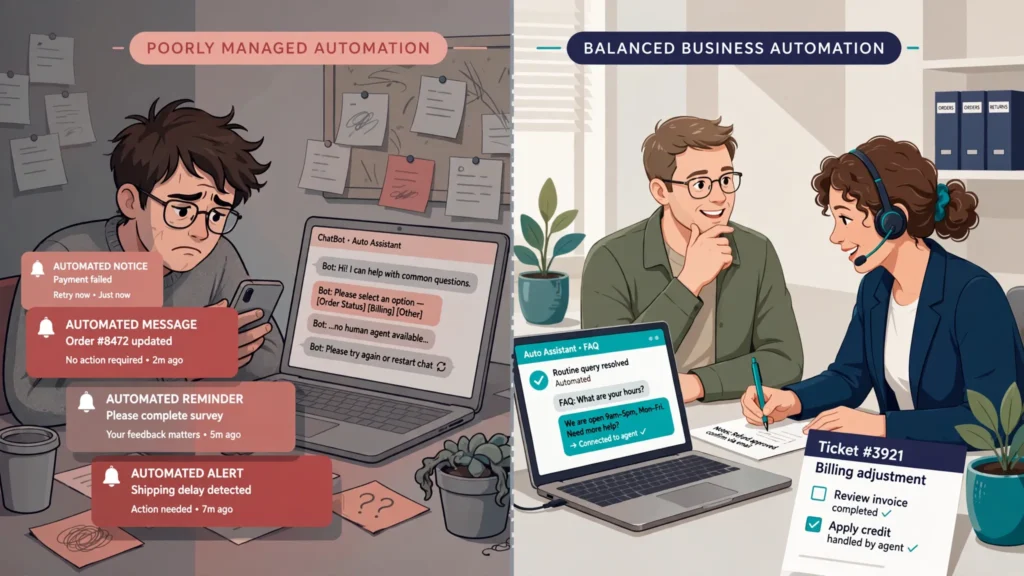
Automation isn’t automatically an improvement. A poorly configured workflow can send incorrect emails, create duplicate customer records, or make it harder for customers to reach a real person.
Focus on processes with clear rules and predictable outcomes. Keep employees involved when a situation requires judgment, personal communication, or problem-solving.
12 Practical Website Automation Ideas for Small Businesses
These ideas cover common processes across service businesses, professional firms, local companies, and online stores. You don’t need to implement all 12. Start with the tasks that create the most administrative work or cause delays for customers.
1. Automate Contact Form Submissions and Lead Collection

Contact forms are one of the easiest places to introduce website automation, particularly if your business regularly receives online inquiries.
Without an automated workflow, someone has to check the inbox, review each submission, copy customer details, and forward the inquiry to the right person. This can delay responses and cause potential leads to be overlooked.
Connecting your forms to a lead management system eliminates several of these manual steps.
A typical workflow works like this:
- A visitor submits a contact form with their name, email address, phone number, and inquiry details.
- Your website securely stores the submission.
- An automatic confirmation email acknowledges receipt of the inquiry.
- The lead information is transferred to your CRM or designated business inbox.
- The appropriate employee or department receives a notification.
Example: A local plumbing company collects service requests through its website. When someone submits a repair inquiry, the system sends a confirmation and forwards the request to the service coordinator.
The coordinator can review the details and arrange the next steps without gathering information from multiple inboxes.
Tools to consider: WPForms, Jotform, HubSpot, Zapier, and Make.
Implementation tip: Only request information your team needs to handle the inquiry. Add spam protection, test email delivery, and make sure submissions reach the correct destination. If your forms collect sensitive information, review how the provider stores and transfers that data.
If your booking system needs custom functionality or integration with existing business applications, professional website development services can help create a more reliable scheduling workflow.
2. Set Up Automated Appointment Scheduling
If your business relies on consultations, service appointments, or scheduled meetings, online booking can eliminate much of the back-and-forth involved in finding an available time.
Instead of asking customers to suggest dates and manually checking your calendar, let them select an available appointment through your website.
A booking system can handle several steps automatically:
- Display available appointment times.
- Send booking confirmations.
- Sync appointments with the business owner’s or employee’s calendar.
- Send email reminders before scheduled appointments.
- Allow customers to reschedule or cancel when appropriate.
Example: A small consulting business offers introductory consultations through its website. Visitors select an available time, enter their contact information, and receive a confirmation email. The appointment also appears on the consultant’s connected calendar.
Customers can schedule meetings outside normal business hours without waiting for someone to respond to an email or phone call.
Tools to consider: Calendly, SimplyBook.me, and compatible WordPress booking plugins.
Implementation tip: Configure appointment durations, working hours, time zones, buffer periods, and cancellation rules before publishing your calendar. If you require deposits or advance payments, verify that the booking platform supports your payment provider.
3. Add an Automated Chatbot for Customer Questions
Many website visitors need straightforward information. They may want to check business hours, ask about service availability, understand pricing, review delivery policies, or find the right contact information.
A chatbot can handle common questions without requiring an employee to monitor the website throughout the day.
Depending on its capabilities and configuration, a chatbot can:
- Answer frequently asked questions using approved business information.
- Direct visitors to relevant product or service pages.
- Explain basic booking, shipping, and return procedures.
- Collect contact details when someone needs additional assistance.
- Route complex inquiries to a human support representative.
Example: A small digital marketing agency adds a chatbot to its website. When visitors ask about available services, the chatbot shares relevant information and directs them to the appropriate service page. Those who need a customized proposal can submit their contact details for follow-up.
Tools to consider: Tidio, HubSpot, and other chatbot platforms that integrate with your website.
Businesses that need more advanced conversational support can explore AI customer support automation to manage routine inquiries, organize conversations, and route complex requests to human representatives.
When should a chatbot involve a human?
Questions about custom pricing, complaints, sensitive personal information, unusual service requirements, and complicated technical problems often require human judgment.
Give visitors a clear way to contact a real person. A chatbot should make support easier to access, not create another barrier between your business and its customers.
Implementation tip: Start with a small collection of common questions and approved answers. Review chatbot conversations regularly to identify inaccurate responses and questions your team should handle directly.
4. Automate Welcome Emails and Follow-Up Sequences
Email automation helps small businesses stay in touch with subscribers, leads, and customers without manually sending every message.
For example, when someone subscribes to your newsletter, you can automatically send a welcome email introducing your business, explaining what subscribers can expect, and sharing useful resources.
Follow-up emails can also be scheduled based on specific subscriber actions.
A basic welcome sequence might look like this:
- A visitor subscribes through your website.
- Your email marketing platform records the subscription and relevant consent details.
- An automatic welcome email is sent.
- A few days later, the subscriber receives another message containing useful information.
- Additional emails introduce relevant services, products, or offers when appropriate.
Example: A small web design agency offers a free website planning checklist. After downloading it, subscribers receive a welcome email containing the resource, followed by educational emails about website design, performance, and maintenance.
Tools to consider: Mailchimp, Brevo, and HubSpot.
Important: Follow applicable email marketing requirements. In the United States, commercial emails must comply with the CAN-SPAM Act. Requirements include accurate sender information, appropriate subject lines, a valid physical postal address, and a working opt-out mechanism. Unsubscribe requests must be honored within the legally required timeframe.
Don’t automatically add every contact form submission to a promotional mailing list. Collect marketing consent where required, and distinguish service-related notifications from promotional campaigns.
5. Recover Abandoned Shopping Carts Automatically
Online shoppers sometimes add products to their carts but leave before completing checkout. They may get distracted, compare prices, encounter unexpected shipping costs, or decide to purchase later.
Abandoned cart automation gives e-commerce businesses an opportunity to reconnect with eligible shoppers and encourage them to complete their purchases.
A typical workflow looks like this:
- A customer adds products to their shopping cart.
- The customer begins checkout or reaches another supported tracking point.
- The shopping session remains incomplete.
- The e-commerce platform identifies an eligible abandoned cart.
- An automated reminder is sent through a supported communication channel.
The reminder can include product names, images, relevant details, and a link that takes the customer back to checkout.
Example: A small online clothing store uses WooCommerce with an abandoned cart extension. When a shopper adds two products but leaves without completing the purchase, the system can send a reminder if the shopper’s contact information and tracking data are available.
Tools to consider: WooCommerce abandoned cart extensions, Shopify’s available marketing automation features, and compatible email marketing integrations.
For businesses that want to automate more than basic email sequences, AI workflow development can connect customer data, communication tools, and follow-up processes into a coordinated system.
Implementation tip: Not every abandoned cart belongs to an identifiable customer. Some shoppers check out as guests, while others leave before providing contact information. Recovery depends on the platform, tracking configuration, customer identification, and applicable privacy requirements.
Keep reminders limited and relevant. Repeated messages can frustrate shoppers who have already decided not to purchase.
6. Automate Order Confirmations and Customer Notifications
After placing an online order, customers want to know whether their payment was received, whether the order is being processed, and when their package is expected to arrive.
Manually managing these updates becomes difficult as order volume grows. An e-commerce platform can send notifications automatically when an order reaches a specific status.
Common notifications include:
- Order confirmations after a successful order submission.
- Payment confirmations when supported by the payment integration.
- Order processing updates.
- Shipping confirmations with tracking information.
- Order cancellation and refund notifications.
Example: A small WooCommerce store sells home accessories. When a customer places an order, WooCommerce triggers the appropriate order notification. Once a compatible shipping integration marks the order as shipped, the customer receives another message with tracking information.
Tools to consider: WooCommerce email notifications, compatible shipping extensions, Shopify order notifications, and transactional email services.
Implementation tip: Test the entire purchasing process before enabling customer notifications. Verify order statuses, payment details, email templates, and tracking links to ensure each message contains accurate information.
Email delivery also deserves attention on WordPress and WooCommerce websites. Hosting restrictions, server configuration, or incorrect mail settings can prevent website-generated emails from reaching customers. A properly configured SMTP service or transactional email provider can help improve delivery reliability.
If order emails, checkout notifications, or WooCommerce integrations aren’t working correctly, technical assistance may be necessary. See our guide on fixing WooCommerce checkout problems or explore website bug fixing services.
For setup instructions, consult the WooCommerce email settings documentation.
7. Connect Your Website to a CRM System
A customer relationship management (CRM) system helps businesses organize leads, customer details, communication history, and sales opportunities.
When your website operates separately from your CRM, employees may have to copy information between applications. This creates extra work and increases the risk of missed inquiries, duplicate records, and inconsistent customer details.
A website-to-CRM integration can move information automatically when a visitor submits a form or takes another relevant action.
Choosing the right CRM is equally important. Explore our guide to the best CRM software for 2026 to compare platforms and identify a suitable solution for your business.
Depending on the integration, you can:
- Transfer contact form submissions into your CRM.
- Create new lead records automatically.
- Update existing customer information when appropriate.
- Assign inquiries to the right team member.
- Record important interactions and follow-up activities.
- Notify employees when a new sales opportunity arrives.
Example: A commercial cleaning company receives quote requests through its website. Each submission is automatically added to the CRM with the customer’s contact details and service requirements. The sales team can review the request and manage follow-up from one place.
Tools to consider: HubSpot CRM, Zoho CRM, and integrations through Zapier or Make.
Implementation tip: Decide which application will serve as the primary source of customer information before connecting multiple systems. Map form fields correctly, prevent duplicate records where possible, and limit access to customer data based on employee responsibilities.
CRM integration is especially useful when several employees manage leads or inquiries arrive through multiple channels. If your business receives only a few inquiries each month, a well-organized email workflow may be sufficient.
8. Automate Invoices, Payments, and Payment Reminders
Creating invoices and following up on unpaid bills can take considerable time for freelancers, consultants, and service-based businesses.
Connecting your website, payment gateway, and invoicing software can simplify these tasks by automating several steps in the billing process.
Depending on the integrations you use, you may be able to automate:
- Invoice generation after a customer purchases a service.
- Payment link delivery when an invoice is created.
- Payment confirmations after successful transactions.
- Invoice updates when payments are received.
- Scheduled reminders for outstanding invoices.
Example: A freelance graphic designer sells website design packages through a business website. When a customer books a project and pays a deposit, the payment integration records the transaction and triggers an invoice or payment confirmation. If the remaining balance becomes overdue, the invoicing system can send a reminder.
Tools to consider: Stripe, QuickBooks, FreshBooks, and compatible WooCommerce payment and invoicing extensions.
Implementation tip: Verify payment status through your payment provider rather than relying solely on a browser redirect or customer-facing success message. Configure invoice numbers, tax settings, payment terms, and reminder schedules carefully.
When payment gateways, invoicing applications, and website systems need to exchange information, custom API integration services can help connect these applications and streamline transaction workflows.
For recurring payments and subscriptions, check how the system handles failed payments, cancellations, refunds, and payment disputes. Customers and employees should always be able to distinguish between a completed payment and a transaction that still needs attention.
9. Automate Customer Review and Feedback Requests
Customer feedback helps small businesses understand what customers value and where their products or services need improvement. However, remembering to request feedback after every purchase or completed service can become another administrative task.
You can automate review invitations by connecting your website, order management system, or appointment platform to an email marketing or review management tool.
A typical workflow looks like this:
- A customer completes a purchase or service appointment.
- The system records the completed transaction or appointment.
- An automated message is scheduled for an appropriate time.
- The customer receives a request to share an honest review or provide feedback.
- The business collects and reviews the responses.
Example: A local home cleaning company sends customers a feedback request after a completed appointment. Customers can share their experience through a website form or an appropriate public review platform.
Tools to consider: WooCommerce review-related extensions, email marketing platforms, and customer feedback applications.
Important: Ask customers for honest feedback rather than trying to influence review ratings. Avoid offering incentives in exchange for positive reviews or selectively requesting reviews only from customers you expect to be satisfied. Follow the relevant platform’s review policies and applicable FTC requirements.
Implementation tip: Make it easy for customers to share feedback without sending repeated requests. Review negative responses internally to identify service problems and opportunities for improvement.
Automated feedback collection can also become part of a larger customer communication system through custom AI workflow solutions.
10. Automate Customer Support Requests and Ticket Management
As your business grows, customer inquiries may arrive through contact forms, email, website chat, and other channels. Managing these conversations through a regular inbox can become difficult, particularly when several employees handle support.
A ticket management system brings incoming requests into one organized workflow, helping your team track conversations and identify which issues still need attention.
Website support automation can help you:
- Convert contact form submissions into support tickets.
- Assign tickets automatically based on their category.
- Send acknowledgment emails when requests arrive.
- Notify employees when a ticket needs attention.
- Track ticket status and communication history.
- Send updates when a request is resolved.
Example: A small software company receives technical support requests through its website. When a customer reports an issue, the system creates a ticket and assigns it to the appropriate support category. The customer receives an acknowledgment containing a reference number.
The support team can review and resolve the issue without losing track of it among unrelated emails.
Tools to consider: HubSpot Service Hub, Tidio, and other customer support platforms with website integrations.
For businesses handling larger support volumes, AI-powered customer support solutions can help organize incoming requests, automate routine responses, and improve support workflows.
Implementation tip: Create clear ticket categories and assignment rules. Set realistic response expectations, and make sure urgent or sensitive requests can reach a human support representative.
For very small businesses, a shared inbox and organized contact form notifications may be sufficient. A dedicated ticketing system becomes more useful as inquiry volume, team size, or support complexity increases.
11. Automate Website Content and Social Media Publishing
Publishing blog articles and sharing business updates consistently can be challenging when you’re also managing daily operations. Content scheduling tools let you prepare posts in advance and publish them according to a planned schedule.
Depending on your website and connected platforms, you can automate:
- Scheduling WordPress blog posts for future publication.
- Sharing selected blog articles on connected social media accounts.
- Sending notifications when new content goes live.
- Maintaining a publishing calendar for marketing activities.
- Distributing approved content across supported channels.
Example: A small accounting firm prepares several educational articles before tax season. WordPress schedules the articles for publication, while a connected social media management platform schedules selected posts to promote them.
This approach helps the firm maintain a consistent publishing schedule without manually handling every update on publication day.
Tools to consider: WordPress scheduling features, Buffer, and compatible social media management platforms.
Implementation tip: Keep a human review process before publication. Check factual accuracy, links, formatting, images, and whether the content is still relevant on its scheduled date.
If you want to automate WordPress content publishing, featured images, and repetitive editorial tasks, explore our guides on reliable WordPress content automation with n8n and automating WordPress featured images.
Automation can handle distribution, but editorial judgment still matters. Publishing unreviewed AI-generated articles or repeatedly sharing identical content can hurt content quality and audience trust.
12. Automate Website Analytics and Performance Reports
Website analytics help small businesses understand how visitors find and use their websites. Collecting data and preparing reports manually, however, can take time away from analyzing what the numbers actually mean.
Automated reporting can organize important website activity into scheduled reports and dashboards, making performance easier to review.
Depending on your analytics setup, you can monitor:
- Website traffic and visitor acquisition channels.
- Landing page performance.
- Contact form submissions and lead generation.
- Product views and e-commerce activity.
- Important conversion events.
- Changes in engagement and website performance.
Example: A small online retailer uses Google Analytics 4 to monitor product page activity and important e-commerce events. The marketing manager reviews scheduled reports to understand which traffic sources and landing pages contribute to customer activity.
Tools to consider: Google Analytics 4, Google Looker Studio, and compatible reporting integrations.
Implementation tip: Configure meaningful events before relying on automated reports. Tracking a successful form submission, for example, provides more useful lead-generation information than simply counting visits to the contact page.
Website performance also affects how effectively your automated workflows operate. Learn about Core Web Vitals for business websites and explore website speed optimization services to improve your website’s overall performance.
Review your analytics implementation to ensure it follows applicable privacy requirements and your consent configuration. Avoid collecting unnecessary personal information through analytics events.
For technical setup instructions, consult the official Google Analytics 4 documentation.
Best Website Automation Tools for Small Businesses
The right automation tools depend on your website platform, existing software, budget, and the processes you want to improve. You don’t need a separate application for every task. Your current website platform may already include some of the features you need.
Here are several popular tools and platforms worth considering:
| Automation Category | Example Tools | What They Help Automate |
|---|---|---|
| Website Forms | WPForms, Jotform | Form submissions, notifications, and lead collection. |
| Appointment Booking | Calendly, SimplyBook.me | Online scheduling, confirmations, and reminders. |
| Chatbots | Tidio, HubSpot | Frequently asked questions and initial customer interactions. |
| Email Marketing | Mailchimp, Brevo | Welcome emails, subscriber communication, and follow-up sequences. |
| CRM | HubSpot, Zoho CRM | Lead management, customer records, and follow-up activities. |
| Workflow Integration | Zapier, Make | Connecting applications and automating tasks across platforms. |
| E-commerce | WooCommerce extensions, Shopify automation features | Order notifications, cart recovery, and customer communication. |
| Analytics | Google Analytics 4, Looker Studio | Website activity tracking and performance reporting. |
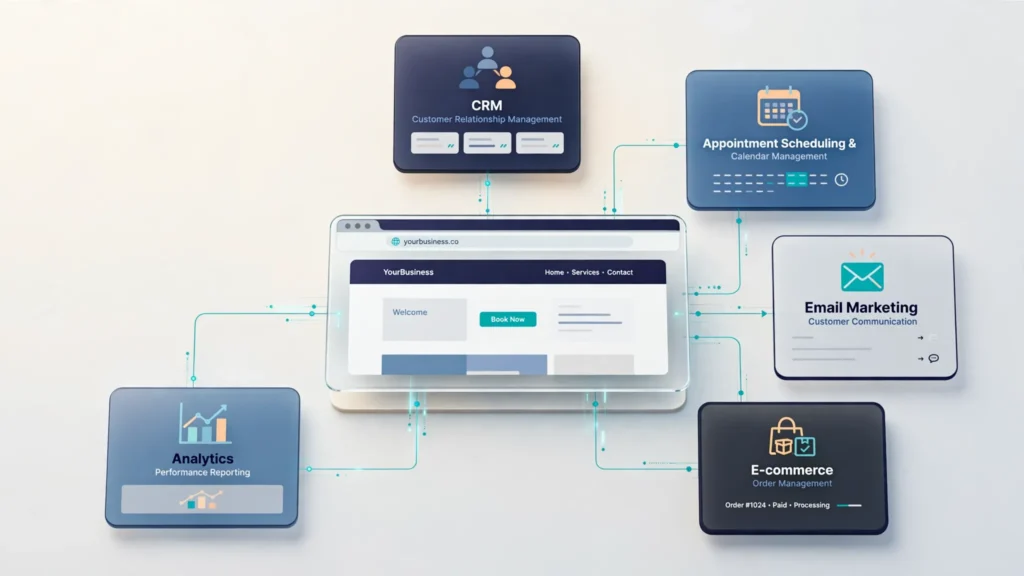
Workflow platforms such as Zapier and Make are useful when different business applications need to exchange information. Businesses considering more flexible automation options can also explore Bit Flows vs. Uncanny Automator vs. n8n to understand the available WordPress automation approaches.
How to Choose the Right Automation Tools
Before purchasing a subscription or installing another WordPress plugin, consider these factors:
- Website compatibility: Check whether the tool supports your website platform, including your WordPress or WooCommerce version where applicable.
- Integration options: Confirm that it connects with the applications your business already uses.
- Total cost: Compare free plans, subscription limits, transaction fees, and additional integration costs.
- Ease of use: Choose software your team can configure and manage without unnecessary technical complexity.
- Security and privacy: Review data handling practices, access permissions, authentication options, and available security documentation.
- Room to grow: Consider whether the platform can support your expected needs as your operations expand.
For WordPress websites, check built-in functionality and existing plugin capabilities before installing another integration. Multiple plugins performing overlapping tasks can increase maintenance work and introduce compatibility problems.
Workflow platforms such as Zapier and Make are useful when different business applications need to exchange information. Businesses with more technical resources may also consider self-hosted automation platforms such as n8n, provided they can manage hosting, updates, credentials, and security.
How to Get Started With Website Automation
Before connecting applications or installing new plugins, review how your business currently handles routine website tasks. You don’t need to automate everything at once. Start with a focused workflow, test it, and expand as you identify other opportunities.
Step 1: Identify Repetitive Business Tasks
Review the activities you and your employees perform regularly. Look for repetitive data entry, routine email responses, appointment coordination, order updates, and information transfers between applications.
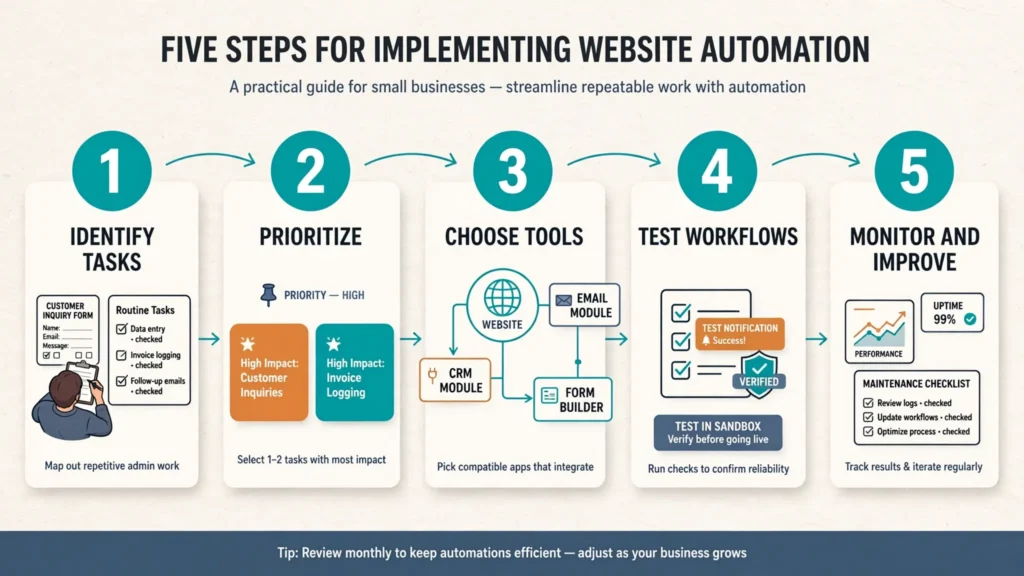
Document how each task works, who handles it, and what information is required.
For example, if employees manually forward every website inquiry to a sales representative, automatically routing submissions could eliminate an unnecessary step.
Step 2: Start With One or Two High-Impact Automations
Choose workflows that address a genuine operational problem.
For a service-based business, automated contact form notifications and appointment scheduling may be useful starting points. An online store might get more value from order notifications and abandoned cart recovery.
Keep the initial setup manageable so you can understand, test, and maintain it without disrupting daily operations.
Step 3: Choose Tools That Integrate With Your Existing Website
Check whether your website platform already supports the functionality you need, either directly or through an established integration.
WordPress users, for example, can explore compatible plugins, while WooCommerce store owners can use its order management features and available extensions.
Before installing a tool, review its compatibility, support availability, pricing, update history, and required permissions.
Step 4: Test Workflows Before Making Them Live
A workflow may appear correctly configured but still fail when its triggers, conditions, or integrations don’t behave as expected. Test realistic scenarios before allowing it to handle actual customer activity.
Check that:
- The automation starts when the correct event occurs.
- Customer information reaches the intended application.
- Emails and notifications are delivered correctly.
- Duplicate actions are prevented where necessary.
- Failed integrations generate useful error notifications.
- Customers can still reach a human when needed.
For payment-related workflows, use your payment provider’s test environment or sandbox whenever available. Avoid experimenting with live customer transactions.
Step 5: Monitor Results and Improve Over Time
Once an automation is running, check whether it delivers the intended results.
For example, monitor how many inquiries reach your CRM successfully, whether booking reminders are delivered, and whether order notifications reflect the correct status.
Watch for integration failures, customer complaints, duplicate records, and unexpected messages. These issues can reveal problems that weren’t obvious during initial testing.
Connected services change, software updates can affect integrations, and business processes evolve. Review your workflows periodically to keep them accurate, secure, and reliable.
Common Website Automation Mistakes Small Businesses Should Avoid
A well-designed workflow can simplify daily operations, but poor planning can create new problems. Keep these common mistakes in mind when setting up website automation.
1. Automating Processes That Don’t Need Automation
Not every business activity benefits from an automated workflow. If a task happens occasionally or requires substantial personal judgment, automation may add more complexity than value.
Focus on frequent, predictable tasks with clear rules and outcomes.
2. Choosing Too Many Automation Tools
Using several applications for similar purposes can increase subscription costs, duplicate features, and make troubleshooting harder.
Review your existing software before adding another tool. Whenever possible, keep related workflows within a manageable set of applications.
3. Ignoring Customer Privacy and Data Protection
Website automation often involves personal information, including customer names, email addresses, phone numbers, and purchase details.
Choose reputable service providers, collect only the information you need, protect account credentials, and understand how data moves between connected applications.
For additional protection, consider a professional website security audit to identify potential vulnerabilities, review website security configurations, and improve the protection of business data.
Consider applicable privacy laws, email marketing requirements, payment security obligations, and data retention practices before activating a workflow.
4. Sending Too Many Automated Emails
Customers don’t need a separate email for every minor activity. Excessive notifications can frustrate subscribers and increase the likelihood of spam complaints.
Decide which messages are necessary, distinguish transactional notifications from marketing emails, and respect customer communication preferences.
5. Failing to Test Automated Workflows
Even a simple automation can fail when it encounters unexpected input, missing information, expired credentials, or a temporary service outage.
Test normal and unusual scenarios, review integration logs, and establish a process for handling failures. Don’t assume a workflow is reliable simply because it worked during initial setup.
6. Removing Human Interaction Where It’s Needed
Automation works well for predictable tasks, but customer complaints, complex questions, sensitive situations, and important business decisions often require a real person.
Provide a clear escalation path so customers can reach someone who can understand and resolve their issue.
7. Neglecting Ongoing Maintenance
Plugins, APIs, hosting environments, and third-party applications receive updates that can affect existing integrations or introduce new configuration requirements.
Keep your website and connected applications updated, review security settings, monitor workflow failures, and remove integrations you no longer use.
Frequently Asked Questions About Website Automation
1. What website tasks can small businesses automate?
Small businesses can automate contact form submissions, appointment scheduling, customer emails, abandoned cart reminders, order notifications, CRM updates, invoice generation, payment reminders, review requests, customer support tickets, content publishing, and website analytics reports.
The best candidates are repetitive tasks with predictable steps and clear business outcomes.
2. Is website automation expensive?
Not necessarily. Many website platforms and business applications include basic automation features, while some third-party tools offer free plans with limited functionality.
More advanced workflows may require paid subscriptions, premium plugins, integration services, or professional development. Compare the total cost of software, implementation, and ongoing maintenance before choosing a solution.
3. Do I need coding skills to automate my website?
No. Many website automation tools provide visual interfaces, prebuilt integrations, and drag-and-drop workflow builders.
More complex setups involving custom APIs, conditional logic, databases, or specialized WordPress functionality may require development knowledge.
4. Which website automation should a small business implement first?
Start with the process that consumes the most time or causes the most frequent operational problems.
For service-based businesses, automated contact form notifications and appointment scheduling are practical starting points. E-commerce businesses may get more immediate value from order notifications and customer follow-ups.
Implement one workflow, test it thoroughly, and expand after confirming that it works reliably.
5. Can WordPress websites be automated?
Yes. WordPress supports website automation through plugins, built-in scheduling features, APIs, and third-party integrations.
For example, businesses can automate form submissions using WPForms, transfer customer information to a CRM, schedule WordPress posts, and extend WooCommerce with order management and email automation features.
For more complex workflows, WordPress can connect with external platforms such as Zapier, Make, and n8n.
Check plugin compatibility, hosting requirements, security, and ongoing maintenance before implementing an integration.
6. Is website automation suitable for local businesses?
Absolutely. Local businesses can automate appointment bookings, service inquiries, customer reminders, quote requests, and feedback collection.
For example, a local salon can automate appointment confirmations and reminders, while a home repair company can route incoming service requests directly to its team.
These workflows help local businesses manage routine communication without manually handling every interaction.
Conclusion: Start Saving Time With Website Automation
Website automation gives small businesses a practical way to reduce repetitive administrative work, organize customer information, and manage routine communication.
From contact forms and appointment scheduling to e-commerce notifications and CRM integrations, the right workflows can make everyday website operations easier to manage.
Success isn’t about how many tools you install. It’s about identifying processes that need improvement, configuring them correctly, and keeping them reliable as your business changes.
Start with one or two tasks that regularly interrupt your workday. Once those workflows are working properly, expand your setup based on what your business actually needs.
Need Help Automating Your Business Website?
If your website involves repetitive manual work, disconnected applications, or complicated customer workflows, a well-planned automation setup can simplify those processes.
Whether you need WordPress integrations, WooCommerce automation, CRM connectivity, or AI-powered business workflows, start by understanding how your current systems work and where automation can help.
Explore professional website development and AI automation solutions to build a website that supports your business operations more effectively.
Discuss Your Website Automation Project